Level 10. Practical Aspects of Web Testing

Applications and Plugins for Web Testing
Preparing for testing. Before you can start testing, you need certain tools, like any professional in their field. A builder shows up at a construction site with his own tools, and a tester approaches testing the same way. Install all of these programs and plugins to arm yourself before the big WEB testing. Later I'll show you how to use them.
Install the program and try to figure it out. It is similar to the Network tab in the Chrome inspector, but has many more features. For example, you can throttle your internet speed.
Shows the load time of a web page
- Fire Bug for Firefox
Since the standard Firefox inspector is quite limited, testers use an inspector add-on, FireBug. The principle is the same as in the web inspector.
A great tool that checks all the links on a site for you
- MeasureIT for FF
A handy add-on, too bad it's only for Firefox. It lets you measure the exact size of a component in pixels. It's essential for checking that real sizes match the mockups.
You can find other small applications useful to a tester in this list.
How to use the web inspector
Testing Web Applications
A few theses on testing Web applications:
When testing Web applications, you need to test:
- Standard functionality
- Configuration and compatibility
- Cross-browser support of the functionality
- Run all the other types of tests
Testing Web applications is complicated by the distributed components of the system that interact with the application (client, server, network)
Errors (or symptoms of suspected errors) can be fixed by fixing the code or by reconfiguring the system (client, server, or network)
Web Standards Checklist

Hello, my friend. As you know, professional experience can only be gained through excellent practice. And that is exactly what we'll do today. This whole level is devoted to WEB testing practice. It's going to be fun! To start, here are the two sites we will be testing:
http://gorod.dp.ua/ a site from the web
http://www.qaacademy.net/ and our own site

Once again you will face the Web standards checklist.
To do this assignment, copy this spreadsheet to your Google Drive.
Then go through the checklist for both sites, performing all the tests according to the guide in this level. You'll be able to submit the assignment at the end of the level.

1. Code quality
Are the (X)HTML code and CSS style sheets of the site's pages valid?
- A browser will render valid code faster and better than invalid code
- Errors in the HTML code and the CSS page will lead to a distorted display of the document on screen
See http://validator.w3.org/ (page validation)
2. Is the page code well structured?
- Semantically correct markup means using HTML elements for their intended purpose
- A well-structured HTML document is handled well by browsers without style sheet support, text browsers, handheld devices, search robots, and so on
See https://seositecheckup.com/ (checking the page structure)
3. Are there any "broken" links on the site?
- "Broken" links frustrate users and can potentially drive your customers away from your site.
- "Broken" links can also affect how search robots index your site
It's best to recheck broken links manually, to make sure it's not bot protection, or that the link doesn't require authorization.
See http://validator.w3.org/checklink (link checking)
4. How does the site do on page load speed?
- "Don't make me wait..." That is the thought users express in every study. Even users with a broadband connection get tired of slow loading. According to statistics, users start leaving a page after just 5 seconds of waiting.
To do this, you need to install the Chrome/FF app - page speed monitor and measure the load time with it
5. Does the browser report any JavaScript errors while working with the page?
- Any browser lets you turn on a debugger that prints errors to the console whenever failures or exceptions in JavaScript are detected on the page. Open the web inspector, go to the Console tab, surf around the site, and check whether any errors pop up. Web bugs often throw console errors, and from them a programmer, or you, can figure out the cause of the bug. A console error always goes into the bug report.

Did you get what this is about? Not hard, is it? Then we can move on. Great work, tester!
6. Availability of hidden pages to users.
Your task is to check the availability of the site's protected pages
a) For a registered user
b) For a user without registration
c) Clear the cookies and check that access is denied
7. Is the "alt" attribute used on all meaningful images?
- Every non-text element must be accompanied by a text description. You can see an image's caption by hovering the mouse over it. Checking up to 5 images is enough.
See also http://www.w3.org/TR/WCAG10/wai-pageauth.html#tech-text-equivalent
8. Does the site use relative units instead of fixed ones for fonts?
- In the code and in CSS style sheets, relative rather than absolute units must be used to specify element sizes. You can read about fixed and relative font values in this article.
See also http://www.w3.org/TR/WCAG10/wai-pageauth.html#tech-relative-units
http://www.webmascon.com/topics/coding/47a.asp
9. Does the page layout change in any way when the zoom level is increased?
- A Web site's layout must stay unchanged in any browser at any font size increase
- When zooming in or out, all components must scale proportionally, all links must remain accessible, and buttons must stay active
10. Are the colors on the site's pages contrasting and bright enough?
- The difference between the background color and the text color must be contrasting enough not to make reading difficult
- Do not use colors that sit too close to each other on the color wheel (ideally, a distance of ¼ of the circle)
- Browsing the site shouldn't make your eyes bleed, or at the very least the color scheme shouldn't cause psychological discomfort.
11. Is color the only thing used to highlight critical information?
- All important information highlighted with color must also stand out when color is absent, for example through context or logical markup elements
(An outdated test, do it at your discretion)
Device accessibility
12. Does the site work well in both modern and older browsers?
- Decide which browsers you are going to support and to what extent. Not all browsers support technologies, markup, and so on equally well. Internet Explorer, for example, is the bane of every developer. Our site, for instance, does not support IE 10 and older, Safari 7.0 and older, Opera, or Firefox and Chrome older than roughly version 20. In those browsers you can run into wild, untamed bugs, so be careful. Run a test in one of them to see it for yourself.

13. Can the site's content be used with CSS turned off, or in a browser with no CSS support?
- Some people may use the application with a browser that does not support CSS, or with CSS support turned off. If the pages are properly structured, such visitors will have no problems working with them.
14. Does the site look correct when printed?
- A print style can be attached to any (X)HTML document without touching the document's own markup. Check how the site looks when printed: to do this, it is enough to save the page as a PDF document in the print dialog and view it.
15. Does the site work on mobile devices?
- At present there is no uniformity in how handheld devices support Web pages. However, some page layout solutions are supported on handhelds better than others. Handheld support depends on your site's target audience. Check the site in Chrome's mobile mode and in a smartphone browser
16. Is the site equipped with a detailed set of metadata?
- Metadata is data about data: catalogs, directories, registries, and metadata databases that contain information about the composition, content, status, origin, location, quality, and so on of the data. Metadata is sometimes seen as a variation of the long-established practice of library cataloging, but that's not quite right. It is rather information for internet robots, search engines, and other site classifiers.
Check for metadata here:
See http://www.seocentro.com/tools/search-engines/metatag-analyzer.html
17. Does the site work in windows of different sizes?
A very important check. You need to make sure the site's layout displays everything correctly when the browser window is made smaller (simply zoom out, then shrink the window and refresh). Also when the window is enlarged on a big monitor, and when the window has scrolling.


Web Usability Basics
18. Does the page have a clear visual hierarchy of elements?
- Important information must be emphasized through size, spacing, and logical relationships.
19. Is it easy to tell one heading level from another?
- Use headings to reveal the structure of documents, and use them in accordance with the specification.
See http://www.w3.org/TR/WCAG10/wai-pageauth.html#tech-logical-headings
20. Is the site's navigation easy enough to understand?
- Your site's navigation should tell the visitor which page of the site they are on now and where they can go next.
21. Is the navigation consistent across all pages of the site?
- If the navigation on every page of your site follows the same style, visitors will find the site easier to use and will find the information they need faster.
22. Does the site use acceptable and consistent language in its texts?
- Clear, simple language in your content lets you communicate effectively with the visitor. Don't forget that your site may be read by users for whom your language is not their native one.
23. Does the site have a sitemap and a contact information page? Are they easy to find?
- Most sitemaps fail to convey the multi-level structure of a site's architecture. In usability tests, users often ignore the sitemap or simply cannot find it. The complexity of a sitemap is also a problem: a map should be a map, not a navigation puzzle.
24. If your site is very large, does it have a search tool?
- A small site doesn't especially need a search function. There will always be people who never use a site's search. Still, a search function is a good additional navigation tool for visitors.
25. Is there a link to the home page on every page of the site?
- Many users who have burrowed deep into a site want to get back to its home page quickly. The home page is a kind of starting point for such users, where they regroup before diving into new depths of the site.
26. Are links underlined?
- For users to perceive links fully, the link text must be styled in a different color and underlined. Visitors shouldn't have to dart around the page looking for a link.
27. Are links the user has already visited clearly highlighted with a color?
- Most importantly, if visited links are clearly marked, the user won't click on them by accident and won't end up on the same page they've already been to.


I've been thinking... Master, isn't this too much information? My brain is already melting!
Every labor brings its own reward. May the Force be with you, future great tester!
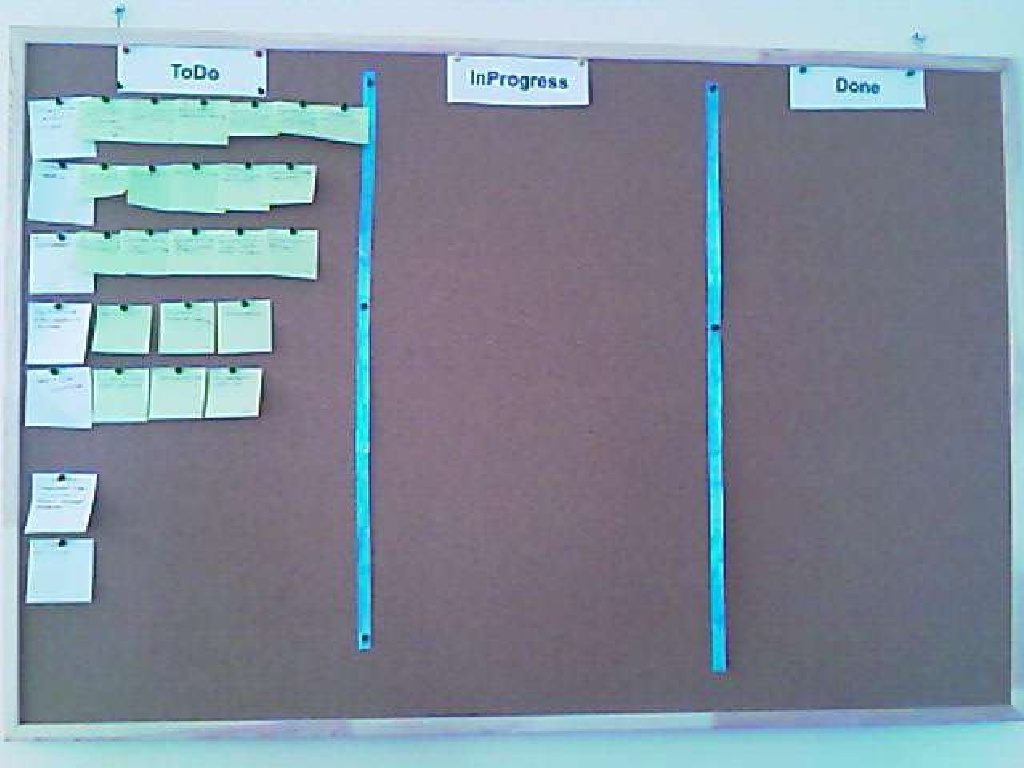
What an Agile board looks like at work. It's very convenient to pin notes with tasks and the people responsible for them to the board.

Site Management
28. Does the site have a clear and useful 404 error page that works from any level of the site?
- How the 404 error (page not found) is handled: the user must know what happened. The visitor shouldn't "fall into nothingness" and must know how to get out of this situation.
29. Does the site use friendly URLs?
- Most search engines (with the exception of, say, Google) will not index pages whose URLs contain the "?" character or any other special character (such as "&" or "=").
- From a user interface standpoint, URLs are the most awful part. Nevertheless, if they are short, logical, and self-correcting (automatically redirecting to the "right" addresses), they become convenient to work with.
30. Self-correcting URLs:
- A browser user may type a URL with a mistake, for example "googel.com" instead of "google.com".
- Organizations often register such "misspelled" domains and redirect them to the "correct" addresses.
- For example, the addresses "example.com" and "example.net" may both redirect to a single domain or web page, "example.org".
31. Can the site be accessed by typing the address without "www"?
- It is always important that a visitor can type your site's name without "www" and still reach it.
32. Does the site have a bookmark icon?
- A missing bookmark icon (favicon), a graphic file with an image in several resolutions, causes 404 errors, because browsers such as IE always request this icon from the server when the user bookmarks a link to the site. If your site has no such icon, a "404 File not found" error lands in the logs. So having this icon will help you significantly reduce the size of the error log.
You're right, Obi-Wan. Our tester has learned it all, and now he can calmly fight the dark side of Web errors!
Whew, that was a heavy topic. You can be proud of yourself: with this knowledge you'll be able to defeat the dark side. And test any WEB application!
Theses on Testing Web Applications
1. When we see an error on the client side, we see a symptom of the error, not the error itself.
For example, while testing a Web application we create a new record and get an error message: Microsoft OLE DB Provider for ODBC Drivers error '8004014'.
Investigation reveals that the problem is that JavaScript is not enabled on the browser side. Enabling JavaScript eliminates the error.
2. Errors can be environment-dependent and may not occur in different environments.
- For example, when trying to log in to a Web application over a GPRS connection at 56.2 Kbps, you get login failures.
- However, a login on the network carried out in the same way, but over a faster connection, will succeed
- So we have an error related to network bandwidth
Recommendations:
Duplicate the exact sequence of actions and the conditions of the environment in which the application will run, according to the requirements set for the application's normal environment.
Error Analysis in the Web Environment
Since it can be hard to determine what caused an error:
- whether it is a code error or the result of a software failure
- a problem in the server-side configuration
- compatibility problems
- problems with the browser configuration, or something else
it is suggested to analyze errors in the Web environment by the method of elimination, i.e. try to rule out the following:
- The Web server's (IIS) virtual directory was not set up properly
- The application directory was not configured properly for scripts to execute correctly
- The default Web page was not set up properly
- (SQL server) the database server is not running (a common case)
- DLL/COM objects are missing or were not registered successfully
- JavaScript settings on the browser side were disabled
Why is it important to understand the cause of an error?
Because nobody likes a false alarm. It often happens that the test server (test bench) was not configured correctly, or crashed, or the database went down. Unlike the production server, nobody keeps a close eye on it, and things often break. Especially given the frequent experiments and reboots. It's important not to shout right away, "Boss, everything's lost!", but to work out the cause of the error, because failures in a test system are not bugs but environment problems, which you take to system administrators, not to programmers.

Main Sources of Errors in the Web Environment

Before reading, understand that here error ≠ bug. In this context, an error is some problem with the test environment that gets in the way of the testing process. It's important to tell configuration problems apart from real bugs in the system. Here is more detail about such errors.
The Web server's (IIS) virtual directory was not set up properly:
- When a virtual directory is not configured correctly, the requested files, scripts, or data will not be found
- Usually, this is a server configuration problem
The application directory was not configured properly for scripts to execute correctly:
- The standard application server directory contains scripts that are executed when the Web server calls them at a client's request
- For security reasons, a Web server can be configured either to allow or to block script execution within individual directories
- And if the application server is built so that it contains scripts meant to be executed, while the Web server is configured to block their execution in that directory, the application will not work
The default Web page was not set up properly:
- The Web server cannot find the default Web page, and the application will not work properly
The SQL server is not running
- The application server requires a connection to a database host located on the SQL server in order to:
- Run queries
- Store procedures
- Access data
If the database server's service process is not running, then obviously the application will not work
DLL/COM objects are missing or were not registered successfully
- For example, the installer failed to copy all the DLL files used by the application server during installation
- If any DLL file required for the application server to work is missing, the application will not work
- If the application tries to access a COM object that was not registered successfully, the application will not work either
JavaScript settings on the browser side were disabled
- If JavaScript settings were disabled, then as soon as the application asks the browser to enable JavaScript, an error occurs
Browser Settings. Finding Errors in Scripts
- When errors occur in JavaScript that runs on the client side, it is sometimes hard to establish exactly where the error occurred. To make error analysis easier, you can use a special script debugger
- To do this, you need to open the error console in the browser (see the tutorial video)
- Then you need to reproduce the error. Look at which exceptions (exceptions and errors) appear in the console. In the line with the error, click the link to the JS code where the error occurred.
- In the window that opens, one of the lines will be highlighted. That is exactly where the error occurred. A screenshot of the error together with the state of the site must be attached to the bug. The line of code where the problem occurred and the full text of the error can also be useful.
Video recording of finding an error in a script

That wonderful feeling when you've carried out all your evil plans
What Browser Settings Affect
In the browser settings you can configure the following:
- Home page: set which page is displayed when the Web browser starts or when the [Home] menu is selected
- Viewing: set the conditions for displaying page content when it is opened (images, animations, JavaScript, Flash, memory saving) If the [Memory saving] parameter is set to [On], the Web page is displayed using less memory. As a result, Web pages containing more data can be displayed, but the image quality will be lower
- Connections: set the method of choosing which connection to use when
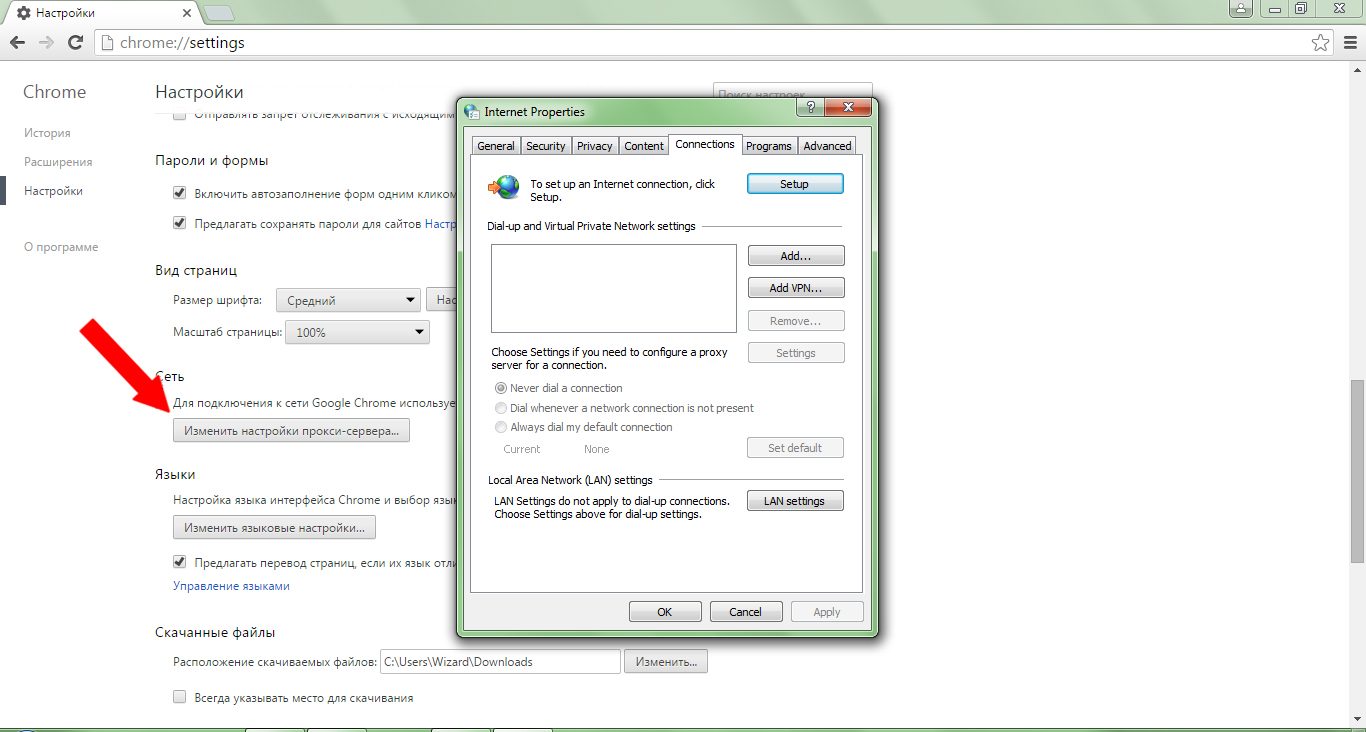
connecting to the Internet - Proxy server: enter the proxy server settings, use or don't use a proxy server
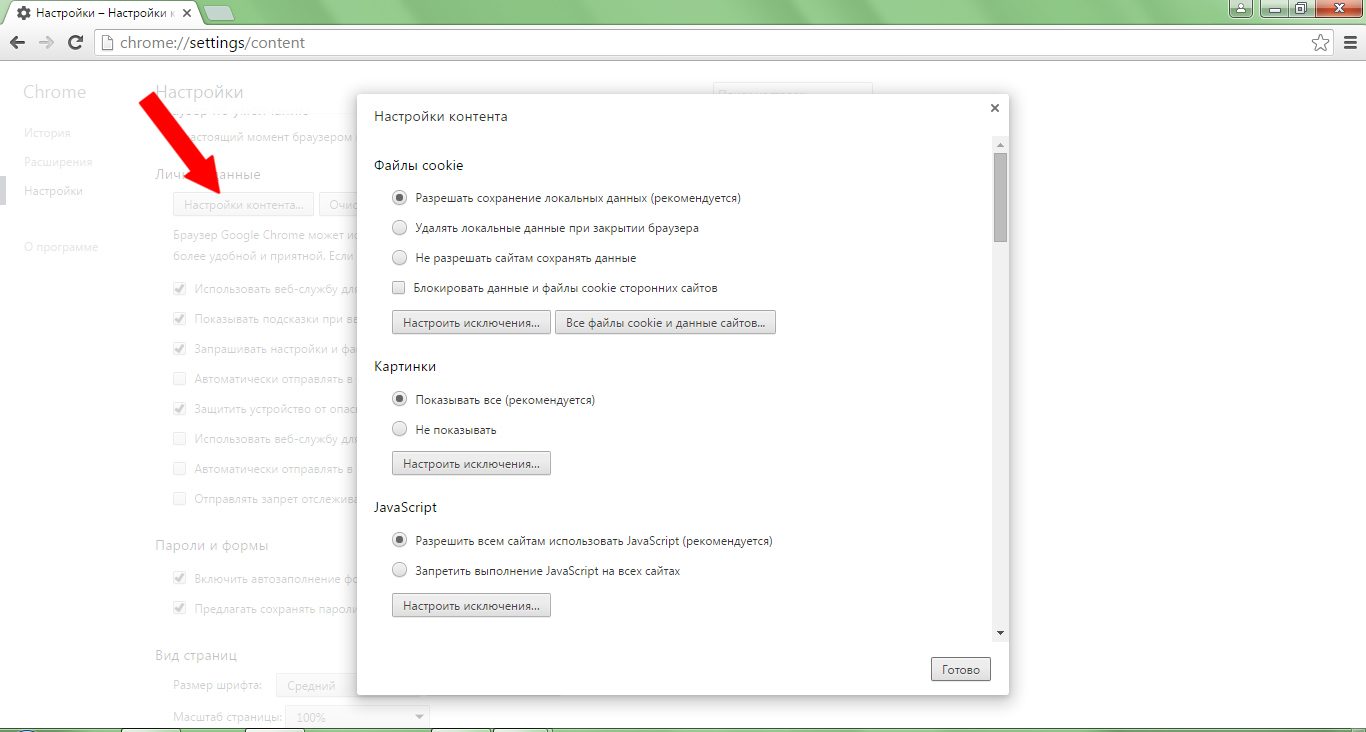
- Cookie: specify how cookie files are handled: all cookies are allowed or blocked, or permission to allow or block is requested each time a cookie is requested
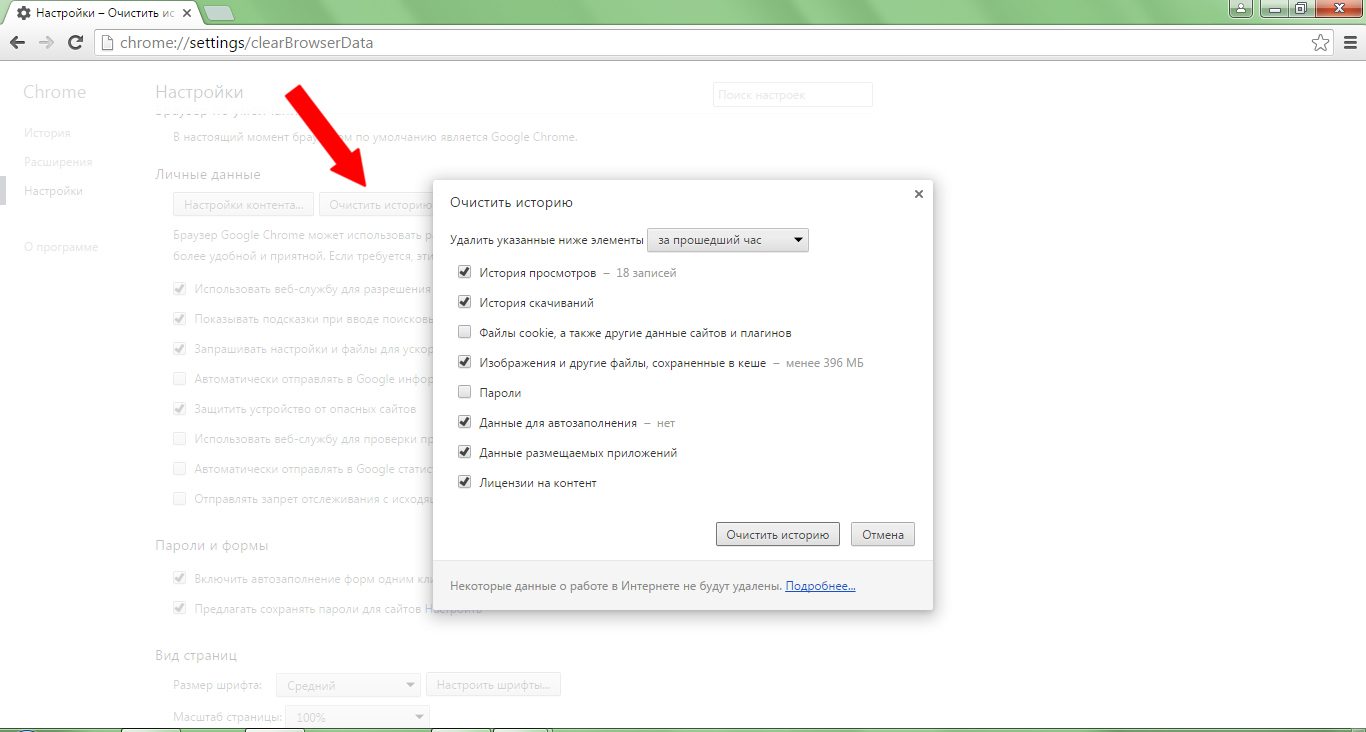
- Temporary files: you can set the memory size for temporary files. If the size is exceeded, the files are deleted automatically
- Disabling the browser's security features
Default Browser Settings
- If the problem is caused by damaged or incompatible settings, or by add-ons of Internet Explorer, it can usually be solved by resetting the Internet Explorer settings
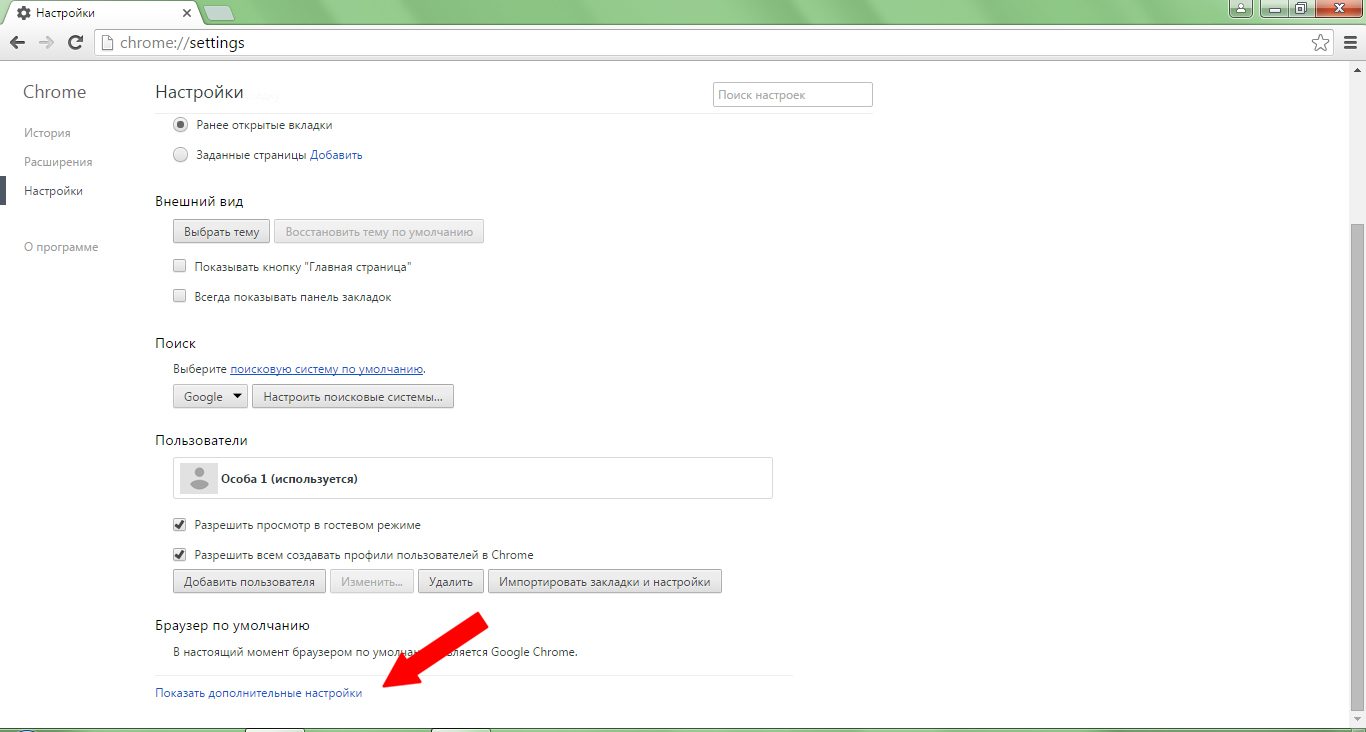
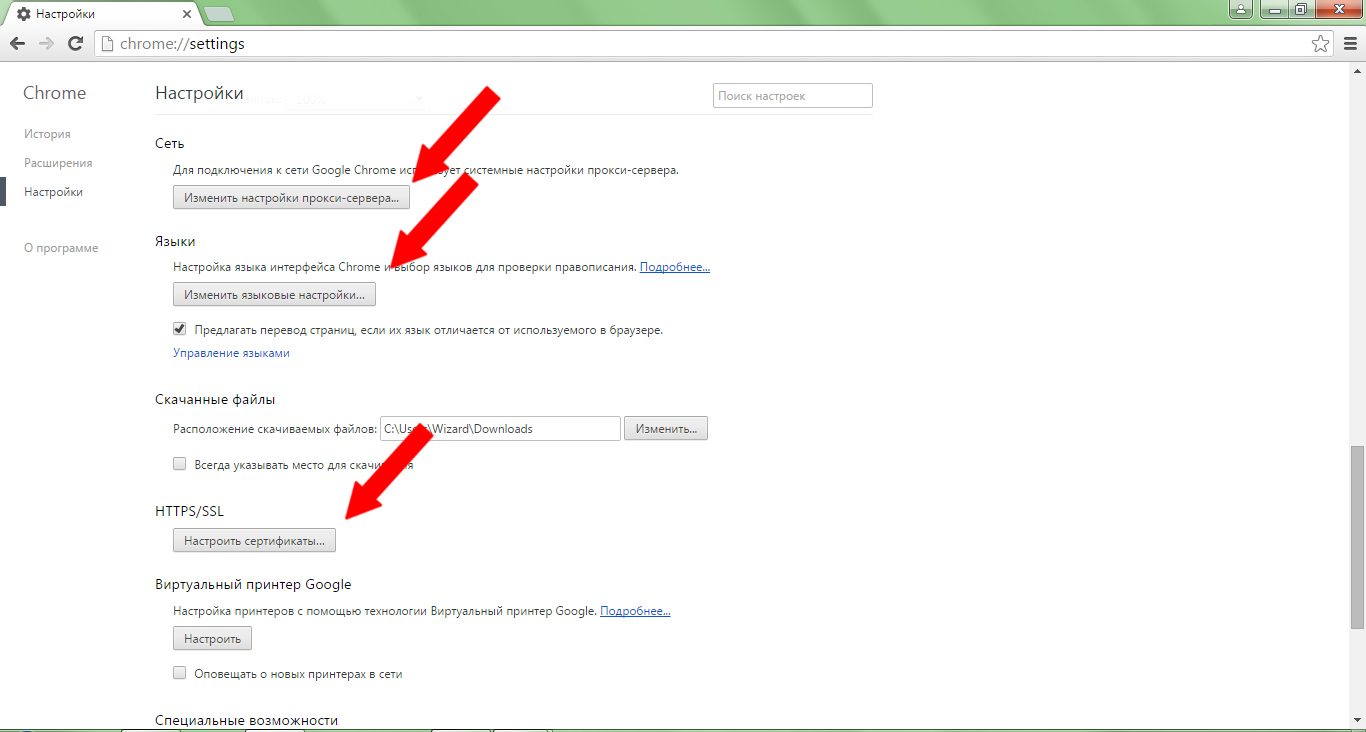
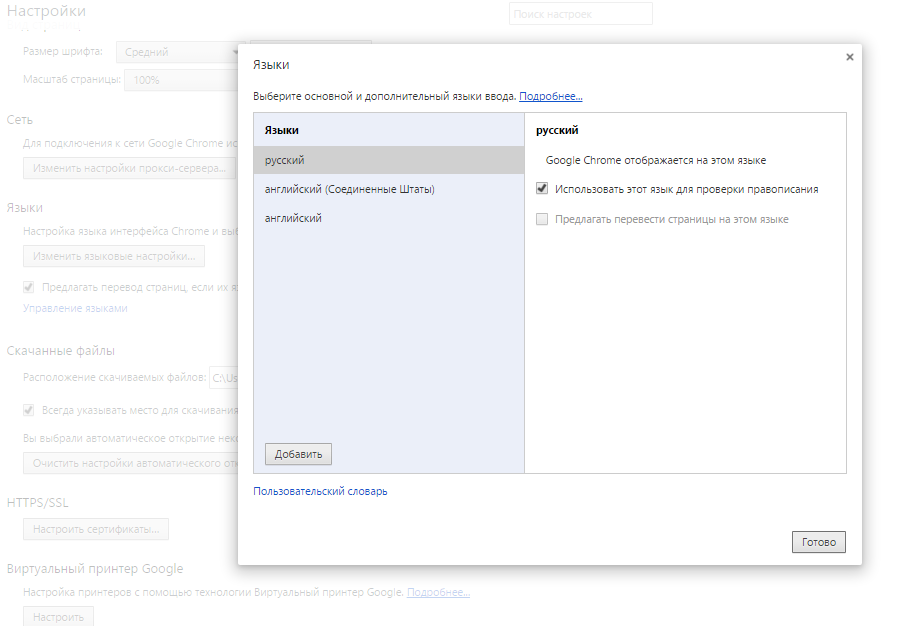
Language switching panel
Caching settings
Content settings
Network settings
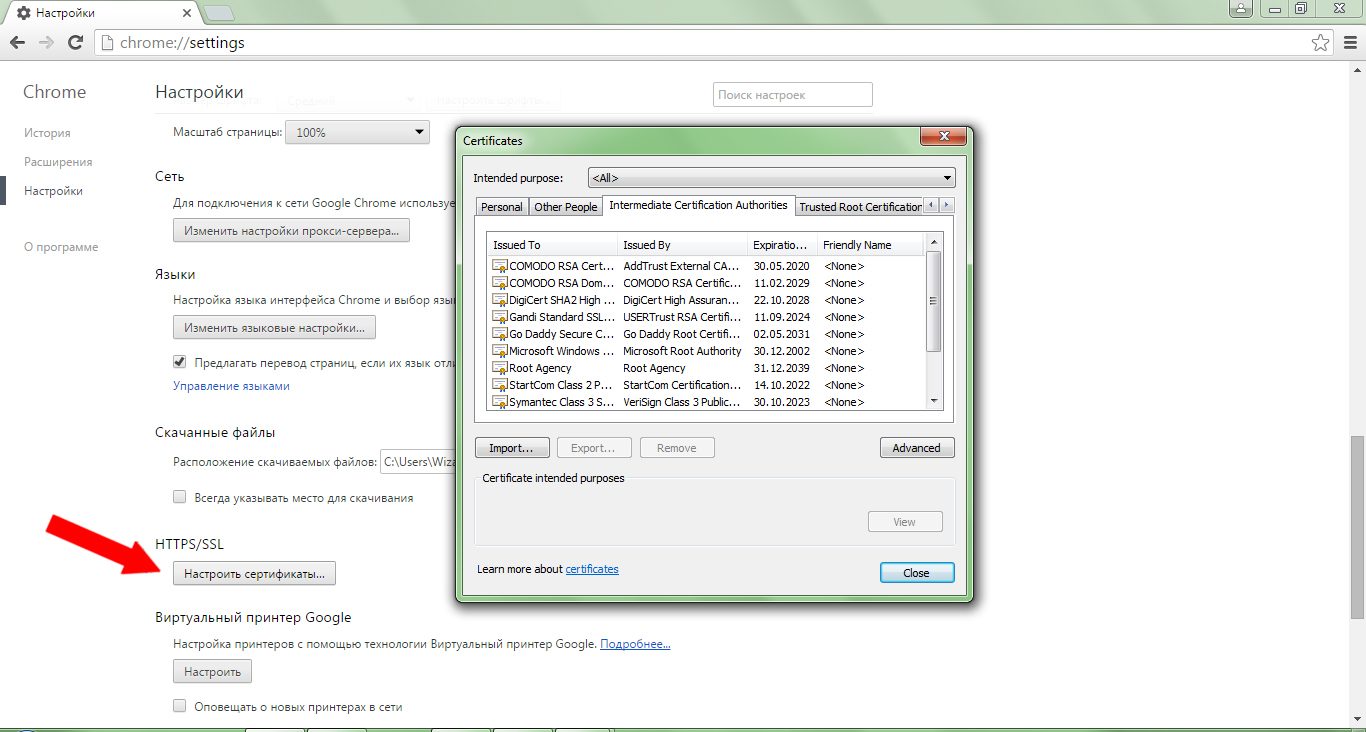
HTTPS/SSL settings
Which settings are removed on a reset (Advanced)
No time to relax, another important topic awaits us ahead.
Overview of Browsers for Testers
Here is a list of the main browsers. Every one of them must be installed by a WEB tester; that's an axiom.
P.S. Versions are updated constantly, and you need to have the latest version of a browser
- Google Chrome 49
- Internet Explorer 11/Edge
- Mozilla Firefox 45
- Safari 9.1 / MacOS only
- Opera 36 / has dropped out of the top browsers too
The Opera browser has recently had a popularity of around 1% and is dropping out of support by major WEB services, which widens its lag even further.
Safari for Windows is no longer supported by its vendor, so it does not take part in testing.
IE 10 and earlier versions of Internet Explorer still have a market share, which gives developers a regular headache, since they are only partially supported browsers (at least for Galaxy QA Academy).
On top of that, a new "super browser" from Microsoft has appeared: Internet Explorer Edge, shipped with Windows 10. A fresh headache for all web developers, since it supports only the web technologies it wants to, and you also have to figure out whether a problem is a bug in your code or in its functionality.

Popularity of the Main Browsers

Browser Performance
You've probably wanted to know for a long time which browser is the coolest, and which one to use as your main browser for work. Let's find out.
One of the most important browser parameters is speed, which shapes the overall impression of how fast the program runs:
- Speed on a "cold" and a "hot" start
- Speed of rendering CSS, scripts, tables, graphics
- Speed of working with the cache
- "Cold" start. The first browser launch right after the system starts, with no special preloading utilities in use. In the performance test, IE gets a head start, since many of its components are loaded together with Windows
- "Hot" start. Loading the browser a second time
- Table rendering. This test measured the load speed of a local copy of a page
- Script processing. A test that measures various parameters: calculating mathematical formulas, DHTML string processing, image caching, and the speed of manipulating tables, windows, and page content
- Graphics display. The test shows how well a browser can handle many connections at once, and how quickly it renders images
- Working with the cache. Testing how browsers work with the cache
Browser performance chart
1. RAM usage for 3 tabs
2. CPU load % for 3 tabs
3. RAM usage for 30 tabs
4. CPU load % for 30 tabs
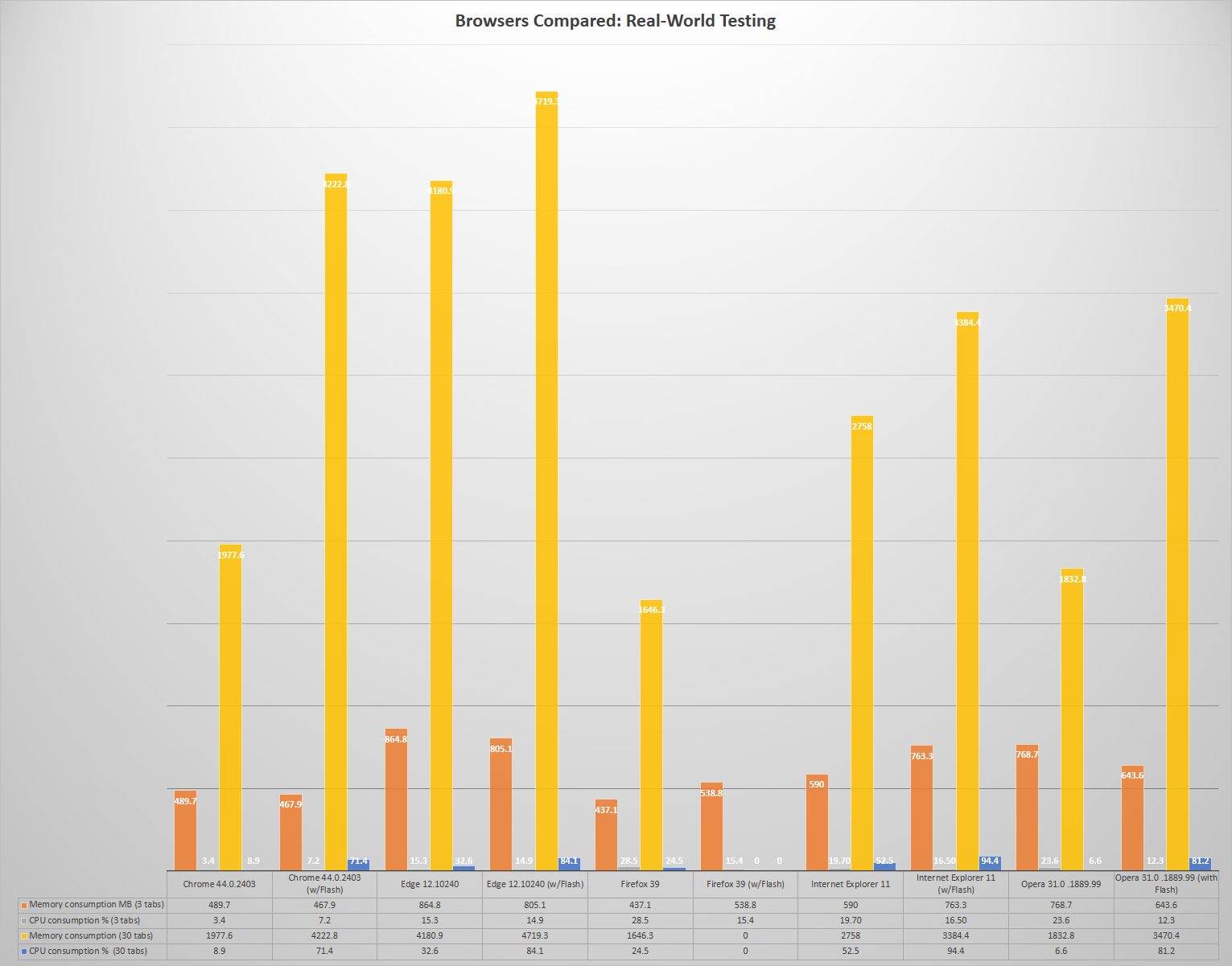
Fresh info on the site

Practice and Tests
Greetings once again, seeker of the power of testing. As Chewbacca already said, the level assignment is to go through the WEB checklist for two sites and compare which errors each of the sites has.
Note that it is important to justify each of the statuses you choose and give the reason in a comment. For example: the print version looks correct, screenshot http://.... Send the completed spreadsheet through the form.
And may the spirit of testing be with you. I also think it won't be hard for you to take the theory test after that