Level 12. Testing Desktop Applications
Level 12
Testing Desktop Applications
After this battle, Endor will be ours!
Desktop Application
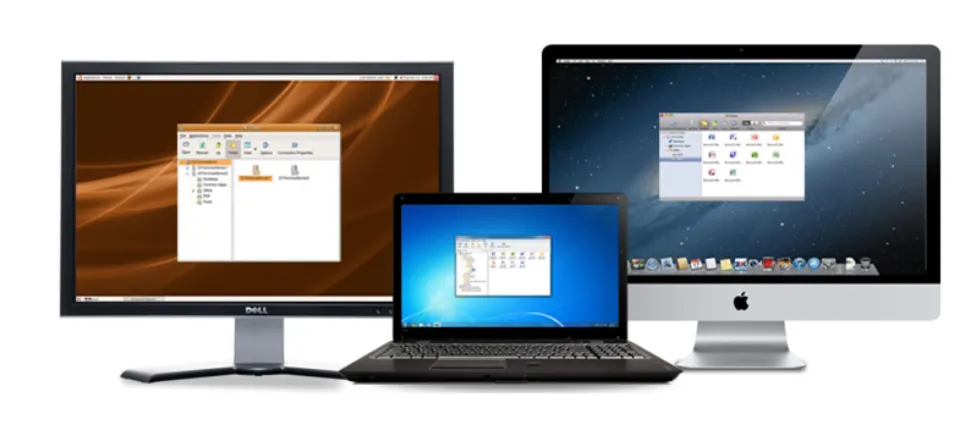
Desktop applications are programs whose operation requires an operator, that contain the complete functionality within themselves, and that can run on their own on any computer, isolated from other applications. Microsoft Word, Excel, Notepad, the game Mario – these are all examples of desktop applications.
Testing Specifics
The era of computer technology began with desktop applications. Long before powerful web servers appeared that could take on the main computational load, desktop applications ruled the IT world unchallenged. A lot of water has flowed under the bridge since then, and now more and more development goes into web and mobile applications. Still, desktop applications are quite relevant to this day, and over my career I've had to test them more than once.
It's worth pointing out that functional testing of desktop applications is no different from other kinds and, on the contrary, is the most classic. So you may wonder why we only cover it at level 13. The blame lies with the tricky nuances of configuration testing. Desktop programs are strongly dependent on the operating system. As a result, you need to be able to create many virtual systems for testing and to have the skills to administer Windows, macOS, and Linux workstations. We'll go through this and more in a detailed checklist for desktop software.
Installation Testing
Undoubtedly the biggest difference in desktop testing is installation testing. You will need to check that the program installs, updates, and uninstalls correctly. About the only similar thing you'll find is in mobile testing. It's quite a complex area, because a large number of factors can affect installation. For example, whether the user is an administrator or not.
Smoke testing
If the application launches on all the declared work-environment configurations and can perform a few core functions, smoke testing can be considered passed
UI Testing
A graphical interface demands heavy use of computer resources and, often, multithreading from the application, which makes checking for memory leaks and deadlocks mandatory (for example, moments when one thread of the program cannot get access to resources locked by another thread, which in turn is stuck in an infinite loop)
Stages of Desktop Application Testing
Before you go through this checklist, let me reassure you: you don't have to do all of it in practice or hunt down every device and system it calls for. It's enough to simply know what desktop programs are all about and what to be ready for. What's more, you'll hardly manage to remember all of it, but you'll always be ready to wake up in the middle of the night and start testing your application!
1. Desktop Application Installation
1.1 Language
- Check all the installer languages
- Selecting various keyboard layouts
Expected result: the system works with the selected language
1.2 Disk Preparation
- Delete all partitions and create partitions automatically
- Use unallocated space
- Prepare partitions manually
- Installation on RAID (a virtual disk volume)
- Whether the program launches after installation
- Setting the program's location in the file system: the default one and the one chosen by the user
- Whether shortcuts are added to the desktop and an entry to the Windows Start menu
Expected result: the system must start up
1.3 Network Setup
- Set the network parameters (internet, local network, network not connected, no network adapter)
Expected result: after installation, when logging into the system, the network should work without any additional setup
Graphics System Setup
- Installation with a video driver / without drivers
- Choosing the monitor resolution
- Checking the resolution
Expected result: successful operation with the driver, handling of the no-driver case, correct operation at all resolutions
System User
- When working as a restricted user
- When working as an administrator
- Installation for all OS users
- Checking the system registry entries after installation
Expected result: the functionality works and is available only to the selected user

2. Program Settings
Updating an Installed Program (preserving settings and user data)
Check:
- Launching the application for the update
- Checking for updates
- Updating the application
- Update sources
Expected result: information about the update is displayed, the program is updated
Authentication
Check authentication via:
- A password on the local system
- An SMS password
- Active Directory
- A hardware key
- A fingerprint
Check the complexity requirements for the password and login
Expected result: logging in to the program works with each of the methods
Keyboard
Check the keyboard settings:
- Keyboard layouts
- Switching between layouts
- Choosing the keyboard model
Expected result: the keyboard layouts can be used in the system and in applications

Testing the Application's Network Access
Check the network setup and operation with various connection types:
(Only if the program goes online)
- General parameters: change the hostname, DNS
- Ethernet connection (cable)
- WiFi
- GPRS
- Dial-up – (a modem connection over a telephone line)
- PPTP
- PPPoE
- VPN
- Network Over Bluetooth
- Proxy server
- Additional network parameters (DNS, encryption, etc.)
Expected result: the network connection works, and after a reboot it connects without additional setup
Testing Interaction with External Devices
Check the connection and the driver search for additional devices:
- Printers Local Network via IP Network via SMB
- Scanners
- Modems
- Bluetooth mice and keyboards
- External headsets
Expected result: the additional devices work in the program,

Appearance (GUI)
Check the settings for:
- Style
- Colors
- Icons
- Fonts
- Windows
- Splash screen at startup
- The icon in the task manager, the Start menu, and alt-tab
Expected result: the configurable parameters work, and the default settings can be restored
Autostart
Check launching the program after adding it to “Autostart”
Expected result: the program launches correctly while KDE is loading
System Notifications
Check the system notification settings:
- System notifications and errors – correct and manageable error handling
- System sound alerts
Expected result: all notifications work, the notification settings work correctly, and the sound alerts set by the user work correctly
Personal Data
Check the personal data settings, changing the password, and changing user data:
- User profile
- Paths to system data
Expected result: the settings work for each user separately

Keyboard and Mouse
Check the input devices (keyboard, mouse, joystick) and the standard and global keyboard shortcuts:
- Keyboard
- Mouse (general settings, cursor theme, additional parameters, controlling the mouse cursor from the keyboard)
- Joystick
- Standard keyboard shortcuts
- Global keyboard shortcuts
Expected result: the configured parameters work, a connected joystick is detected and works fully, and keyboard shortcuts are handled correctly
Working with Storage Devices
Check how the program works with data storage devices:
- Partitions on the same disk
- External hard drives
- Flash drives
- External USB drives. The ability to work fully with USB drives formatted as ntfs right away, without additional manual mounting (ntfs-3g used by default)
- CD
- DVD
- Cameras
- Camcorders
- SD cards
- MMC cards
- CompactFlash cards
- MemoryStick cards
Expected result: working with partitions on a disk, working with additional disks and data storage devices (flash drives, USB drives, CD/DVD discs, memory cards), and automatic detection of additional devices after connection without any additional setup.

You must go through the additional checklists for in-depth testing of desktop applications. And don't you dare cut corners, this is your future!
These Aren't Silly Questions

1. Can we say that testing a desktop application is easier than testing a web application? Why?
2. What is the most problematic aspect of desktop applications when testing?
3. Is a program that accesses a database to save its results still called a desktop application? Why?
4. When should you check the usability of a desktop application?
5. How would you divide tasks in a team that tests a desktop application? How would the testing be carried out?
Virtualization Tools
If you are tasked with testing a desktop application, first of all you'll need to install it on several computers with different configurations. Buying
several machines is not the best solution in this case; it's easier to create several virtual systems, for example with VirtualBox.
- Create several machines with configurations that are now considered low-end,
- Several standard configurations.
- Use different versions of operating systems with different sets of updates, patches, and service packs.
- For Linux/Unix systems, use different kernel versions.
The assignment for this level has two parts: testing skills and administration skills. Through the link you can download a Java program that you will need to test. To do that, you must set up the Java JDK, the system that runs Java applications. In addition, after you send in the bugs you found, you will be sent a new version of the program with the bugs fixed. It also needs to be checked, but this time on the Linux operating system. To do that, you'll need to download and install the VirtualBox virtual machine program, install Linux on it, install the program there, and only then test it. Sounds fun, right? The robots will give you all the links you need, and help.
Link to the application to test
https://drive.google.com/file/d/0B04XE92Y7D6UZUJUSnB2MmZmYms/view
Download Java for PC
https://www.java.com/ru/download/
Download the Virtual Machine
https://www.virtualbox.org/wiki/Downloads
Download a Linux distribution
http://www.linuxmint.com/edition.php?id=171
How to install Java on Linux
http://compizomania.blogspot.com/2015/01/java-8-ubuntu-1410linux-mint-171.html
To find out whether Java is installed on your machine and which version it is, type java -version in the console
How to use virtual machines
Practice

Today we're going to play bug fix. Did you think the forces of evil get easy assignments?! Being evil takes training, too!
The assignment is simple: test the calculator application and send the list of bugs in a Google Doc.
After that, I'll send you the application with the bugs fixed, and you'll check the bug fixes, but this time in Linux.
There will be 3 grades in total:
1) Application testing
2) Regression testing and verification of the fixes
3) Launching a virtual machine. To get the grade, just send a screenshot of the calculator running in Linux.