Level 13. Testing Mobile Applications
Level 13
Testing Mobile Applications

The planet Coruscant has always been famous for the best masters of mobile testing. In this level you'll study on that planet, so don't let your master's name down. May the Force be with you!
Mobile Testing Specifics
- Documentation
- Installation testing
- Compatibility testing
- Stress testing
- Load testing
- Functional testing
- Localization and usability


Documentation Analysis
Before you start work, you need to study the project and its functionality carefully, keeping in mind the requirements placed on the system and the customer's wishes. Then develop a test plan and prepare all the test documentation you'll be working from going forward.
Keep in mind that the platform on which your app will be published also has its own requirements, and an app that doesn't meet them will be removed or won't be approved for publication. When releasing an app, you need to be sure it meets all of the platform's requirements.
Installation Testing
Installation bugs are caused by the huge variety, both in the internals of mobile devices and in firmware versions of, say, Android itself. That's why, in installation testing, you need to keep in mind the many versions of each specific system (whether it's Android, iOS, or even BlackBerry).
A mobile tester needs to keep an eye on changes happening in the world, for example the emergence of new mobile platforms such as Win Mobile OS and Chrome OS.
It's very important to keep in mind the variety of devices that are already on the market and may end up in a user's hands, and to test:
1. Variations of the device types themselves: tablets, phones, players;
2. Different hardware configurations across devices;
3. Variations in device display resolution.
4. Different minor firmware versions
Here's how this works in practice. For each of these parameters, run these tests:
1. Install the app on an iPhone/iPod/iPad
2. Install it on a “low-end” and a “mid-range” device in terms of performance, with a camera/without a camera, with 3G/without 3G, and so on...
3. Install it on one of the devices from a single resolution group (more on resolutions later)
4. Install it on a device running Android 4.4 and 5.1 (pick the two most popular consecutive releases)

I'm Android too
Compatibility Testing
This one is usually pretty simple. The product managers (management) at your company have to define your app's target audience. Your job is to test the app's functionality on every supported version. For example, Apple currently supports iOS versions 8.4.1/ 9.3/ 9.3.1/ 9.3.2
Stress Testing
For mobile devices, stressful situations are external interruptions. You need to check that the app handles exceptional situations correctly and doesn't glitch, crash, lose entered data, interrupt transactions, and so on. Here's a minimal checklist of interruptions that
can occur during normal use of the app:
- Incoming and outgoing SMS and MMS
- Incoming and outgoing calls (make sure the app
goes to the background when a call comes in)
- Removing the battery
- Unplugging and plugging in the USB cable
- Turning the network off and on
- Switching from Wi-Fi to 3G/4G and back
- Removing and inserting the SD card
- Turning the media player on and off
- Charging the device
- Push notifications from third-party apps
- The device going to sleep
- Plugging in headphones

Load Testing
Also known as performance testing. This is automated testing that simulates a certain number of users working with some shared resource. It's mostly relevant for online applications (especially mobile online games). For a single-user app, load testing boils down to putting the maximum load on the device with every possible operation in the app, adding the maximum number of items to the home screen, and so on.
Main goals of performance testing:
- Determine how many users can work with the app at the same time
- Check how the app behaves as the intensity of certain operations increases
- Check that the app keeps working when used for many hours under average load
- Check the app's behavior under critical load
- Check how it performs with a “bloated” database: how fast queries run
- Check how the app recovers its data if you “take down” the server
We droids are way more productive than humans
Functional Testing
We've finally made it to functional testing! It's probably the most important type of testing, and it comes last because its list is the longest :) First and foremost, functional testing is based on your product's requirements, and second (or if, oh horror, there are no requirements) on a mobile functionality checklist. This checklist gathers the main checks and tests that need to be run on a mobile app. So, onward to victory over mobile testing.
- How the app behaves when the device is low on storage (not enough space to install or run the app)
- On a low battery
- Installing to the SD card and to device memory
- Checking that app data is cleaned up when the app is removed from the device
- Working with GPS turned on/off
- Support for the required media files by the given model and OS
- App localization. Check the layout for each language
- Checking that the update behaves properly (all user data is preserved). The app doesn't crash after the update.
- The app's push notifications, and opening them
- Gyroscope sensor: usually this means the horizontal and vertical screen orientation, but some apps respond to position in space more subtly
- Going to the background (minimizing and restoring the app)
- Jumps to social networks, signing up via social networks
- Checking how a single app works with several users at the same time (social networks) in offline/online mode.
- Layout: all elements must be large enough that the user can unambiguously hit them with a finger
- Clickability: every tappable element must have a pressed state (a response to the action)
- Gestures (especially on iPhones). Check the response to two-finger zoom, scroll, rotation, and so on.
- Working with a physical keyboard (if the list of supported models includes any) – line breaks, moving between lines, etc.
- Restoring a purchase (reinstalling after the app was deleted)
- Checking the effect of different date formats, number formats, and system languages
- Make sure the device works in multitasking mode when it needs to
- Check that there is proper navigation between the app's important modules
- Check that error messages are present, for example the message “Network error. Please try again later” when the network isn't working properly
- Make sure the installed app doesn't interfere with the normal operation of other apps and doesn't eat up their memory
- Make sure the app's auto-launch works correctly (if it has one)
- Make sure an accessible user guide exists.


Usability of Mobile Apps and Websites
Usability specialist Patrick Cox formulated 10 principles on which
the development of mobile apps and websites should be based.
When testing the design of a mobile version of a website or a mobile app, think in terms of screens, not pages. In his article on mobile design, he writes: “Every screen should include no more than three functions or elements.” It's important to understand that this and the following principles are not a strict criterion, just a recommendation for action. If your app has more than three elements on a page, don't rush to file a bug. It's simply a reason to discuss this design shortcoming with the product manager.
Let's go through all the principles of good mobile usability:
- Screens are not overcrowded
- No highlighted states are used (underlining, bright colors)
- No unfamiliar-looking icons for denoting types
of actions (“add,” “edit,” “back,” “forward,” etc.)
- Text should be in a large font, written simply and clearly
- Scrolling is not used without real need (a scroll
that doesn't scroll anything is a bug)
- Use elements of the site's content for navigation (for example, the logo
contains a link to the home page)
- Don't forget to check your app for user feedback: Messages while content is loading / progress bar Messages when network access fails Messages when trying to delete important information A screen / message at the end of a process / game Sound and vibration notifications that are present and in sync with the on-screen notifications.
- White space in the layout is preserved. Increasing line height makes text easier to read on a mobile device screen.

What you shouldn't lose sight of when testing
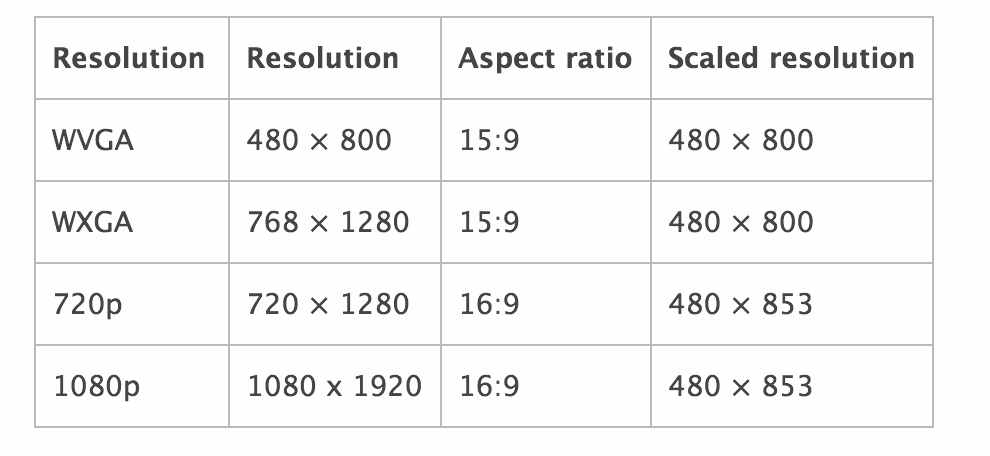
For functional testing you need at least 2 kinds of device, a phone and a tablet, and for full layout testing you need at least 4 different devices with screens across the range of formats (ldpi > mdpi > hdpi > xhdpi). Each device is tested in two screen orientations, landscape and portrait. The resolutions of these formats are shown in more detail in the diagram:
Android Devices
Android - an operating system for smartphones, internet tablets, e-readers, digital media players, wristwatches, game consoles, netbooks, smartbooks, Google Glass, TVs and other devices. Support for cars and household robots for Android is even planned for the future. The OS is built on the Linux kernel, but has its own implementation of the Java virtual machine from Google. It was originally developed by Android Inc., which was later bought by Google. Google subsequently initiated the creation of the Open Handset Alliance (OHA), which now handles the support and further development of the platform. Android lets you create Java apps that control the device through libraries developed by Google.
86% of the smartphones sold in the second quarter of 2014 ran the Android operating system. Over the whole of 2014, more than 1 billion Android devices were sold.
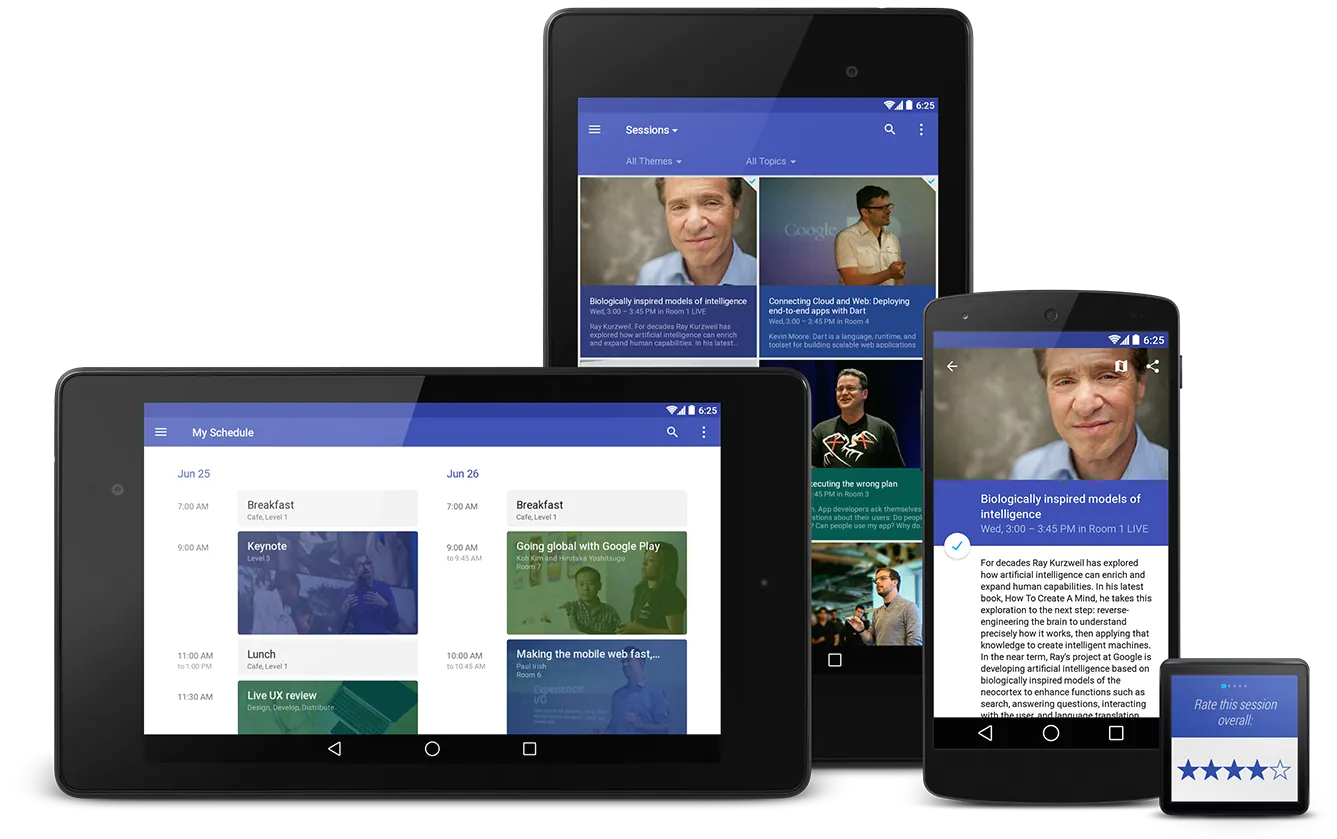
Popular mobile devices: tablet, phablet, smartphone, player
Android screen resolutions
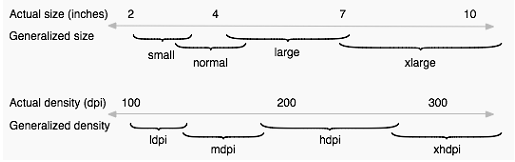
Screen size in inches
Size category
Pixel density (dpi)
Density category
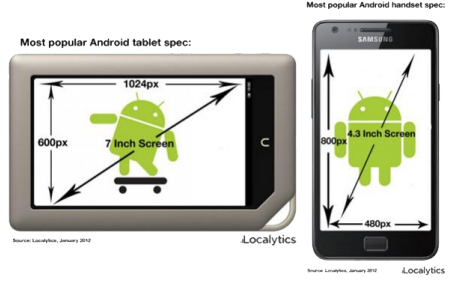
Most popular resolution for smartphones
Most popular resolution for tablets
iOS Devices
iOS (until June 24, 2010, iPhone OS) - an operating system for smartphones, tablets and portable media players, developed and produced by the American company Apple. It was released in 2007, initially for the iPhone and iPod touch, and later for devices such as the iPad and Apple TV. Unlike Windows Phone (Microsoft) and Android (Google), it is released only for devices made by Apple.
iOS uses a kernel called XNU, which is based on the microkernel known as Mach and contains source code developed by Apple, as well as code from the OS called NeXTSTEP and FreeBSD (one of the branches of Unix/Linux systems). The iOS kernel is almost identical to the kernel of Apple's desktop operating system OS X. Since the very first version, iOS has run only on tablet computers and smartphones with processors based on the ARM architecture.
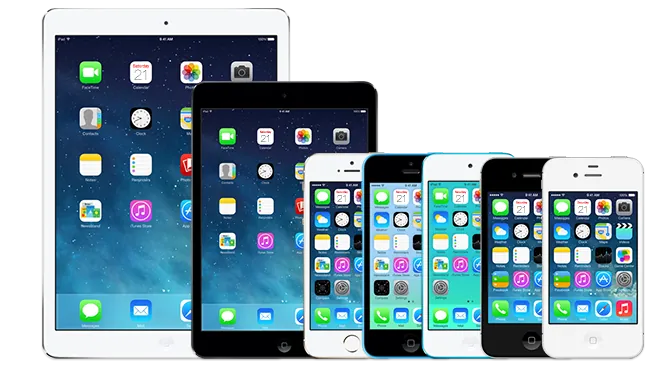
The iOS device lineup: iPad and iPad mini tablets and iPhone 6, 5S, 5c, 4S, 4 smartphones
iOS screen resolutions
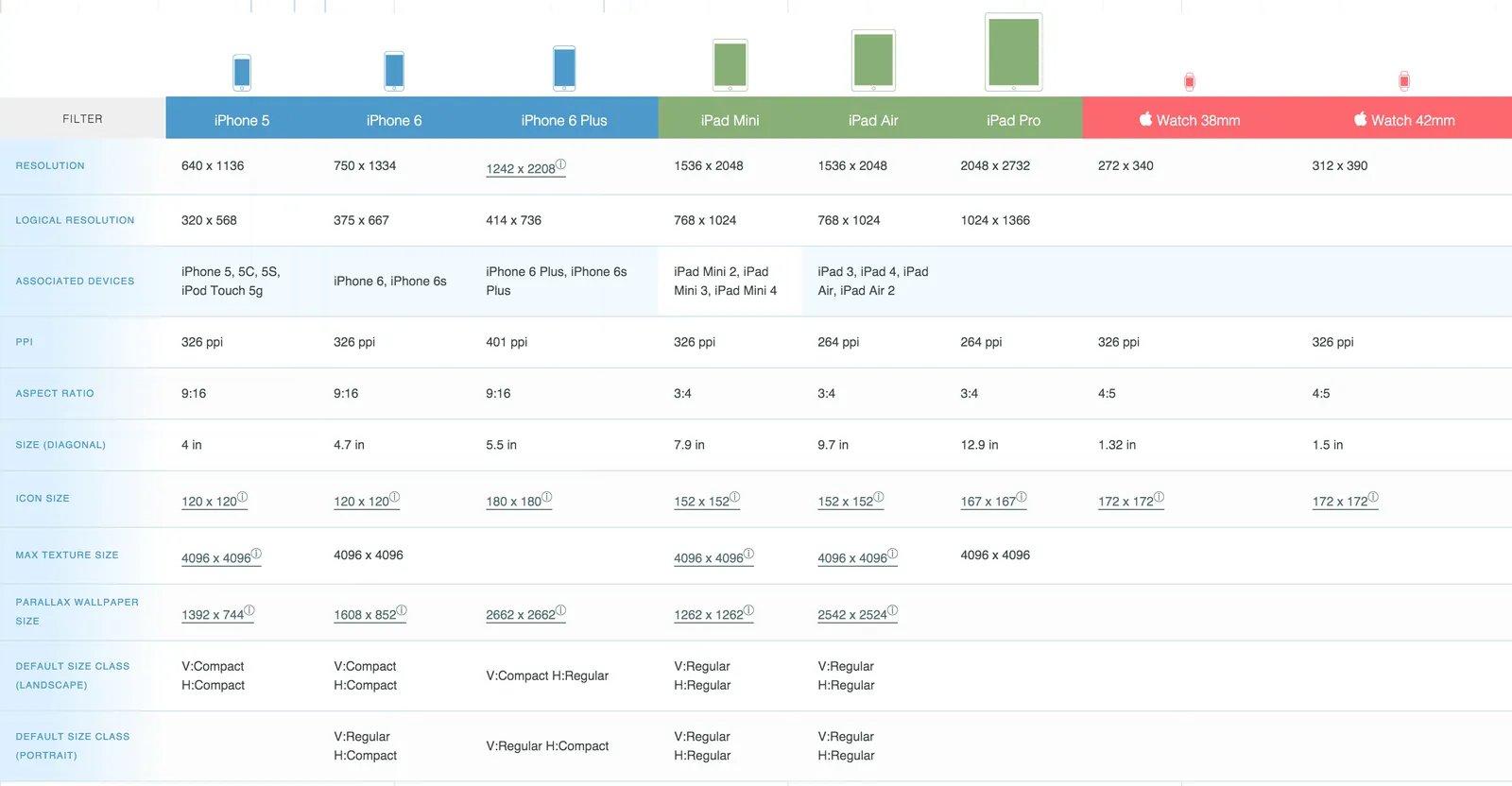

Remember that it's important to take Retina and non-Retina screens into account. On Retina screens, interface elements and text will be 2 or 4 times smaller. In turn, images meant for a Retina screen can end up in the non-Retina version, and then they'll look huge on regular displays. Retina is a whole problem in itself! By the way, in 2016 Windows tablets also started shipping with Retina displays.
Windows Phone
Windows Phone - a mobile operating system developed by Microsoft, released on October 11, 2010. This operating system is the successor to Windows Mobile, though it is incompatible with it, featuring a completely new interface and, for the first time, integration of Microsoft services: the Xbox Live gaming service and the Zune media player. Unlike its predecessor, Windows Phone is oriented more toward the consumer market than the enterprise sphere.
The new Windows 10 operating system for mobile devices was named “Windows 10 Mobile” instead of Windows Phone 10, and it continues this line, although it echoes the desktop version quite closely. In addition, a universal Windows 10 was released that can run both in tablet mode and in desktop mode.
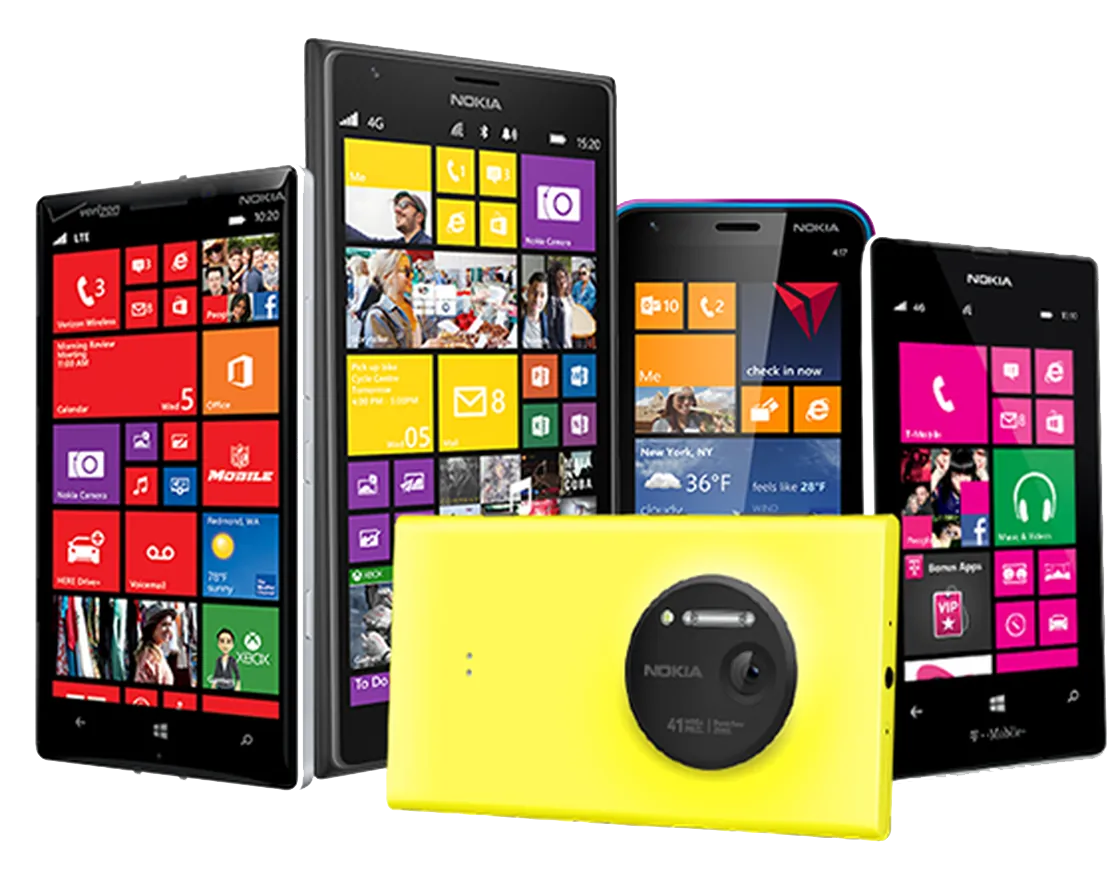
Smartphones and tablets running Windows Mobile are made by many companies, for example: Samsung, HTC, Nokia, LG, Huawei, and others
Windows smartphone screen resolutions
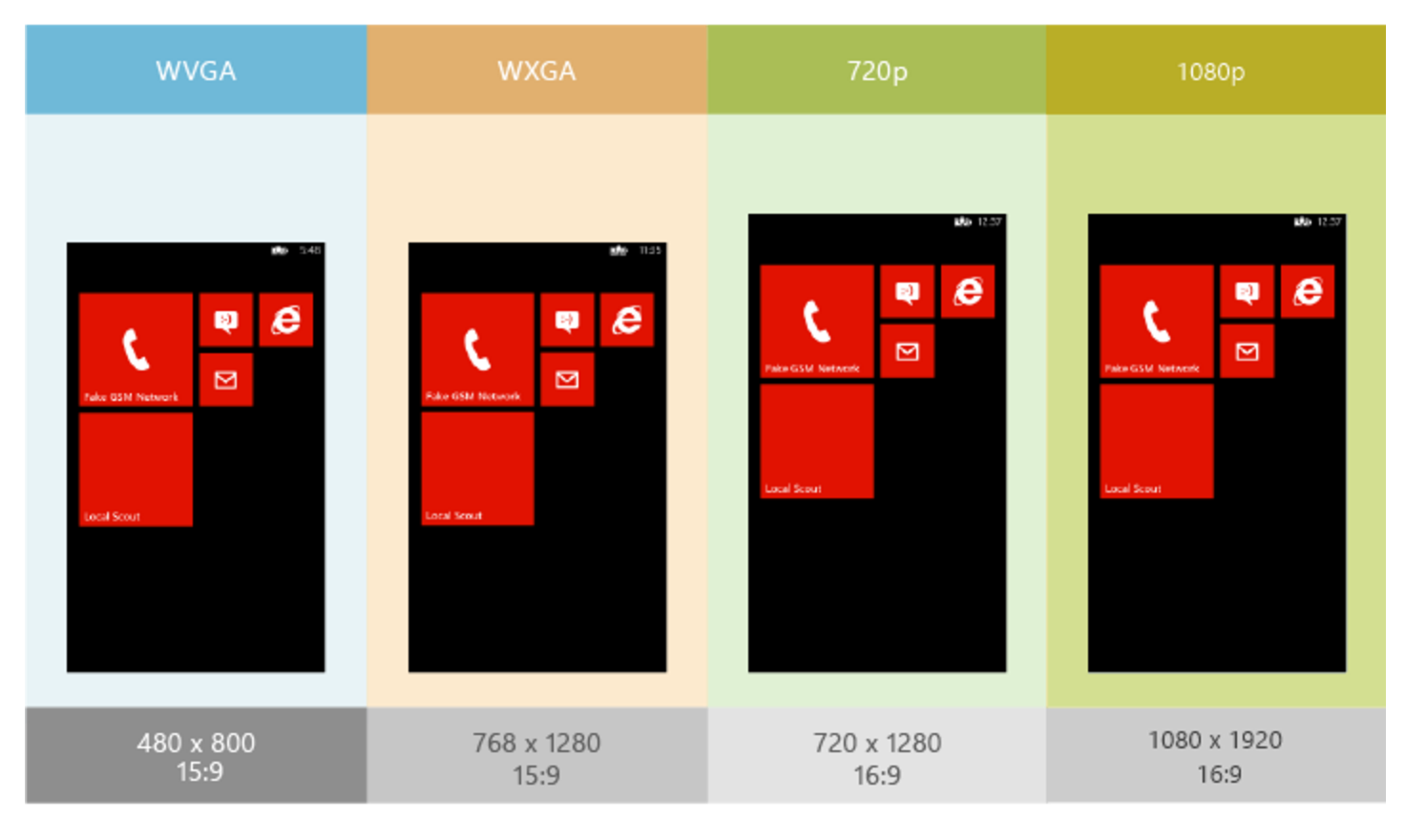
* since devices are so diverse, only the main formats are listed
Types of Mobile Testing
While reading the material, I've piled up a whole bunch of questions. Let's try to answer them together.

How will you carry out smoke testing for a mobile application?
In what order and how will the testing of new functionality be carried out?
What do you think about regression testing of a mobile application?
How will you carry out acceptance testing?

Before testing an app, you should always draw up a work plan:
- Scope - what to include in testing, and what isn't affected by the changes and can be skipped
- How often to run regression testing
- On which devices - choose the list of supported devices and prepare them for testing. Install the apps, set up loggers, and so on.
Help Yourself: Tools
Here are some examples of the tools a mobile app tester needs for working with test devices. They're needed to install test apps on a device, work with files, the device's memory, and more.
- A utility for working with *.apk files and moving them to the SD card
- The Airdroid app, for quickly transferring files to Android over the Internet
- DroidExplorer. Another app for working with apps without Google Play
An app for testing on iOS devices. It lets you install test builds of software onto iPhones
The main program for working with iOS devices
Capturing Logs and Screenshots
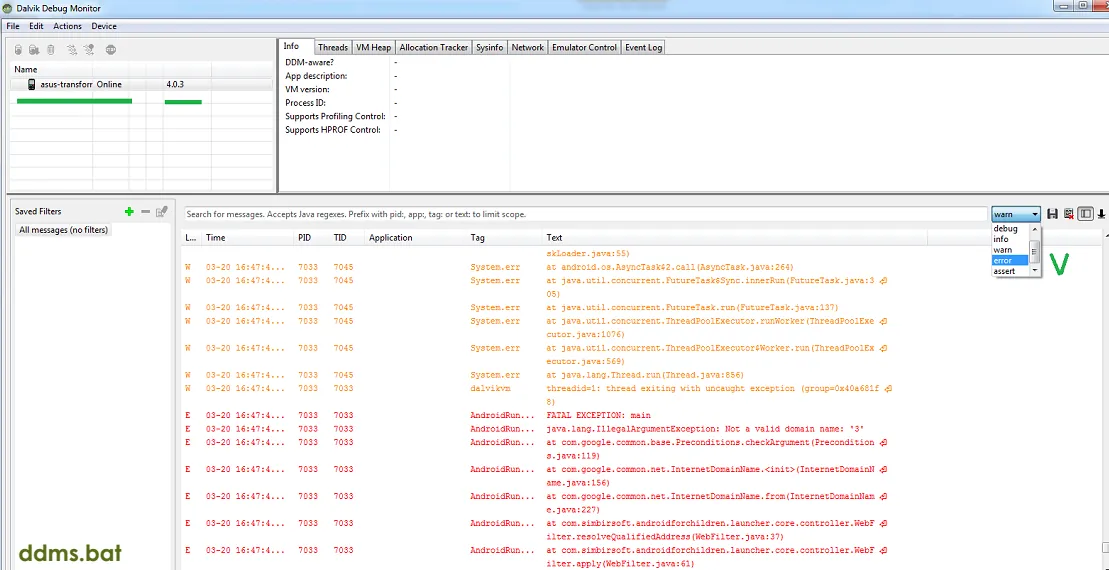
Very often, to pin down the cause of a bug, developers need to know the code and text of the error that occurs when the bug happens. A browser has a console for this, so in web testing everything was simple: you open the console, copy the error into the bug description, and you're done! But a mobile app is another story: here you have to dig the logs out and then find the right error among them. Usually the device log is cleared first, and then you reproduce the bug again. The error will land at the end of the log. We've collected some programs for reading mobile device logs for you.
(located in the tools folder of the Android SDK).
CatLog - The simplest option for reading logs: an app that displays the device log
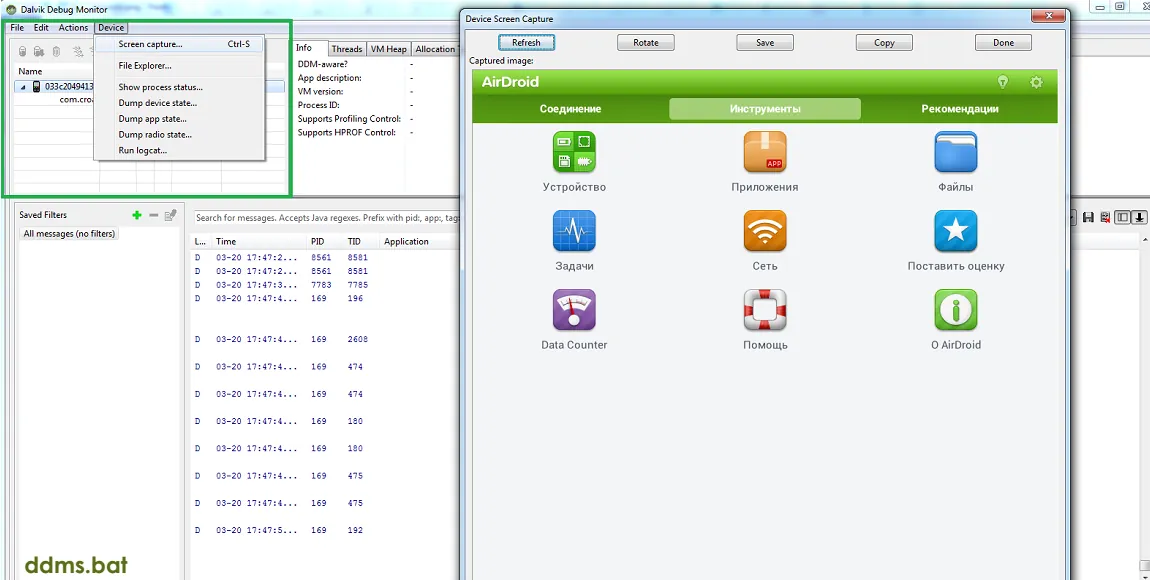
Screens (a utility included in the Android SDK package and ddms.bat) lets you take screenshots of a connected smartphone or tablet
Android Screenshots and Screen Capture.
A program for capturing screenshots from a device connected to a PC
Screen recorder - one of many programs for recording video of the screen. To capture a screenshot, simply press the “power” + “volume down” buttons at the same time. If your device has no volume buttons, google how to capture a screenshot on your device
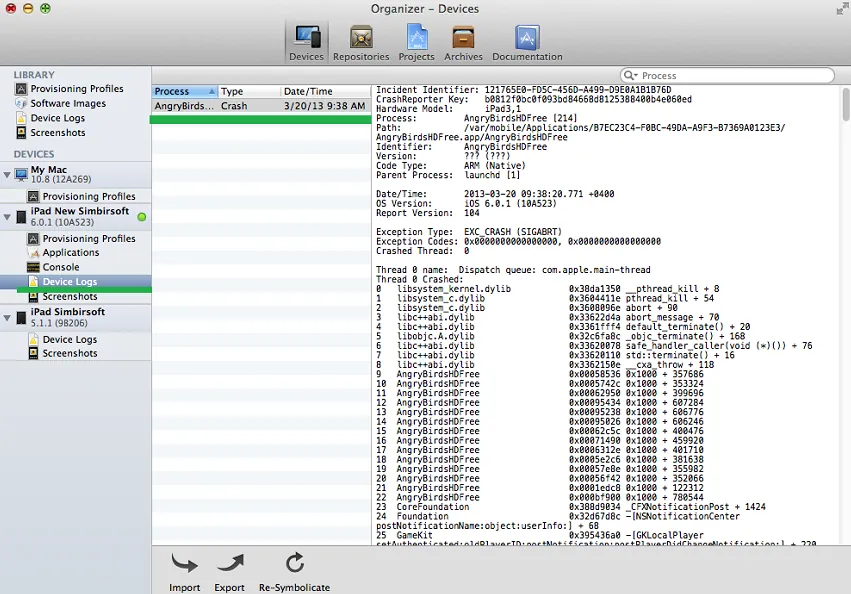
we mentioned earlier is used for reading iPhone logs
If you connect an iOS device to a computer that has Xcode installed, you can pull the logs from here: Organizer – Devices
~/Library/Logs/CrashReporter/MobileDevice
Capturing a screenshot on the device - hold down Home + Power. It's the same for iPhone and iPad

Screenshots of the programs described above
Emulators and Simulators

The Android emulator built into the Android SDK. A complicated, winding method for persistent people. You'll have to google and dig around to get it running
Skins for the Android SDK emulator. They are code for launching specific models: Nexus,Samsung.
GenyMotion - my favorite program for emulating Android. It's based on VirtualBox (previous level).
GenyMotion - the official website, and you can also download the program here
The iOS simulator built into the Xcode development environment. To work with it you'll need a Mac. Right now there is no official version for other operating systems. There are only cracks and virtual machines, which are unstable and will cause you a lot of trouble.
In Xcode, the emulator
is located here:
~/Library/Application Support/iPhone
Simulator/6/Applications/<file>
The Emulator Built into the Android SDK
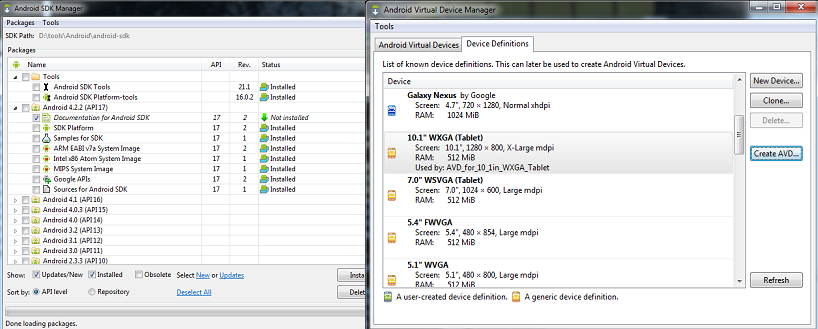
This information is supplementary for this level. At work, you may need to set up the Android SDK for debugging an Android app. You can do this on a Windows PC, so below is a guide on how to do it.
Download and install:
- Java SE Runtime Environment
- Android SDK (the path to the folder with the installed SDK must not contain Cyrillic letters)
In the Android SDK Manager, select all the components you need and install them.
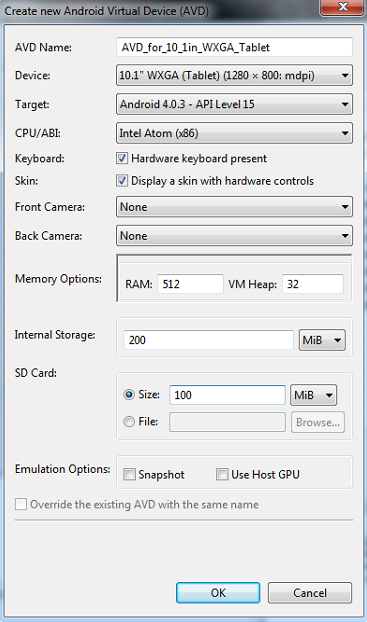
Once all the downloads are finished, you need to open the AVD (Android Virtual
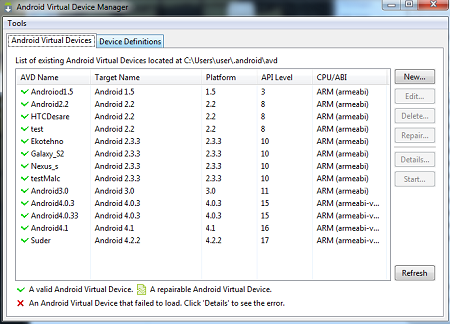
Device Manager) and create a new virtual device.
Select the device you created in the AVD list and launch it with the “Start” button.
(The first time, this process takes much longer and can
last several minutes.) And yes, let's add that this emulation mechanism demands a lot of computer resources. There's no point in doing this on anything weaker than a Core 2 Duo + 4 GB RAM.
Screenshots of the Android SDK
Android Debug Bridge
ADB, Android Debug Bridge is a command-line utility included in Google's Android SDK. With this utility you can copy files to the device and back, install and remove apps, perform backup and restore, and much more using commands, run many Linux commands, get bug reports, and so on.
By the way, Android is a branch of the Linux family of systems. Yes, now you can consider yourself a bearded sysadmin and Linux owner : ). Here's a more detailed article on how to set up and install ADB. Below are popular commands for working with your Android from the console through this program.
Runs on the command line.
- adb shell <cmd> - run the command <cmd> in Android
- adb push <local> <remote> - upload a file or directory to the device
- adb pull <remote> [<local>] - copy a file or directory from the device
- adb install < package.apk > - install a package
- adb uninstall <package.apk> - remove an app
- adb connect <ip:port> - connect to Android over the network. Requires some preparation of the device, namely setting up ADB over TCP
- adb logcat [filer] - view the log output in real time. You can set a filter.
- adb backup - make a backup
- adb restore <file> - restore from a backup
Test Automation Tools
This topic is even more supplementary. When you dive deeper into mobile testing at work and want to automate mobile tests, these programs will come to your aid:
TestDroid – an Eclipse plugin that lets you record tests
(record&play) in the Robotium format
MonkeyRunner. Lets you perform functional testing
of an app by providing an API for controlling the device.
Robotium – “It's like Selenium, but for Android”. It's a framework for creating mobile autotests. It will come in handy once you understand what that sentence meant : )
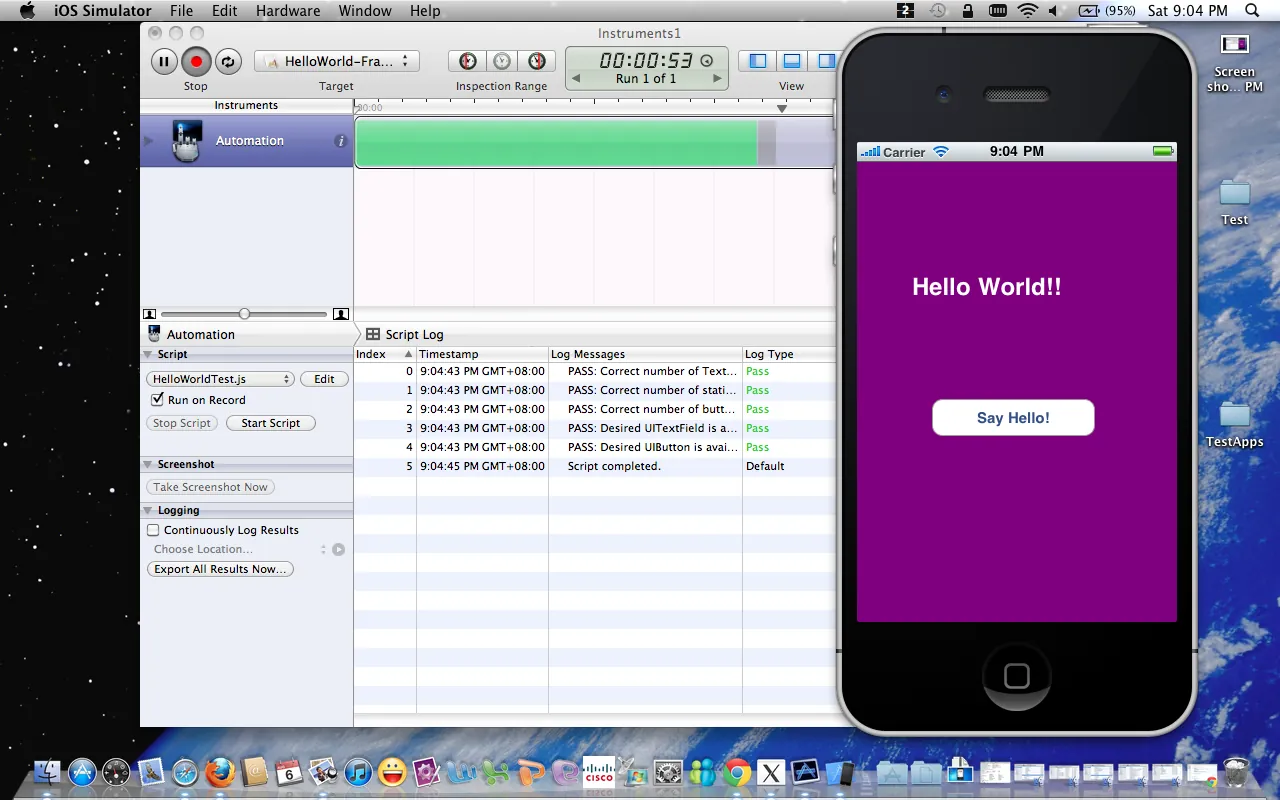
UIAutomation – lets you run test scripts written in JavaScript
both in the emulator and on an iOS device
Fonemonkey - a Record&Play solution, interesting because tests are recorded and
edited right from the app under test on the phone or
in the emulator
An example of an autotest run in UIAutomation

Time for practice. You haven't been a Padawan for a long time now: you're a true Jedi of testing! For you, I have a real combat mission.
Yesterday a secret Android app codenamed Probid was delivered to the base.
Your task is to test it thoroughly. Rumor has it the Sith got to the programmers and made them slip errors into it. The app is,
You'll have to install this app on your own smartphone, and if you don't have an Android, well, you'll have to wrestle with an emulator. The Master explained how to use one, in case you're a fan of taking the hard paths in the universe.
Since I'm sure you'll handle it easily, here's assignment number two. Test the mockups of a mobile app that is still in development, and find bugs in it. Yes, that's right: some bugs get baked into an app as early as the design stage! Send your answer through the form.
And as always, take the mobile readiness test from QA Academy. Write your testing report in a Google Doc and send it through the form. For bugs, it's enough to specify: Summary/ Priority/ Steps to reproduce/Actual result/Expected result