Level 14. Testing Web Applications on Mobile Devices
Level 14
Web Testing on Mobile Devices

+ Apple Devices
What kinds of Apple devices are there?
- Personal computers: MacBook and PC
- Apple TV
- Older-generation iPod players without iOS
But right now we are interested in:
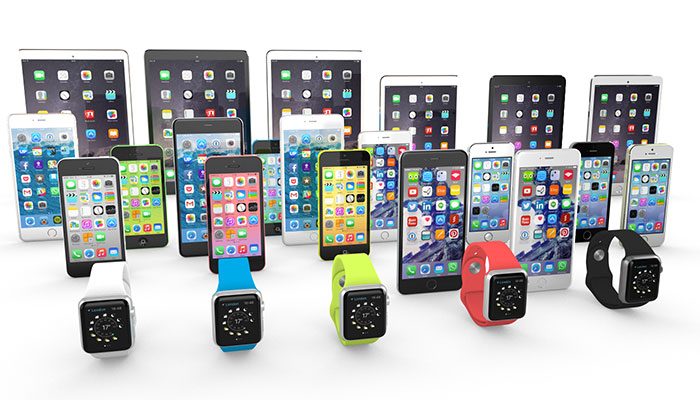
- iPhone/iPod: a smartphone and a smart player (the difference is that the iPod has no GSM module)
- iPad/iPad mini/iPad Pro: tablets with Retina and non-Retina displays
- Watch: smartwatches based on iOS
Subtypes of Mobile Testing
• iOS apps. Apps for Apple devices have their own testing specifics compared with Android and Windows apps. You'll find more on this later in this level.
• Hybrid apps. Hybrid apps contain both a web part and a native, locally installed part. A good example is the Dropbox app (network storage). It works offline, but as soon as network access appears, it syncs with the server and updates the file lists.
• Web content. Mobile content adapted for feature phones, usually hosted on dedicated mobile sites (outdated: WAP sites). Today this segment has all but died out.
• Web apps. Internet applications. They replace mobile websites with an app and are adapted to a specific device model. As a rule, they don't work at all without an Internet connection. In essence, they are a mini-browser tailored to a single site.
• Optimized webpages. The site layout is specially adapted to the smartphone screen size and to drag&drop actions.
• Compatible webpages. A prime example is our own site, qaacademy.net.
On a smartphone screen the content will scale to fit, but the layout and design stay the same as in the desktop version.
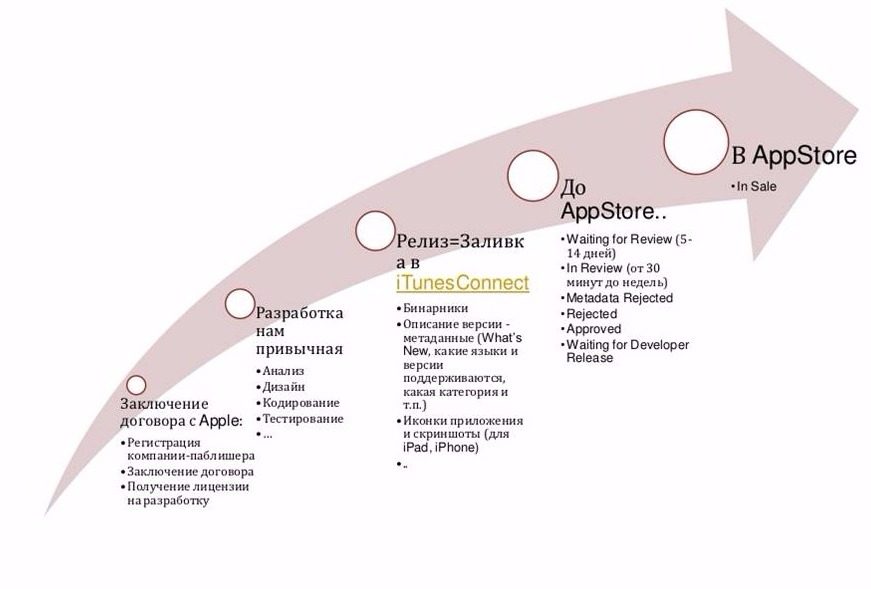
Stages of iOS App Development
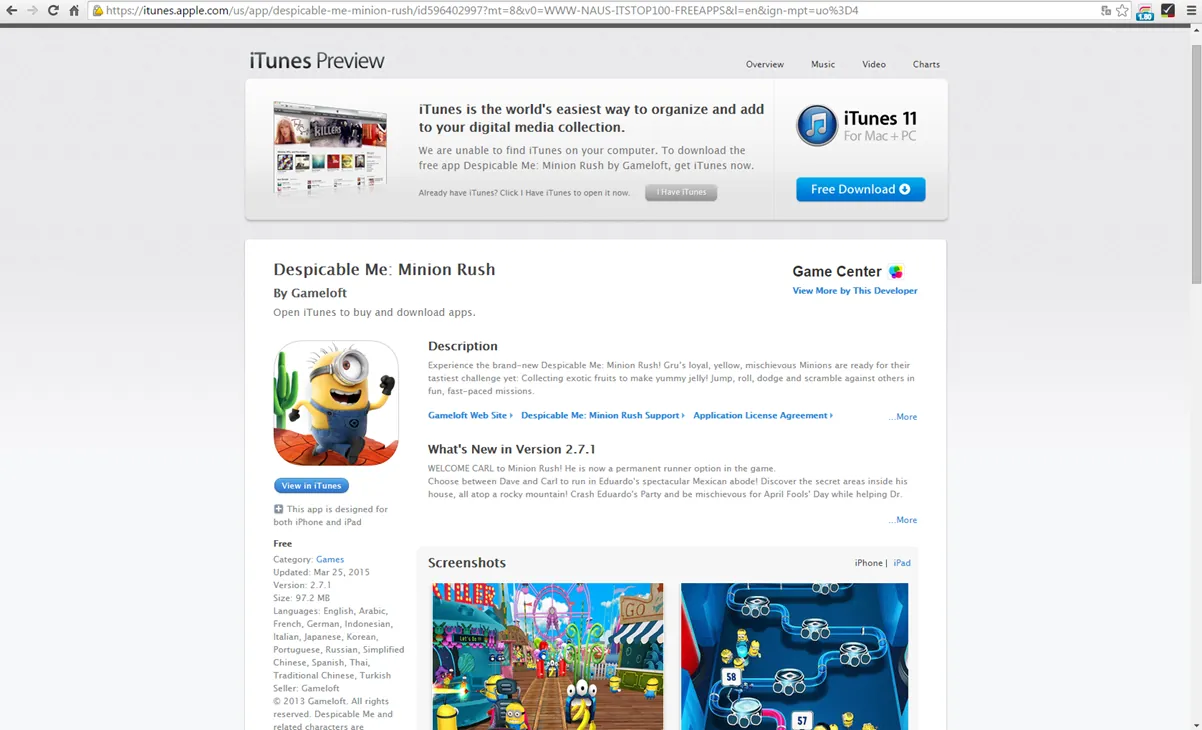
The app appears in iTunes
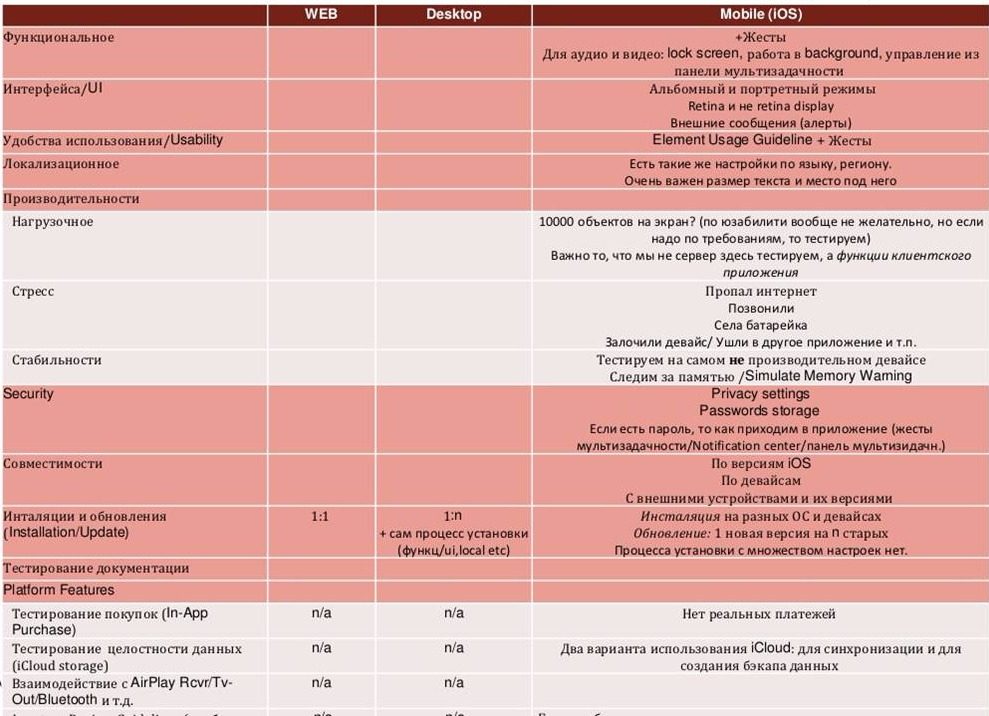
Specifics of Testing Mobile Applications (iOS)
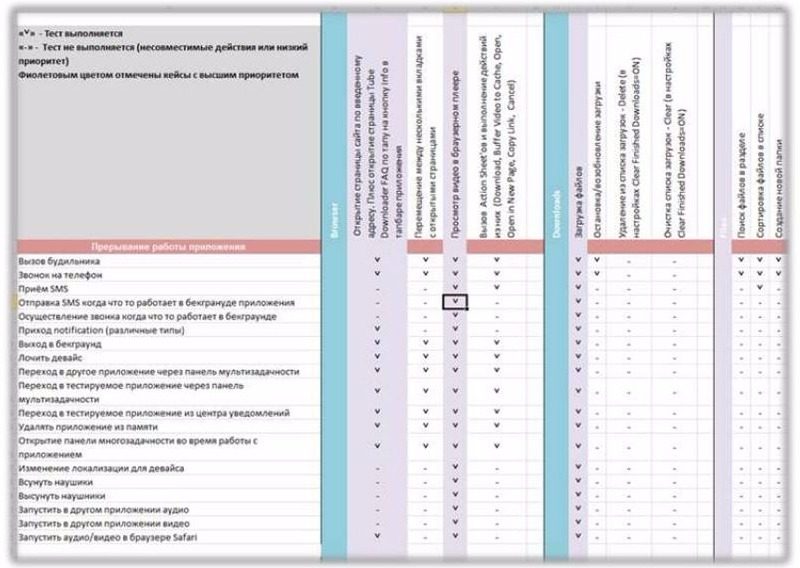
Stress Tests
Stress tests are a matrix:
"A possible, unexpected event" X "A user action performed in the app"
Device compatibility
Retina vs. non-Retina?
- 2048 x 1536 vs. 1024 x 768
iPad vs. iPhone
Not compatible: you have to test on every device
iPod vs. iPhone
Compatible for apps that don't need an Internet connection over the mobile network
iPad 2 vs. iPad 3
Different screen, processor, and iOS version. The devices are compatible, but you still need to run checks for the different displays and iOS versions
iPad 3 vs. iPad 4 vs. iPad Pro
Only the screen resolution is incompatible. Processor, camera, connectivity (LTE). The devices are compatible; pay attention to the network.
iPad mini
- Processor and screen from the iPad 2
- Camera and connectivity from the iPad 4
iPhone 3GS vs. iPhone 4/5/6
Completely different: you need one of each
Emulator vs. device?
- A real device, and only a real device!

iOS Version History
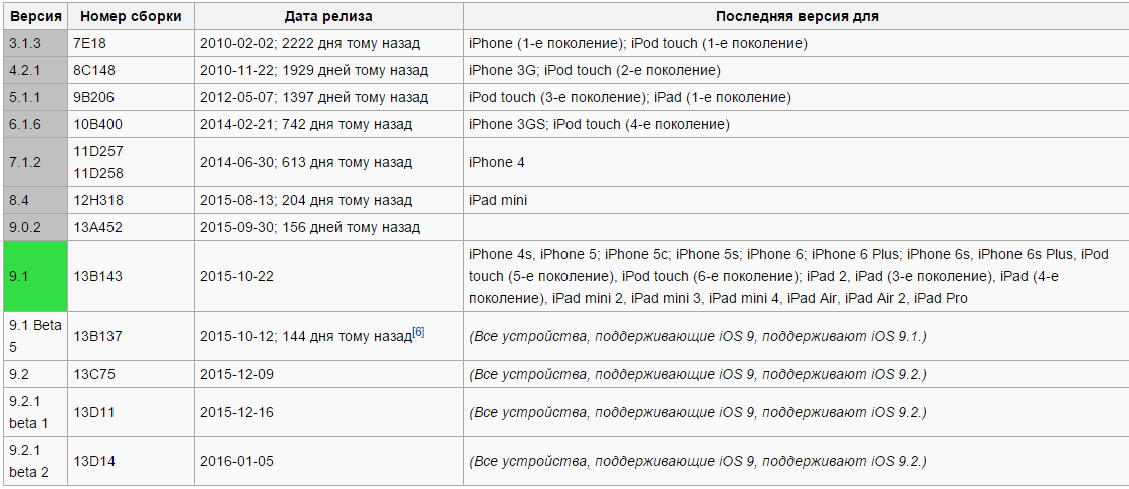
More about iOS firmware releases
On June 29, 2007, Apple released the first version of iPhone OS together with the first iPhone model. The final version of the 1.x series was 1.1.5, released shortly after version 2.0.
On July 11, 2008, iPhone OS 2.0 saw the light of day; it was updated up to version 2.2.1.
iPhone OS 3.0 was released on June 17, 2009. The OS was updated up to version 3.1.1 (released on February 2, 2010). For the first-generation iPhone and iPod touch, version 3.1.3 is the last one available. The iPad was introduced together with iPhone OS 3.2, which was updated up to 3.2.2. The 3.2.x versions were intended only for the iPad.
On June 21, 2010, iOS 4.0 was released for the iPhone and iPod touch. iOS 4.0 announced about 1,500 new APIs for developers, as well as the long-awaited multitasking feature. For the iPod touch (2nd generation) and iPhone 3G, version 4.2.1 is the last one available. However, some features remained unavailable (including multitasking and changing the home screen wallpaper). iOS 4.2 became the first version to put the iPhone and iPad on an equal footing in terms of available features. The release of a CDMA version of the iPhone for Verizon Wireless caused iOS to branch off. The 4.2.x releases for CDMA continued, while for the GSM versions of the iPhone, iPad, and iPod touch, iOS 4.3 was already being released.
On June 6, 2011, Apple introduced iOS 5, the beta of Apple TV 4.4, the beta of the iOS 5 SDK, and the beta of iCloud. iOS 5 includes iMessage (a messaging system between iOS 5 devices), a new push notification system, Newsstand, Twitter integration, the Reminders app, AirPlay improvements (including screen mirroring), full iCloud integration, and more than 200 other new features. iOS 5 supports all iPad models, the iPhone 4 (GSM and CDMA versions), and the iPod touch (3rd and 4th generation).
Apple provides the same iOS version for iPhone and iPod touch models released in the same year. iPhone users received updates for free, while iPod touch owners had to pay for the updates to iPhone OS 2 and 3. Starting with version 4, iOS became free for all devices.
Which devices to choose?*
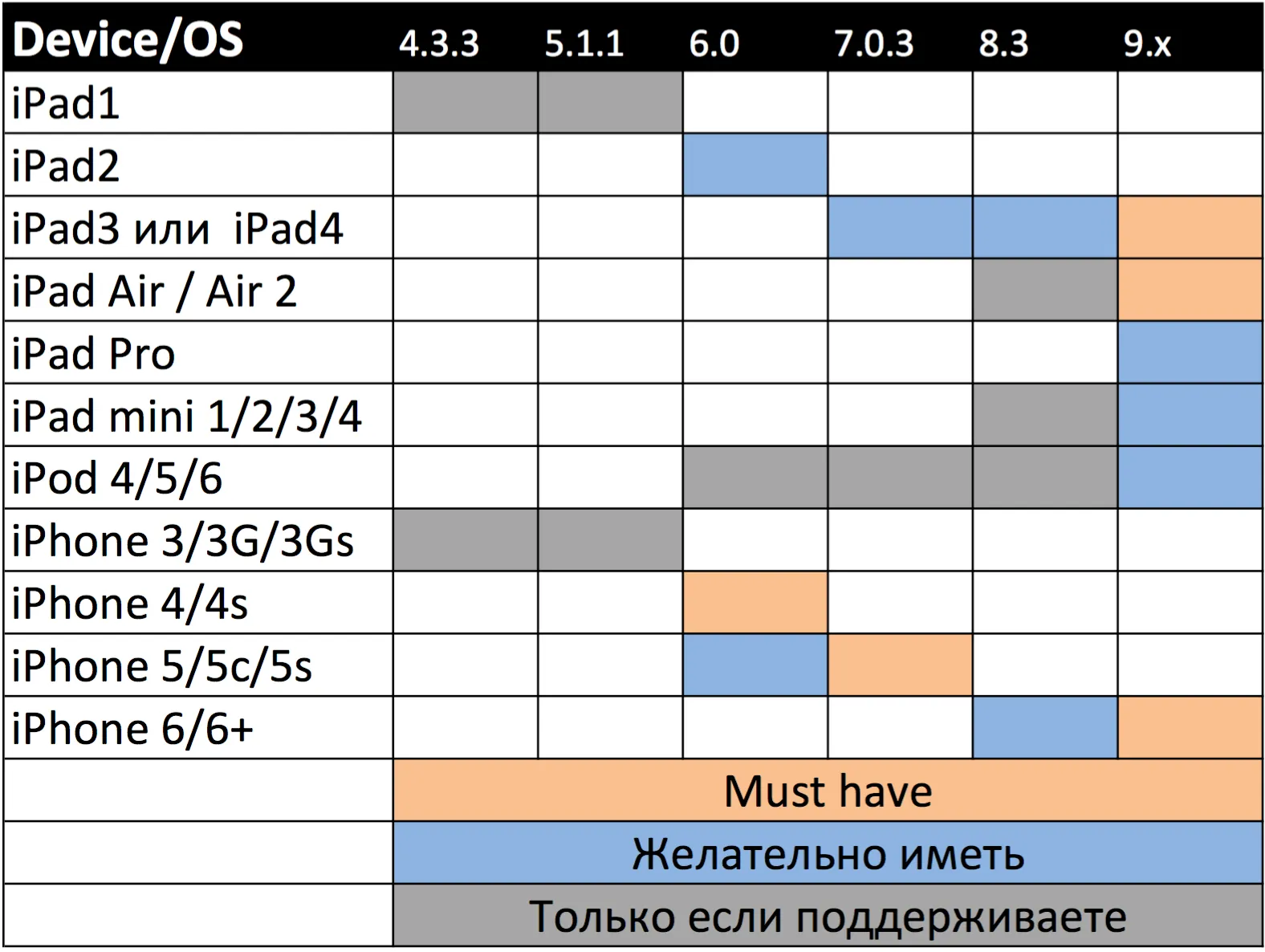
*Only if you support them. A device is needed only if specific characteristics of the device (processor, network type, screen type, firmware) are critical for you. Also, some devices such as the iPad/iPad 2/iPhone 3 are no longer relevant because they are outdated.
**Of the iPod 4 and iPod 3, we deliberately chose the iPod 4 in our setup, because the share of our users with an iPod 4 is much larger than with an iPod 3.


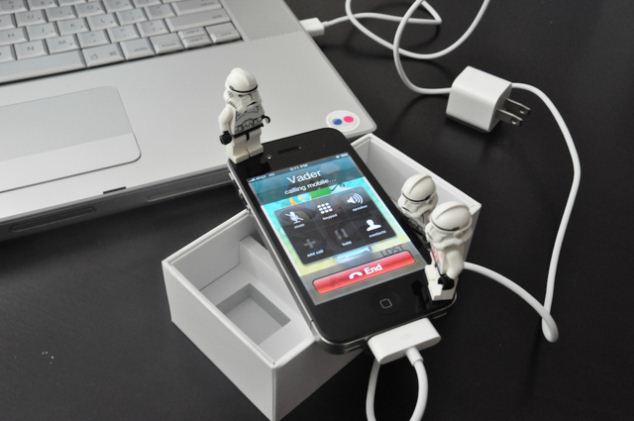
I know nobody could ever get tired of such a fascinating tale about iOS versions, but let's take a short break and see what on earth Darth Vader is up to?!

How do you install a build on a test device?
- Through a developer, if you share test devices. He can upload the app using his development tool, Xcode
- With iTunes. The only requirements are that the computer is authorized and the *.ipa file is cracked
- Through the helper app i-FunBox. It lets you transfer files and apps to iOS gadgets
- TestFlight (an app that lets testers install beta versions of apps) or a similar service (HockeyApp)
Alpha Testing

Beta Testing
- Apps in the AppStore can't be given names containing the words Beta, Trial, and the like.
- Need beta testers? Look for people with an iPhone/iPad/iPod, get their UDIDs, add them to the provisioning profile, upload the build to TestFlight (or an equivalent), and invite them to test...
Test Planning
Pitfalls of testing iOS apps
- Bugs that are non-reproducible or hard to reproduce
- Deadlines depend on the mood of users and Apple reviewers
- Fierce competition among app developers: only the highest-quality app will win
Long testing time
- The acceptance test of our latest release (one project for iPhone and iPad), without testing new features or regression, took about 8 hours.
Minimum set of tests:
- Acceptance level on the main device (the highest-priority one)
- Install level on all supported OS versions and top-priority devices (3 devices)
- Update testing on all supported OS versions
- Infrastructure check
Team:
- 1-4 people, depending on the situation and deadlines
Test execution metrics. No special rules:
- Smoke by module. If a module fails, testing of that module does not continue
- We start acceptance when there is a release candidate and it has no critical bugs
- If there are critical bugs, we don't release
- You can upload a build before the tests are finished if the risk of a bug is small and the build has to be submitted to AppStore review; even so, the planned tests must still be completed
Test Documentation

After reading the material I have a few questions. Let's think them over together:
Do you need documentation when testing a small mobile application? It seems like you can just remember everything...
If so, test cases or checklists?
Should you store the test results?
Example of Using the Documentation
When working at wix.com:
- We keep and update checklists by level (installation, smoke, acceptance)
- We keep checklists for stress testing
- We maintain checklists for regression testing of the functionality that must be checked whenever a version is updated
- Some functional tests (depending on the specifics of the app)
Bugs

Han Solo, everyone knows you're the best iOS testing specialist,
so please share your priceless experience with the young Jedi.
Tell us about your experience testing those apple-phones.
Which are more common: UI bugs or functional bugs?
- Usability =)
What are the criteria for determining the severity of a bug in a mobile app?
- Exactly as described in level 5, on bugs
What are the main reasons apps crash?
- Incorrectly implemented logic for working with the device's OS.
- Social networks! Especially Facebook.
- Not enough RAM.
- No internet, when the app needs it to work.
- The device ran out of storage space.
- Working with an external device (AirPlay, TVOut, Bluetooth,...)
- Someone called..
How do you describe them?
- As always, in detail, following the structure: Summary/Preliminaries/Actual Result/Expected Result
That's clear, that goes for any bug. But is there anything Apple-specific?
- Wherever there was a crash, add a crash report. It is stored on the device (Settings > General > About > Diagnostic & Usage > Data). To get it off the device, sync with a computer via iTunes and go to the right folder: C:\User\<USERNAME>\AppData\Roaming\Apple or, for a Mac, computer\Logs\CrashReporter/MobileDevice/<DEVICE_NAME>.
- You can also take an excerpt from the Debug Console
- Wherever there is a UI bug, attach a screenshot
- Wherever there is a localization (text) bug, attach a screenshot

Mobile Tester's Tools

AlCharger: charge your iPad from a computer
How do you take a screenshot? "Home" + "Volume Down"
How do you record video? The Vidyo recording app
App log (console)
- Win XP: iPhone Configuration Utility
- Mac OS: iPhone Configuration Utility, Xcode
- iPhone/iPad/iPod: a bunch of apps come up when you search the AppStore for "console". For example, Console, iConsole, Debug Assist, Log Police, etc.
App/file managers for devices:
Keeping an eye on memory and running processes:
- Sys Activity Manager (paid)
For CPU load on the device, there is also a bunch of apps in the AppStore (search for "CPU")
- For example: iPhoneOptimizer

How to stay "on trend"?
The AppStore and user reviews (bug reports/suggestions). Give users a way to report a bug right from your app.
Flurry.com is a huge machine for collecting statistics specifically about your apps: languages, age, which features people use, how many crashes there are, how long sessions last, and so on.
Appannie.com: statistics on how you and your competitors are doing in the AppStore.
So where do you start?
iOS in a nutshell
- Go through the built-in apps and start using the device, especially get to know the AppStore
- While exploring the apps, keep an eye on the console
- Pick any app and study what it is made of using iFunBox, iExplorer, or a similar tool
- Study the device settings and how they differ from one OS version to the next
UI Element Usage Guidelines: learn what the elements are called, what gestures exist, and what users expect from how certain controls will behave.
Test something: functionality with gestures in mind, UI + usability; take the stress-test matrix and run through it; check localization.
Catch a crash, find the crash report, log a bug... After that, it's smooth sailing.
Just don't forget to study how the devices differ
And then study the technologies, depending on how the cards fall for your project:
- iCloud
- AirPlay
- Bluetooth
- TV-Out
- Memory leaks
- App performance (response time to actions, CPU load, etc.)
- Automation
Bug examples
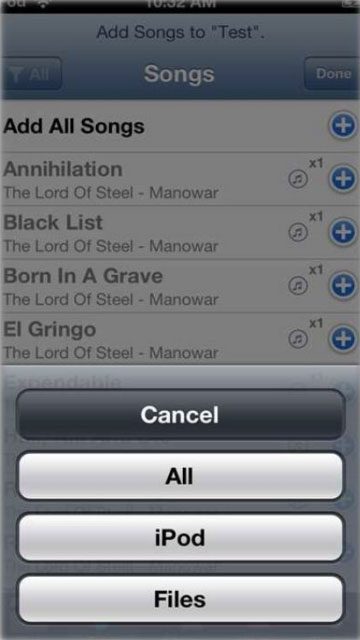
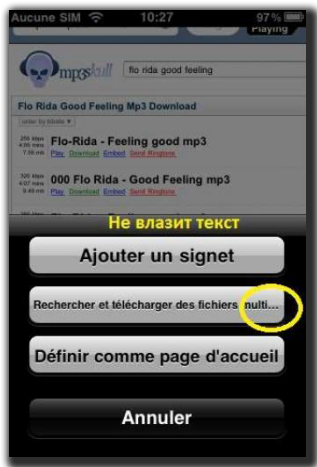
The gallery contains examples of bugs documented while testing iOS apps

Practical Assignment
Congratulations. You've reached the end of this level, and I know that you can now move mountains in practice.
Two websites I will give you. Test them on a mobile device, as we taught you. In this assignment you may test only with the browser on a smartphone (you may use a computer only for comparison). Let's begin, in order:

1. An optimized mobile site. Heads up: the task is made harder by the fact that the site is not in your language. You need to learn to look past the text and test only the functionality. Also, compare the components in the mobile and desktop versions of the site.
2. Master Kenobi's non-optimized site. Your task is to test it and compare how the site displays on a computer and on a mobile device.
3. "You'll go crazy without it," Master Windu used to say. Install QR Android to quickly send links to your smartphone.
When you've completed everything, send the assignment to the Council of Masters through the form. The Masters have marked you as an outstanding student. Delight them with good work.
Level Theory Test