Level 18. Basic Principles of Working with SQL
Level 18
Introduction to SQL

How about a database?
This level is about databases, after all, right?

Absolutely right. A database is
exactly what we need.
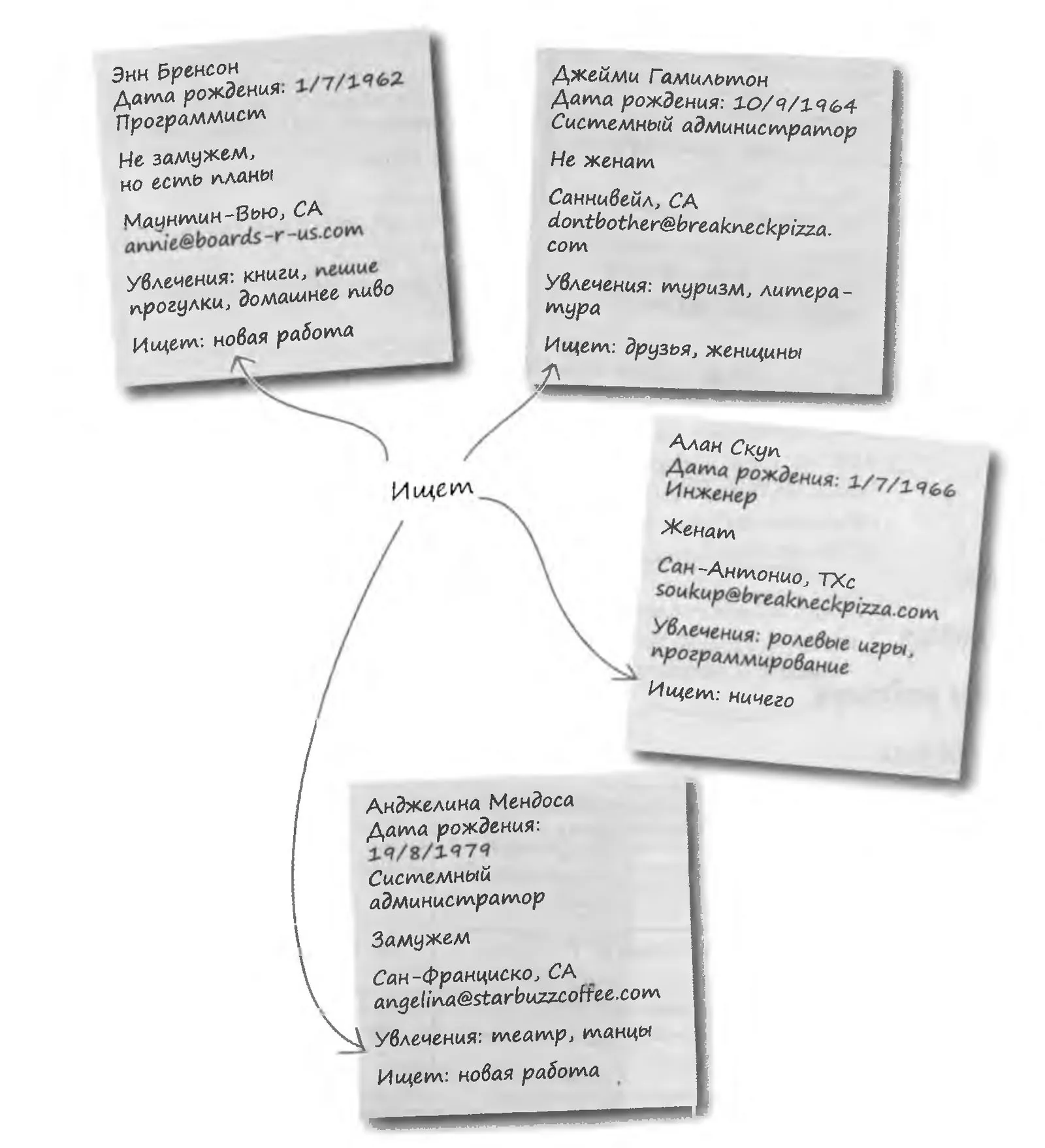
But before we set about creating a database, we need to understand better what kinds of data it will store and what categories that data will be divided into.
Here are a few cards from Jedi Greg's catalog. Find the similar pieces of data Greg collected about each person. Give each group of similar data a label that describes its category of information, and write these labels in the fields provided.

Take a sheet of paper and write down all the categories by which the data about Greg's friends can be structured. There will be 9 categories in total.
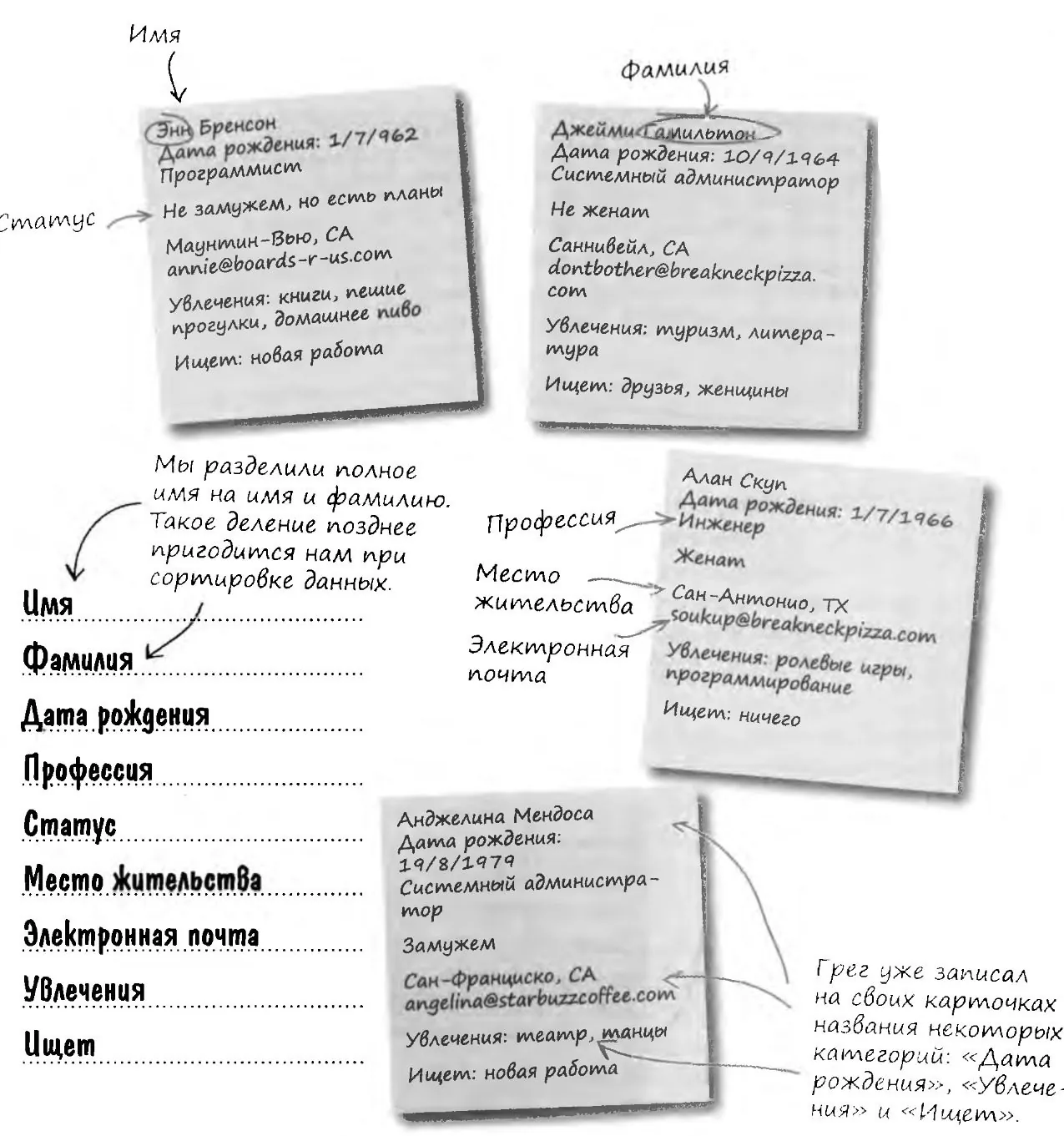
The categories we define will be used to organize the data.
Here is what you should end up with
Looking at the Data by Category
Let's look at the data from a new angle. If you cut each sheet into strips and then lay them out horizontally, this is what you get:
Mendoza
System administrator
San Francisco, CA
theater, dancing
Now, if you cut up one more sheet with the names of these categories and lay the strips above the matching data, the result will look something like this:
First name
Date of birth
Status
Looking for
Last name
Occupation
Place of residence
Interests
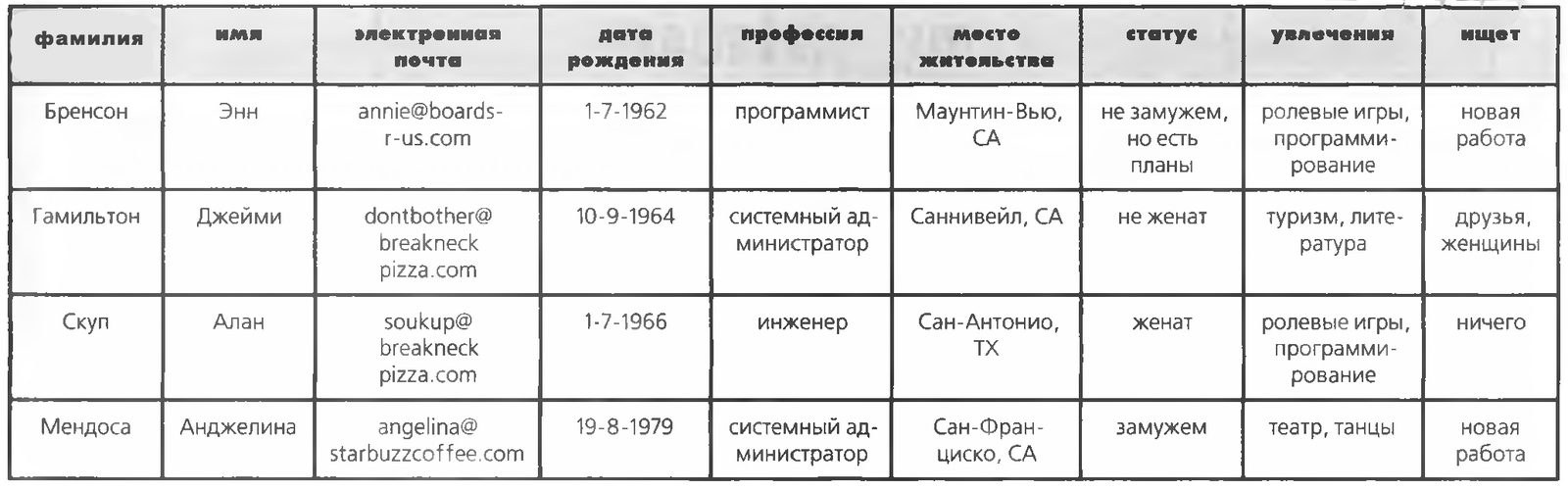
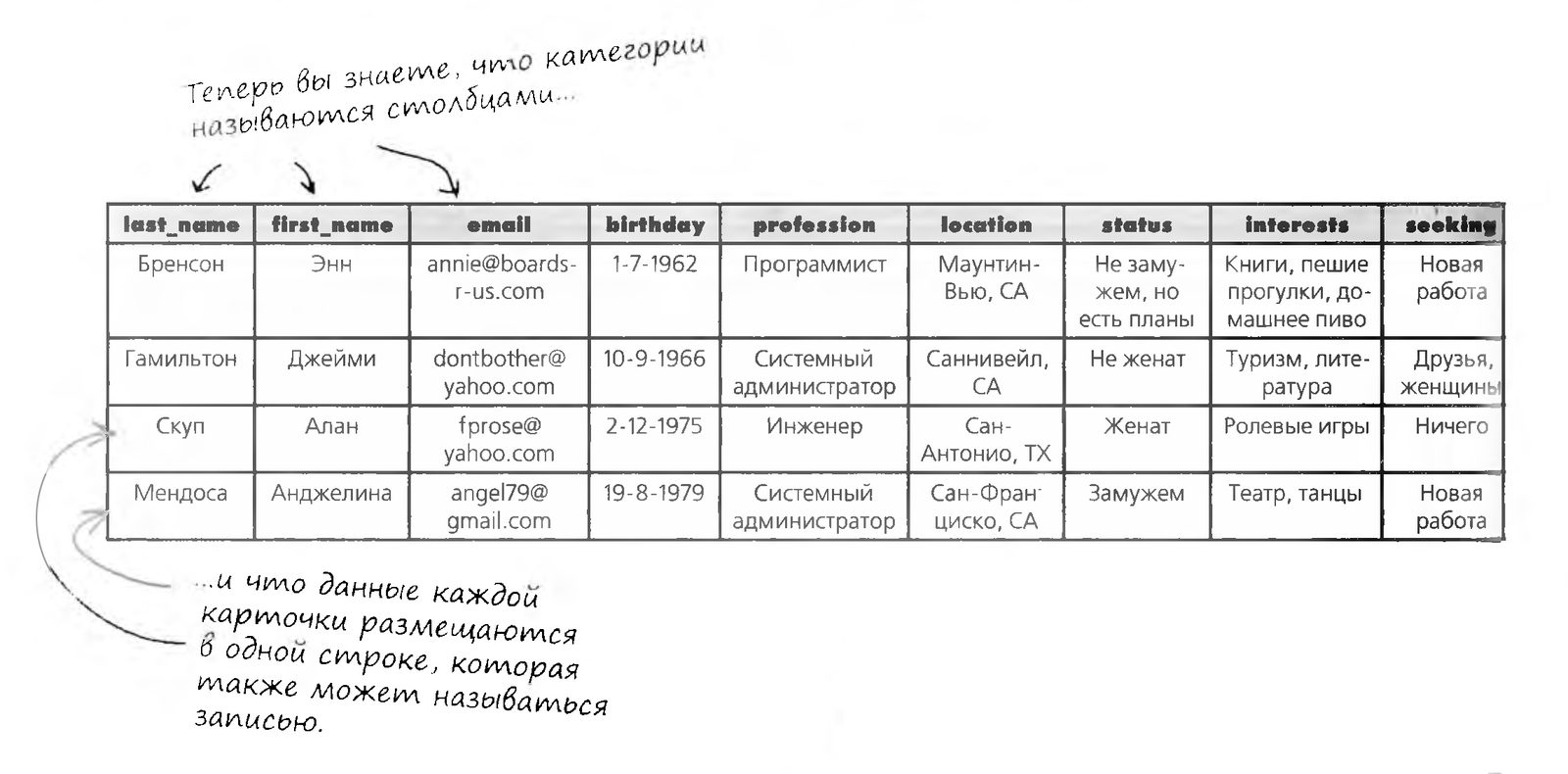
And here is the same information as a TABLE of rows and columns.

I've already seen this way of presenting data in Excel. How are SQL tables different from it? And what are these columns and rows, anyway?
What Is a “Database”?
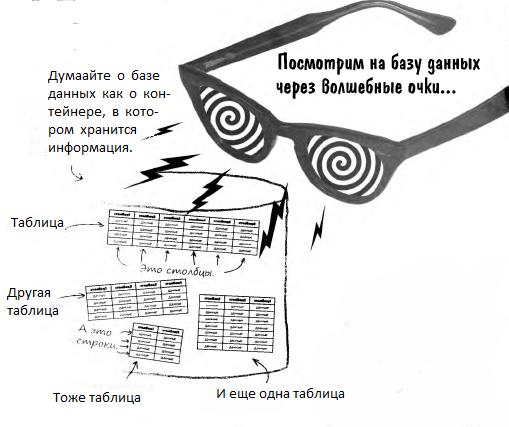
Before we get into the details of tables, rows, and columns, let's take a step back and try to see the big picture. The first SQL structure you need to know about is the container that holds all of your tables. It is called a database.
A database is a container that holds tables and other SQL structures for working with them. The dictionary definition of a database.
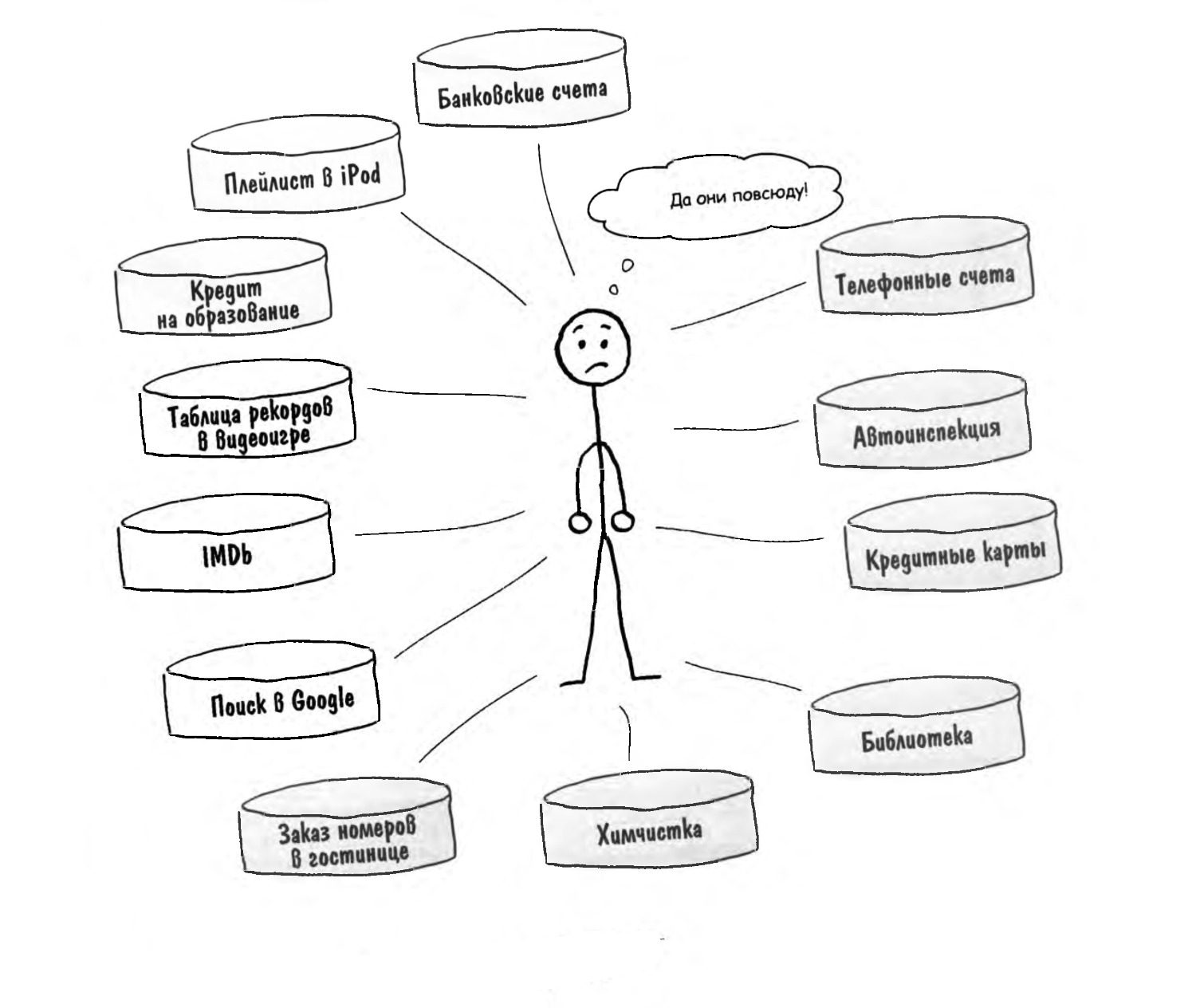
Every time you search the Internet, look something up in a reference, use a TiVo, order tickets, get a speeding ticket, or buy something in a store, the information needed is requested from a database.
You and just a few of the databases around you

Code Under the Microscope
A database consists of tables.
A table is a structure that holds data organized into columns and rows. Remember the categories from the previous example? Each category corresponds
to a column of the table.
For example, a column might contain one of these values: Single, Married, Divorced.
A table row holds all the information about one item in the table. In Greg's new table, a row holds the complete description of one person. For example, one row might store this data: John, Jackson, single, writer, jj@boards-r-us.com.
The information in a database is divided into tables.
Be the Table

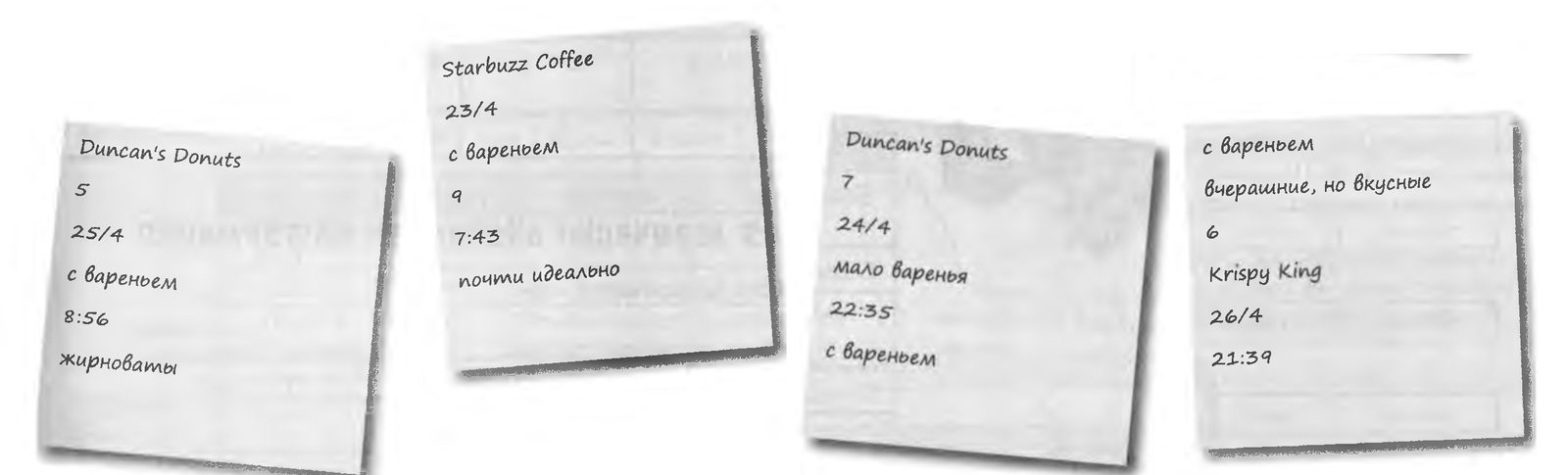
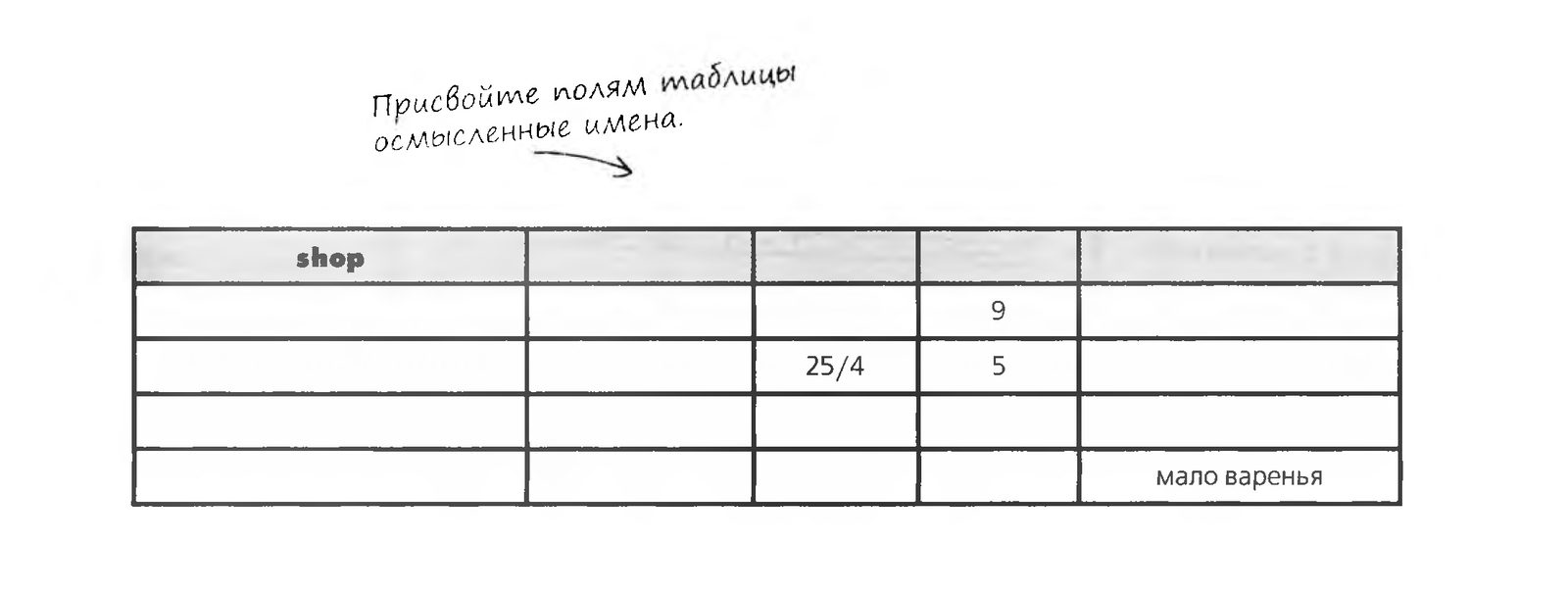
Below you will find several cards and a table. Your task is to imagine yourself in the place of the partly filled table. Of course, you will want to fill in the empty spots and reach balance and inner fulfillment. Also give the columns of the table meaningful names. When you
finish the exercise, check whether you have managed to achieve spiritual unity with the table.
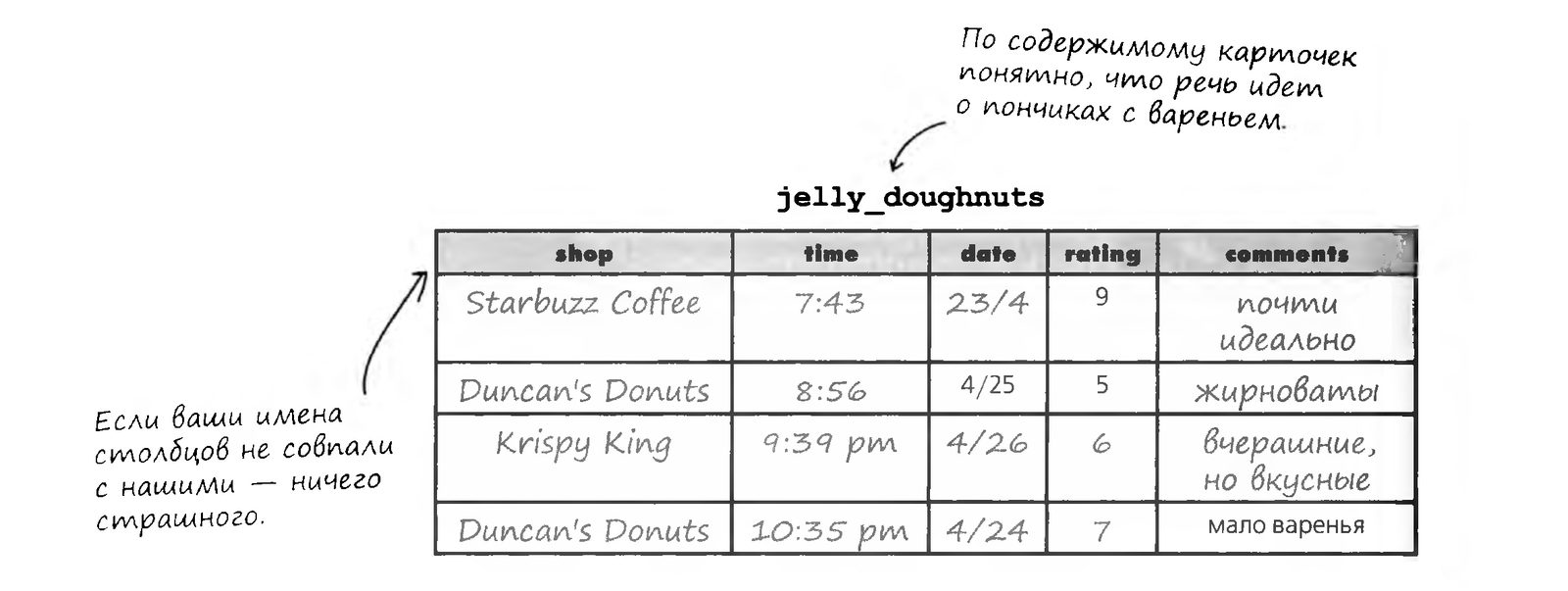
Answer
From the contents of the cards, it is clear that they are about jelly doughnuts: jelly_doughnuts
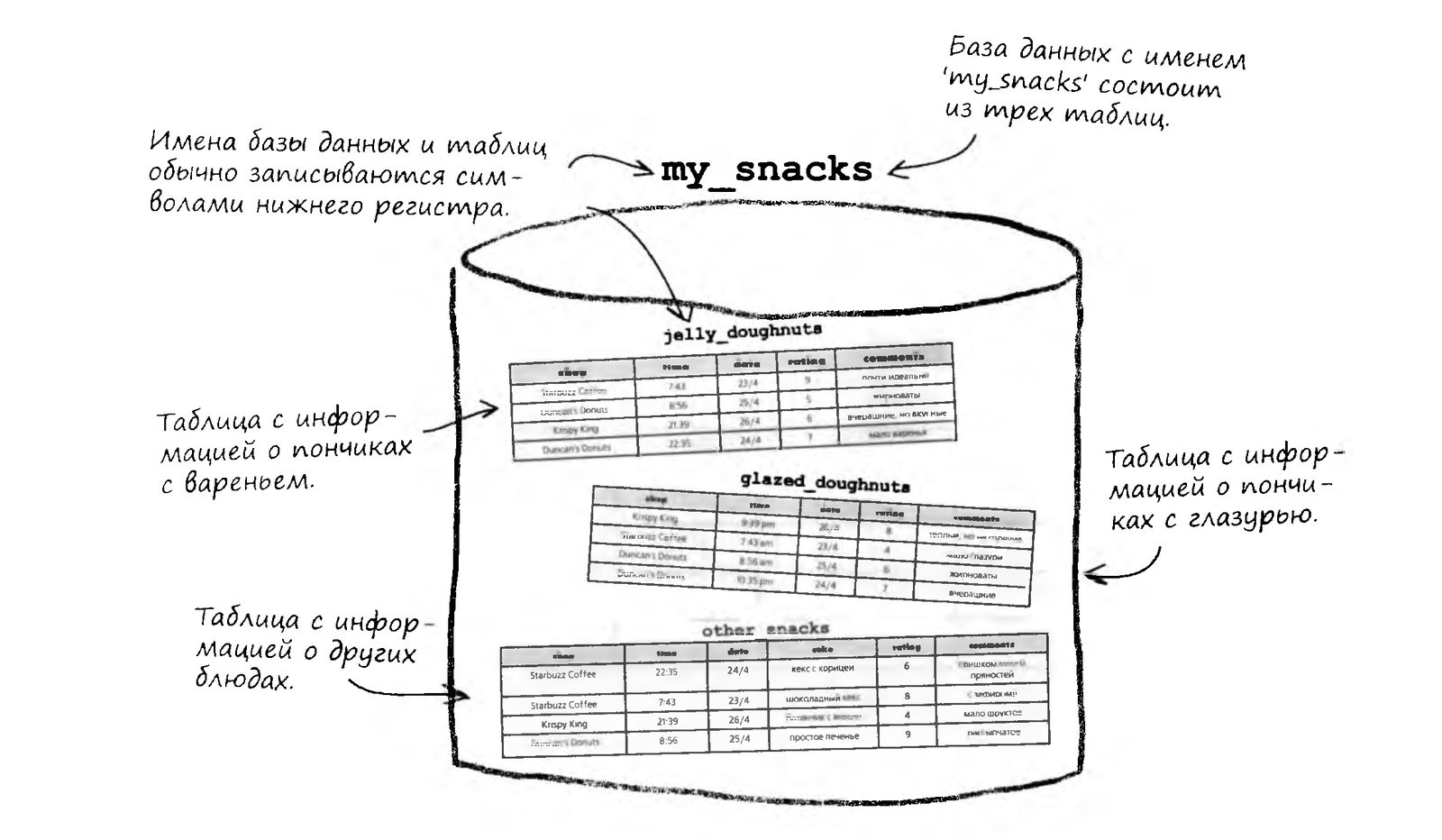
Databases Store Logically Related Information
All the tables in a database must be related to each other in one way or another. For example, a database with information about doughnuts eaten might consist of the following tables:
Tables Under a Magnifying Glass
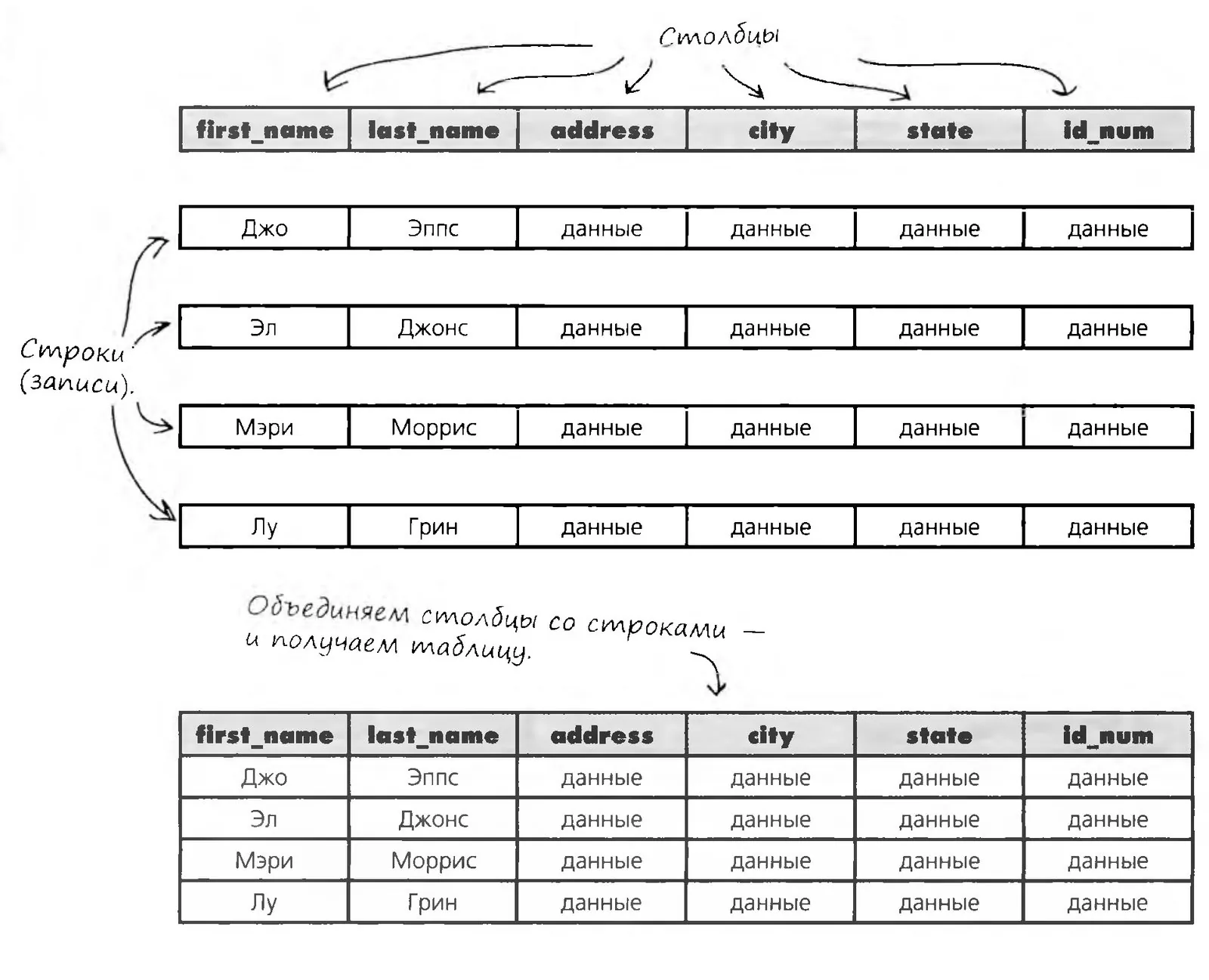
Column — a piece of data stored in a table.
Row (or record) — a set of columns describing the attributes of a single item.
Columns and rows make up a table.
Here is an example of a table for storing address book data. Columns are also often called fields — the two terms mean the same thing. In addition, the terms row and record are considered synonyms.
So the data from my cards
can be turned into a table?
Exactly. First, the information about each person is divided into categories.
The categories become columns. Each card becomes a record. You can take all the information from the cards and turn it into a table.
Categories that will unite all the data from the cards
First name
Date of birth
Status
Looking for
Last name
Occupation
Place of residence
Interests
The data from one card forms a row
Mendoza
System administrator
San Francisco, CA
theater, dancing
Meet the Data Types
Here are a few more useful data types. Their job is to store your data without distortion. Let's get to know them all.
CHAR (or CHARACTER) — strict and uncompromising, it demands that its data have a fixed length.
DEC (or DECIMAL) — stores numbers with a specified precision.
INT (or INTEGER) — insists that numbers be whole, but is not afraid of negative values.
BLOB — handles large blocks of text data.
DATE — stores dates, but pays no attention to the time.
The slippery DATETIME or TIMESTAMP type, depending on the RDBMS. It stores both date and time. Its relative TIME works only with the time, without the date.
VARCHAR stores text data up to 255 characters long. It is flexible and easily adapts to data of variable length

Be careful! Your RDBMS may use different type names!
Unfortunately, there is no universal naming system for types.
In your particular RDBMS, some types may be named differently. For the correct names, consult the RDBMS documentation.
How well did you understand the data types?
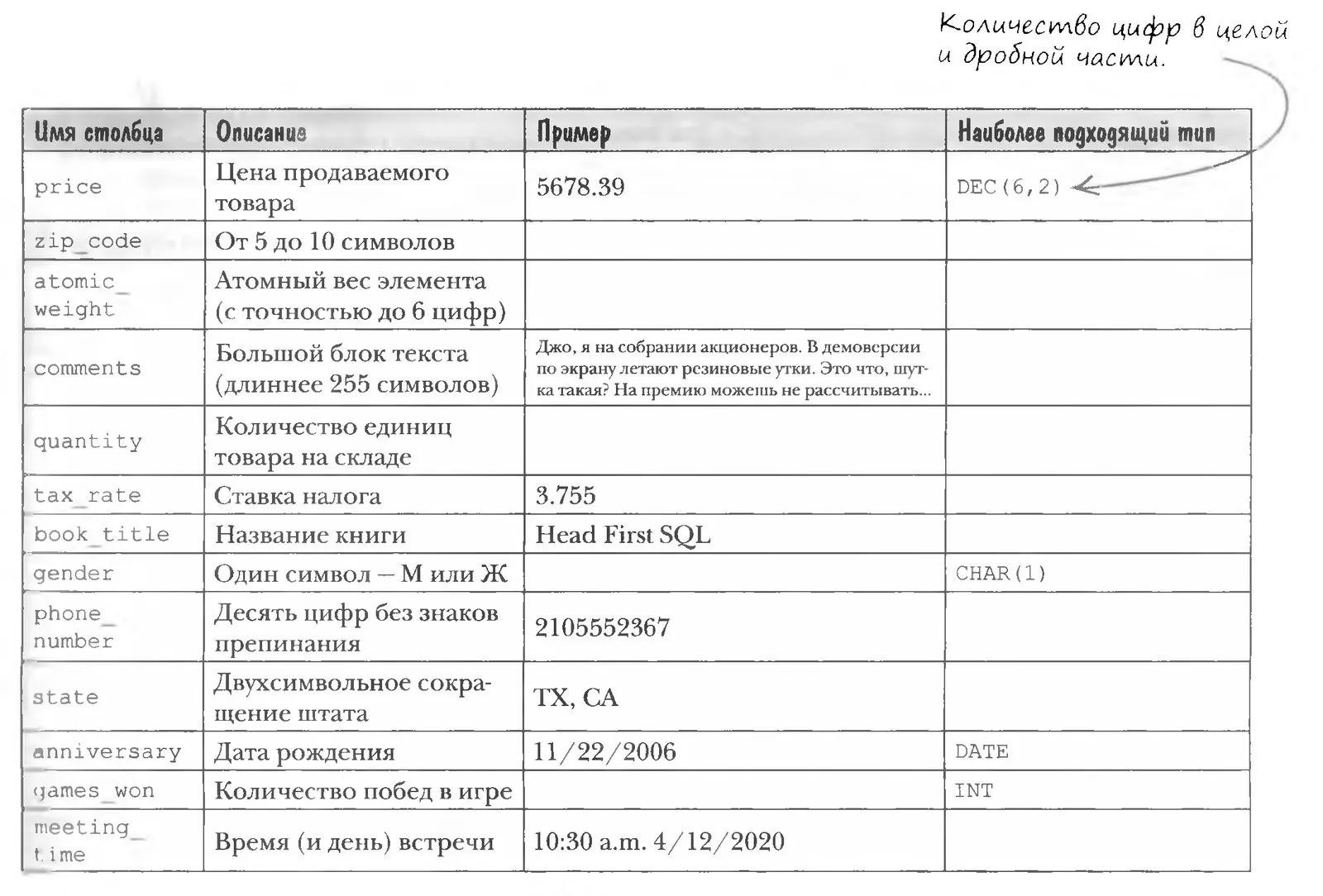
Hi! To help you get the hang of data types, I have an assignment for you. Only through practice will you understand how data is divided into types. Print out or redraw this table for yourself. Then choose and write in the most suitable data type for each column of data, and while you're at it, fill in the missing examples. See you at the assignment check!

I still can't figure it out. Why complicate everything? Why don't we store all text data in BLOB columns? That would be simpler for everyone... and I'd have less to remember.
It's all done for efficiency! A VARCHAR or CHAR column has a fixed size, no more than 256 characters, while a BLOB column takes up far more memory. As the database grows, you can run out of hard drive space. Besides, some important string operations available for VARCHAR and CHAR cannot be performed on a BLOB value (but more on that later).
Text makes sense, but why do we need different numeric types, INT and DEC? A whole number can always be written as a fraction with no fractional part.
Again, for efficiency. Choosing the optimal data type for each column of a table reduces its size and speeds up working with the data.
Okay, I get you. You don't joke around with large volumes of data. Every byte counts there. But is that all for today? Aren't there any other types?
There are, but these types are the most important. The exact set of supported data types also depends on the RDBMS, so consult the documentation for more information. We also recommend the book “SQL in a Nutshell” — it's an excellent reference that describes the main differences between the various RDBMSs.
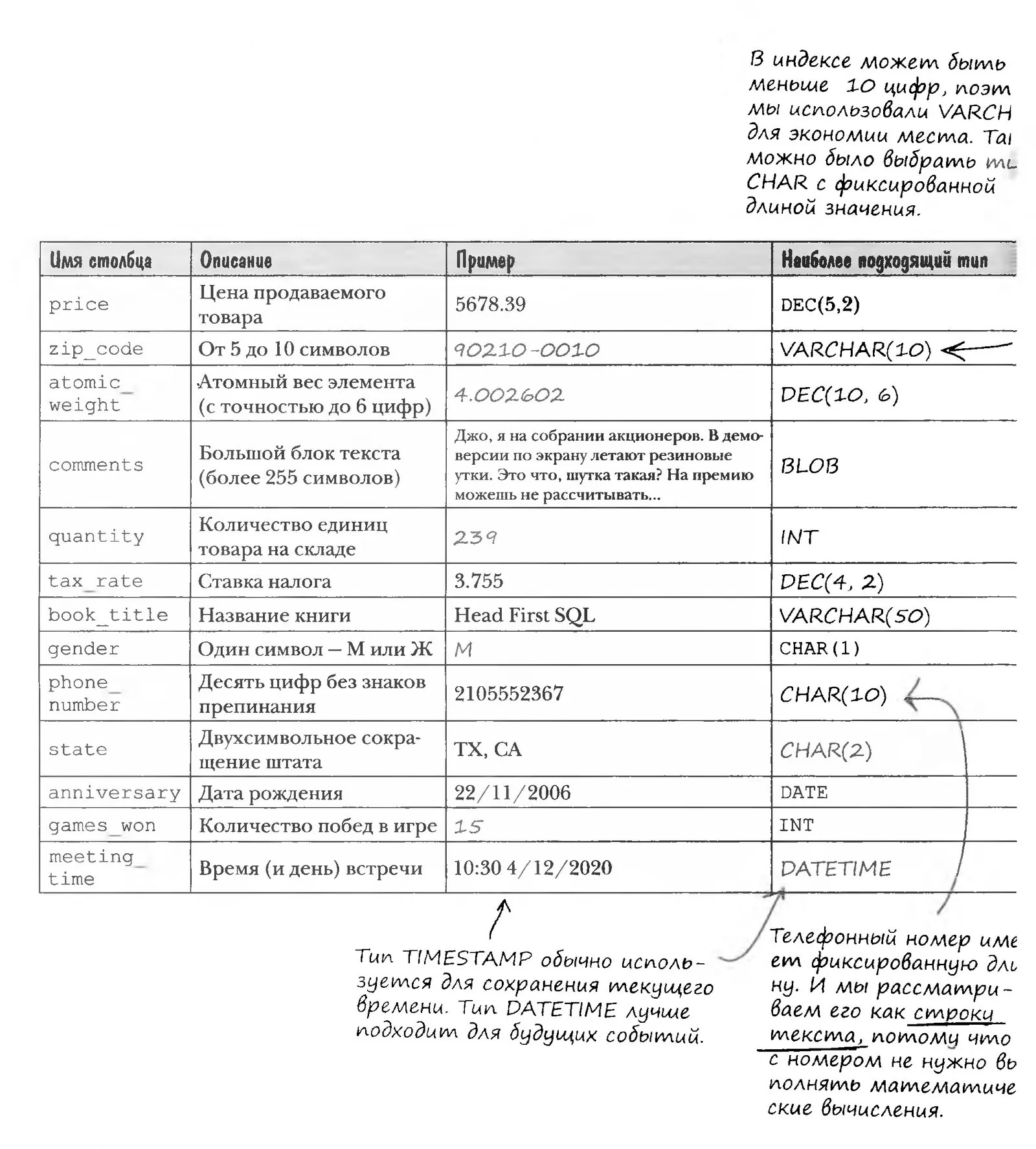
Who Does What? The Answer to R2D2's Data Types Assignment

Important Points You Won't Be Using
Paradoxical but true: below are the main commands for managing tables — creating, deleting, and reading them. But, as the heading already suggests, testers often don't use these commands; they are more the domain of programmers. A tester's job comes down to being able to pull the necessary set of data out of the tables for tests. Management commands:
To display the description of a table's structure, use the DESC command.
The DROP TABLE command destroys a table along with all its contents. Be careful, and never use it just for the sake of it!
To save data in a table, use the INSERT command, which comes in several variants.
NULL is an undefined value that is not the same as zero or an empty string. For a column containing null, the IS NULL condition is true, but the column is not equal to NULL.
Columns whose value is not specified in an INSERT command are initialized to NULL by default.
To prevent a column from storing null, use the NOT NULL keywords when creating the table.
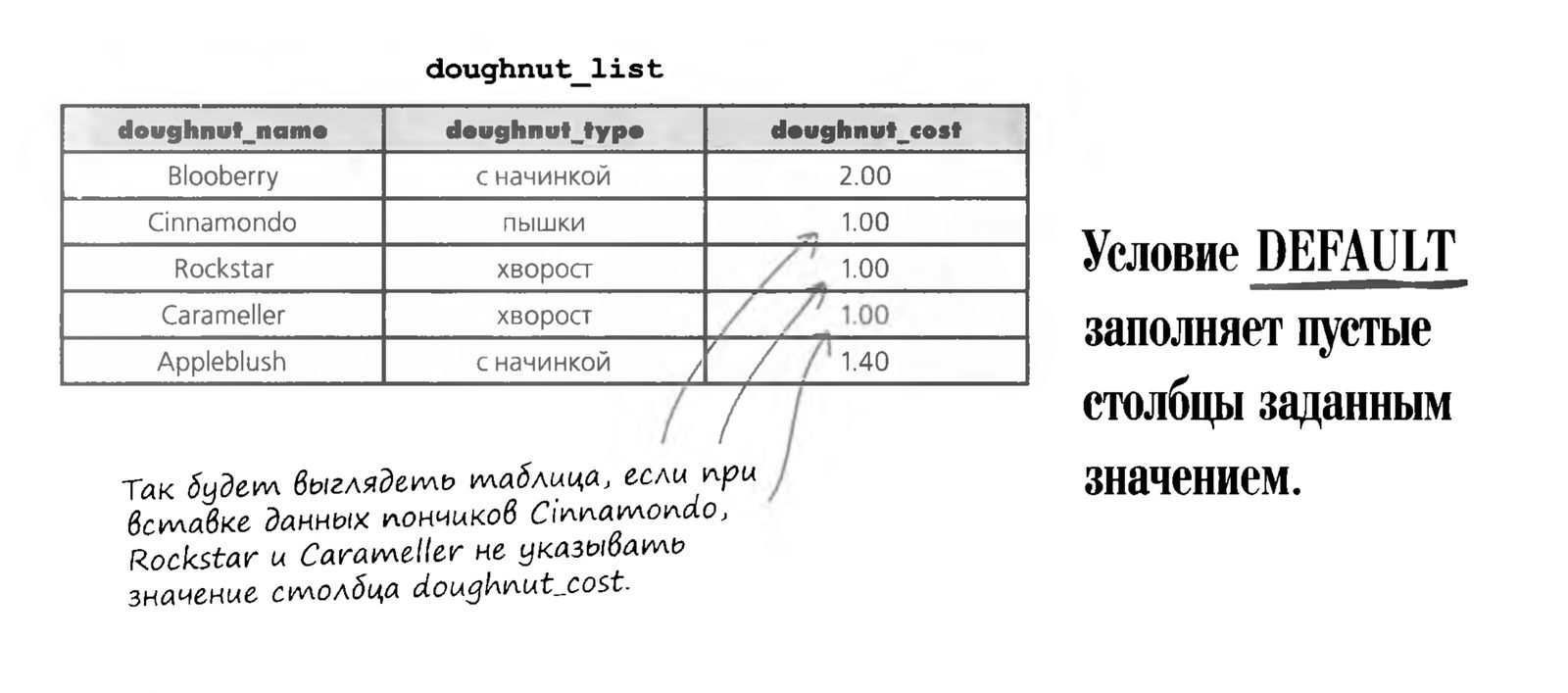
The DEFAULT clause defines a default value — if no value is given for a column when the table is filled in, the column is automatically filled with this value.
CREATE TABLE
The command creates a table, but to run it you need to know the NAMES and DATA TYPES of the columns. They are determined by analyzing the information that will be stored in the table.
DROP TABLE
The command deletes a table that was created with a mistake — but this should be done before running the INSERT commands that fill the table with data.
CREATE DATABASE
The command creates the database that stores all the tables with data.
USE DATABASE
The command opens the database for creating tables.
NULL and NOT NULL
When creating a database, you should know which columns must not accept the value NULL — this will simplify sorting and searching the data. The NOT NULL condition is set for columns when the table is created.
DEFAULT
Defines the default value for a column; it is used when the column's value is not specified when a row is inserted.

DEFAULT and Default Values
If a column often holds one particular value, you can assign it a default value with the DEFAULT keyword. The value that follows DEFAULT is automatically entered into the table each time a new record is added — unless a different value is given. The default value must match the column's data type

CREATE TABLE doughnut_list
(
doughnut_name VARCHAR(10) NOT NULL,
doughnut_type VARCHAR(6) NOT NULL,
doughnut_cost DEC(3,2) NOT NULL DEFAULT 1.00
);
DEFAULT
1) The column must ALWAYS contain a value. To ensure this, we not only declare it with the NOT NULL keywords, but also assign it a default value of 1.
2) This value is stored in the doughnut_cost column if the INSERT command does not specify another value.
DEC(3,2)
The value can contain up to 3 digits: one before and two after the decimal point
NOT NULL in the DESC Output
And here is how the my_contacts table will look if all columns are declared with the NOT NULL keywords:
Table
description.
Note
the word NO
in the null
column.
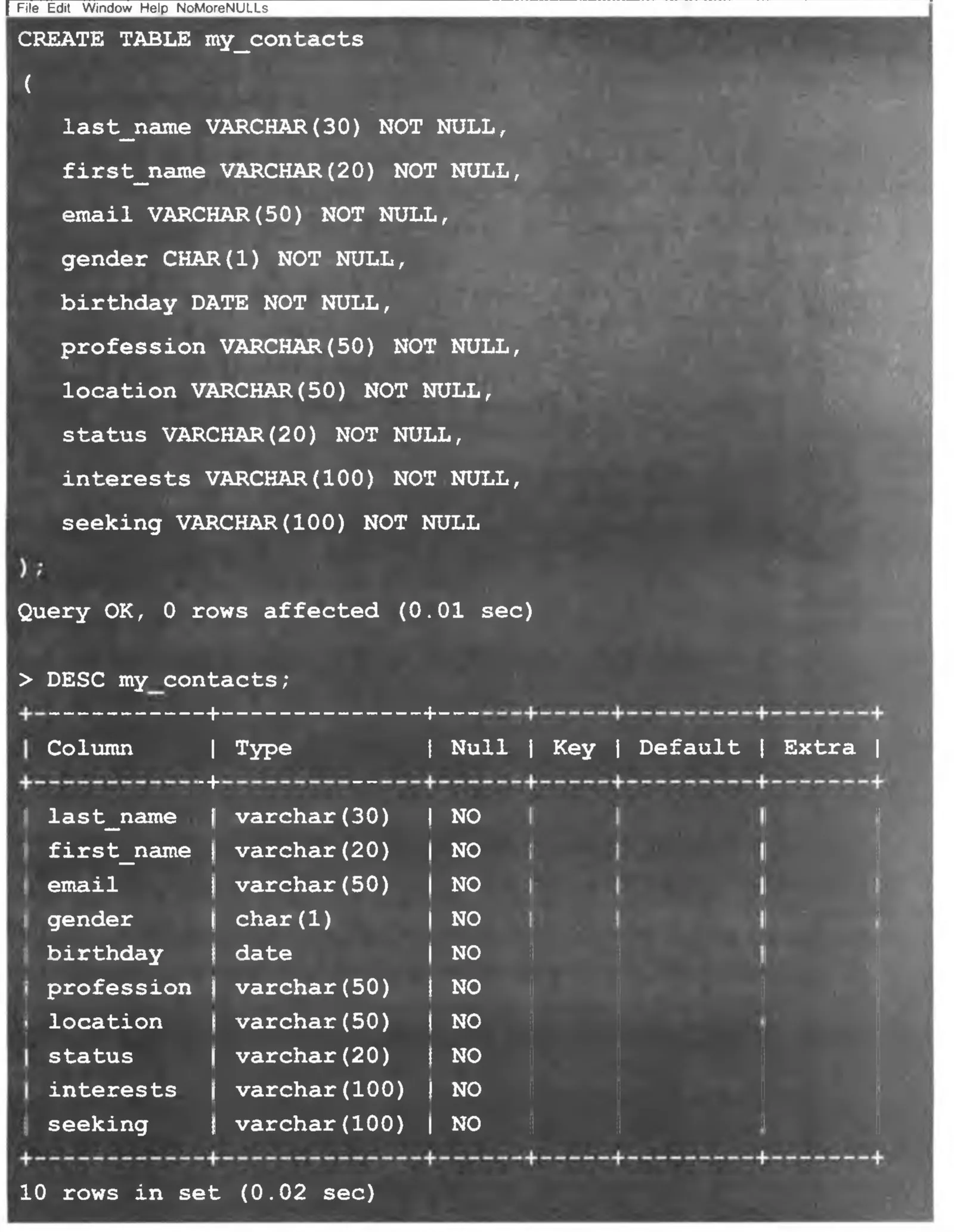
The command creates a table in which all columns are declared with NOT NULL
The SELECT Command. Selecting Data
When working with databases, selecting data is usually done more often than inserting data. In this chapter you will meet the mighty SELECT command
and learn how to get at the important information you have stored in your tables. You will also learn to use the WHERE, AND, and OR conditions to select data selectively and keep unneeded data from being returned.
A Hard Search
Greg has finally moved all the data from his card file into the my_contacts table. Now he wants to relax. He got hold of two concert tickets and wants to invite one of his acquaintances — a girl named Anne from San Francisco. To find her email address, Greg browses the contents of the my_contacts table with the SELECT command from chapter 1.
SELECT * FROM my_contacts;
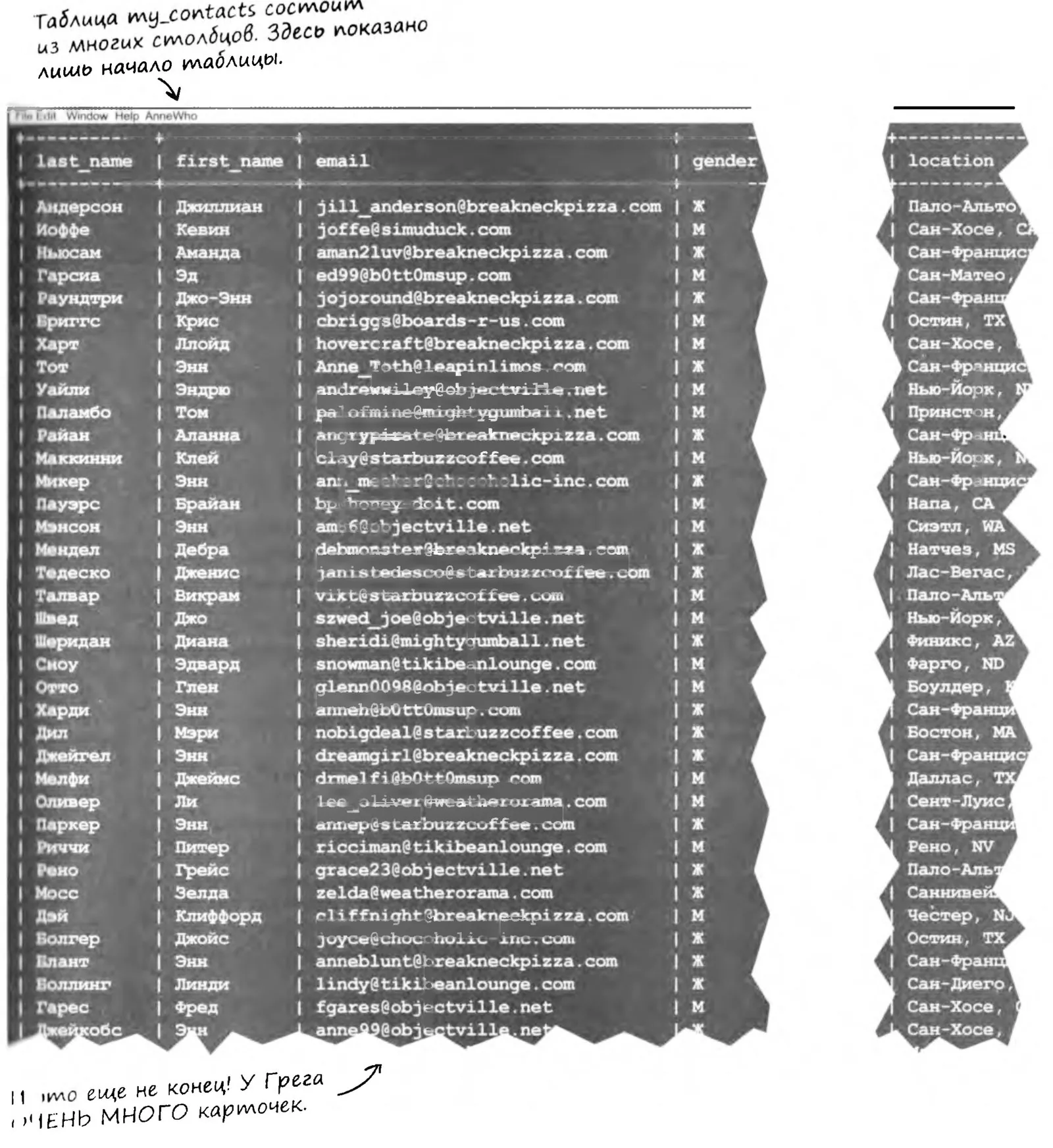
You have to put yourself in Greg's place — look through the my_contacts table and find all the Annes from San Francisco. Then write out their first names, last names, and email addresses ->
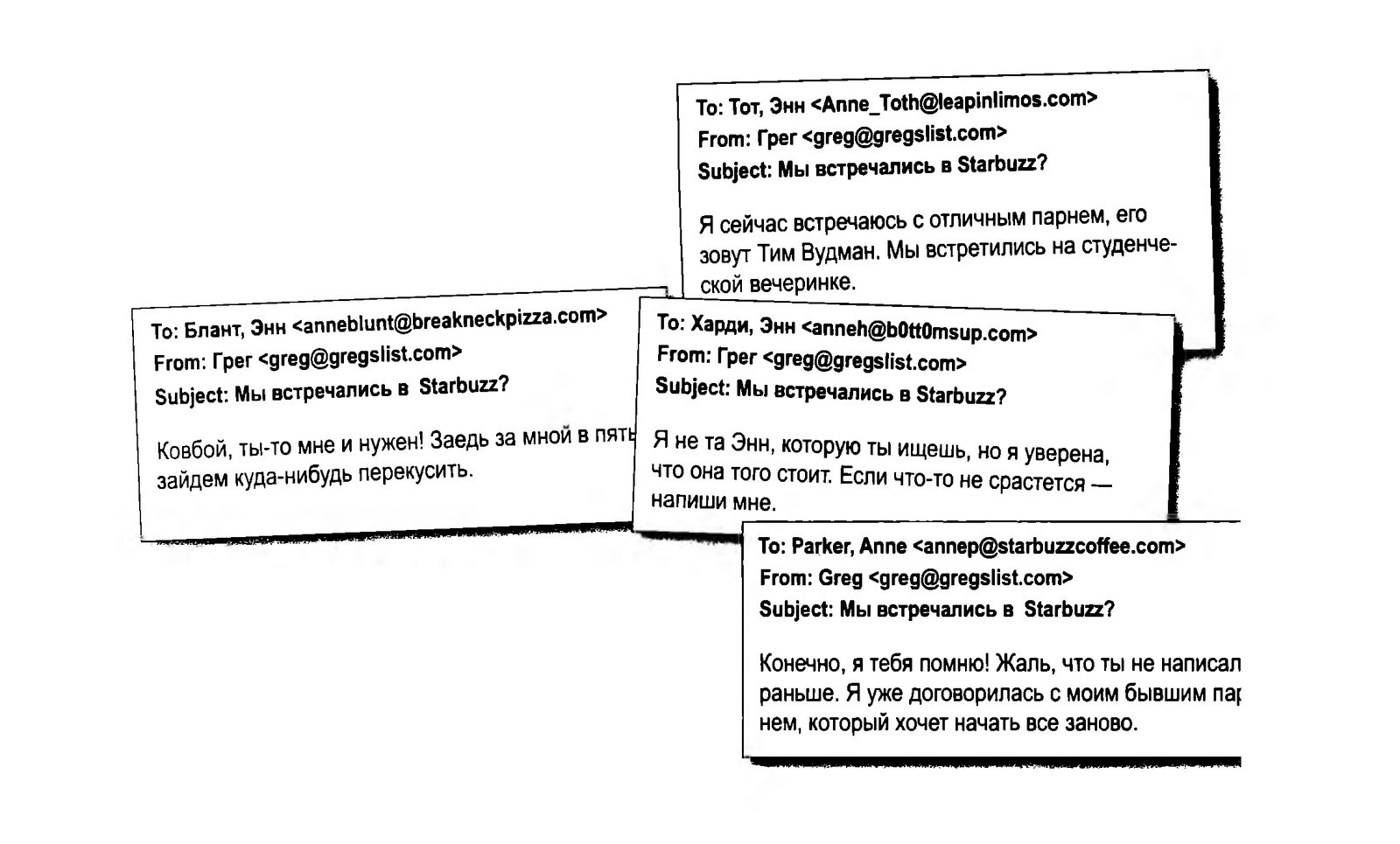
Toth, Anne: Anne_Toth@leapinlimos.co,
Hardy, Anne: anneh@bOttOmsup.com
Parker, Anne: annep@starbuzzcofee.com
Blunt, Anne: annbunt@breakneckpizza.com
Different Annes and their email addresses
Searching for a contact
The search took far too long and was extremely tedious. There is also a very real danger that Greg missed a couple of suitable Annes, including the one he is looking for. Now that he has the email addresses, Greg sends out messages and gets replies...
The Improved SELECT Command
The following SELECT command will help Greg find Anne's details much faster than painstakingly combing through the whole huge table. In this command we use the WHERE condition, which gives the RDBMS a more precise criterion for selecting records. The condition narrows the search results, and the command returns only the records for which the condition is met.
The = sign in the WHERE condition means that each value of the first_name column is checked for equality with the text 'Anne'. If the two values are equal, the whole record is included in the result. If not, the record is skipped.
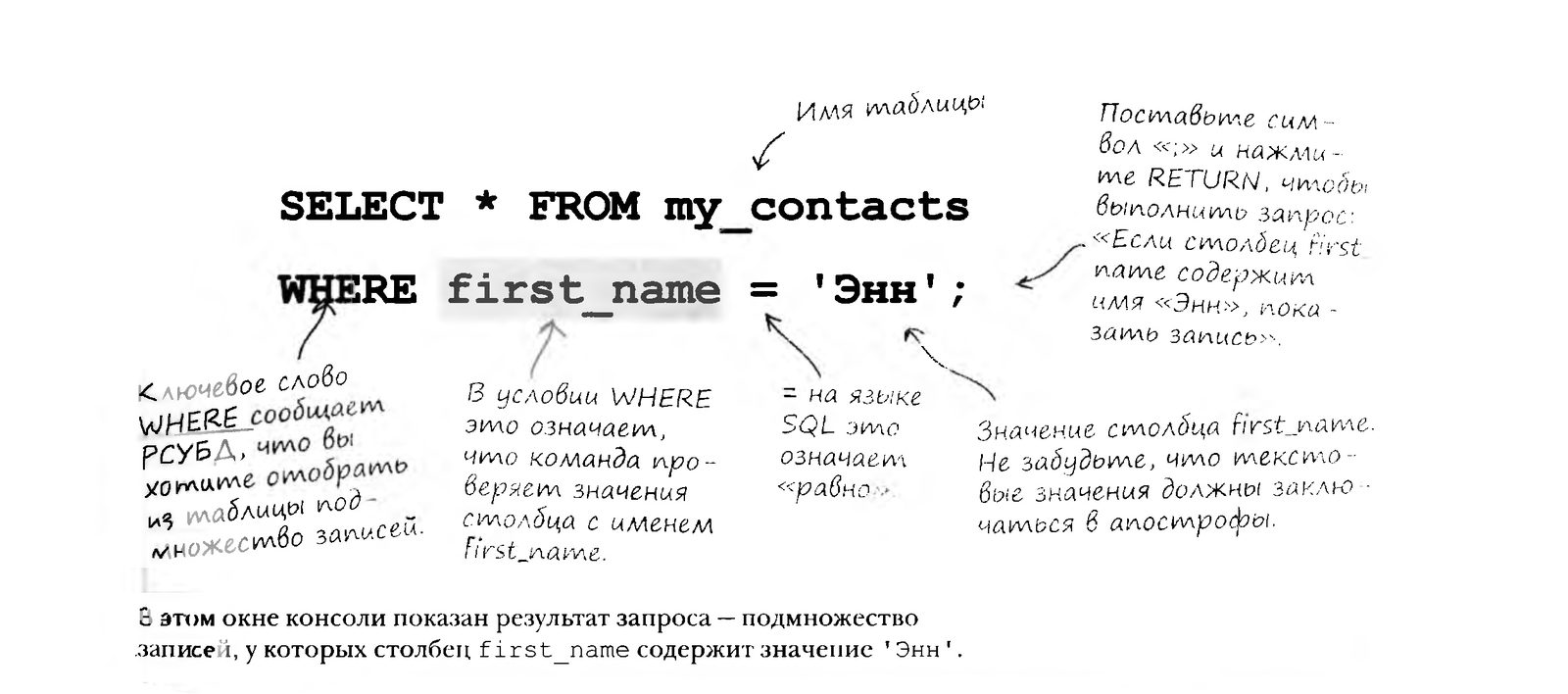
This console window shows the query result — the subset of records whose first_name column contains the value 'Anne'.
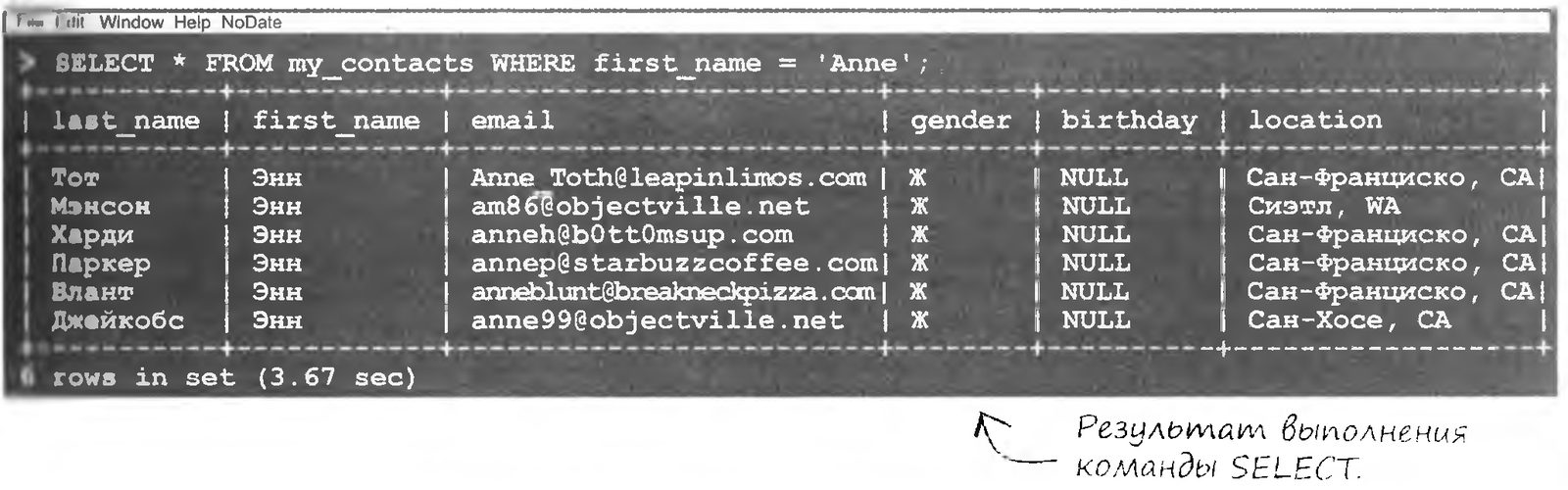

Hold on, you didn't think I'd miss that * sign, did you? What is it doing here?
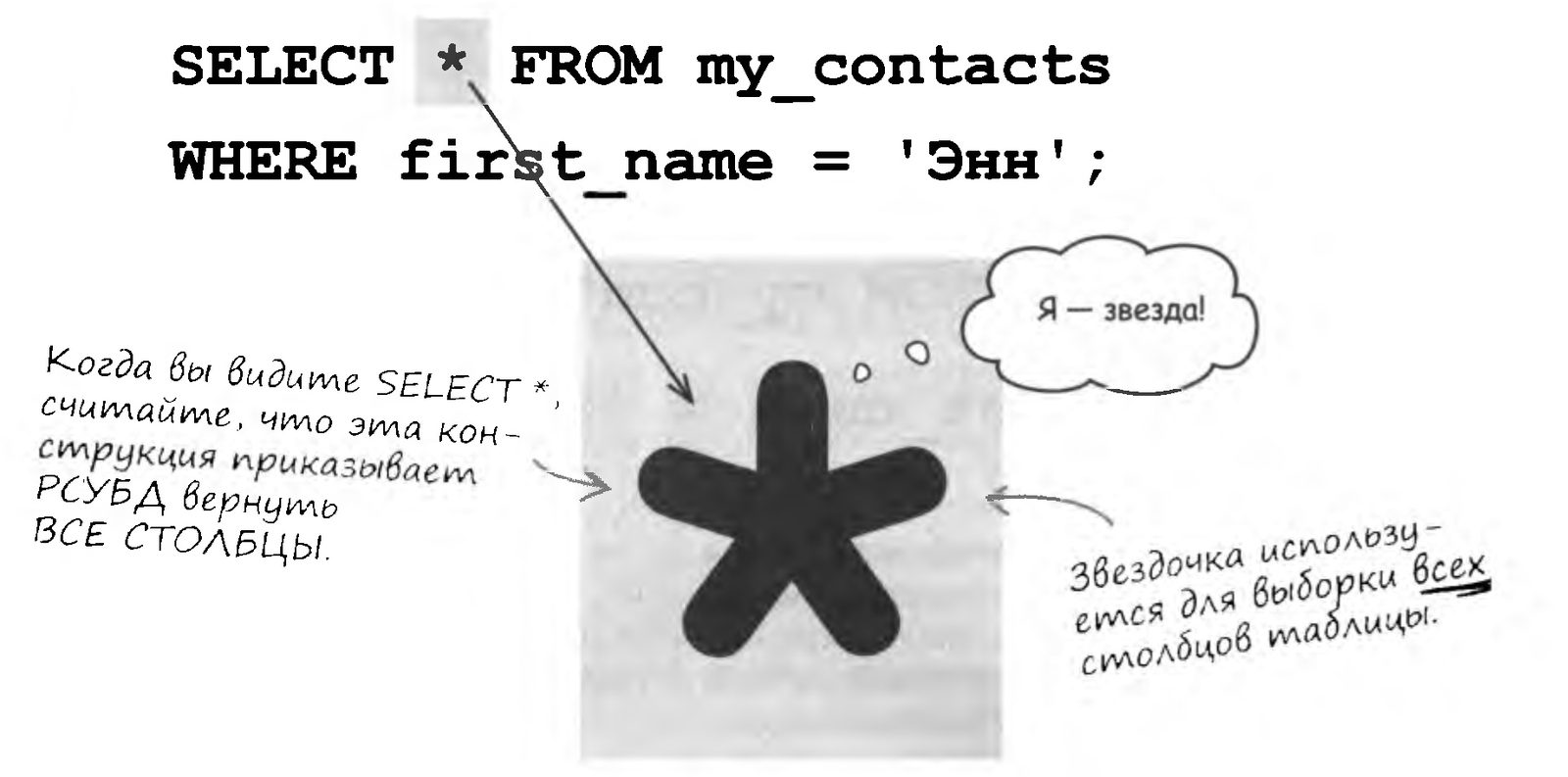
The asterisk (*) tells the RDBMS to return the values of all the columns of the table.
What is this * ?
Hold on, you didn't think I'd miss that * sign, did you?
What is it doing here?
The asterisk (*) tells the RDBMS to return the values of all the columns of the table.
What if I don't want to include all the columns in the result? Can I use something other than the asterisk?
Yes, you can. The asterisk selects all columns, but in a few pages you will learn how to limit the selection to some of the columns so the result is easier to work with
What Is This * ?
The asterisk (*) tells the RDBMS to return the values of all the columns of the table
Practice Time
You probably thought some boring assignments were coming, but nothing of the sort! Right now we're going to mix up fruit cocktails at the Galaxy QA Academy bar. Look through the table of the whole menu, and then the Master will give you an SQL query, and with its help you'll find out which cocktail you've got!
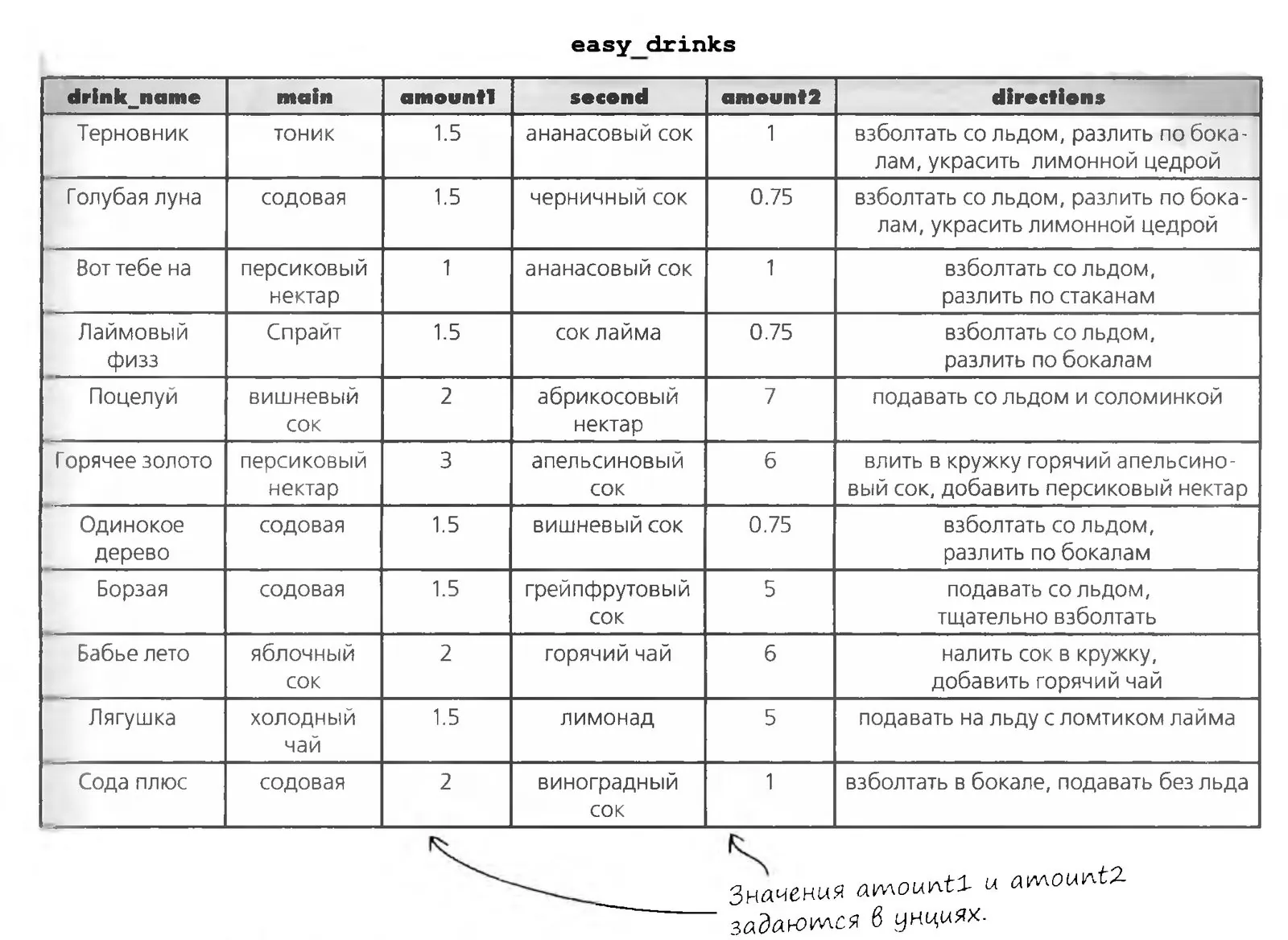

Which drink the query will return, tell me you must.
1.SELECT * FROM easy_drinks WHERE main = 'Спрайт'?
2.SELECT * FROM easy_drinks WHERE main = содовая ?
3.SELECT * FROM easy_drinks WHERE amount2 = 6 ?
4.SELECT * FROM easy_drinks WHERE second = "апельсиновый сок"; ?
5.SELECT * FRОM easy_drinks WHERE amount1 < 1.5 ?
6.SELECT * FROM easy_drinks WHERE amount2 < '1' ?
7.SELECT * FROM easy_drinks WHERE main > 'содовая' ?
8.SELECT * FROM easy_drinks WHERE amount1 = '1.5'; ?

A bonus question: figure out which query doesn't work ...
And which queries will run even though it seems they shouldn't
Attention, the correct answer
Apostrophes as Special Characters
If you insert data into a table (INSERT) or run a query to search for data (SELECT) with a VARCHAR, CHAR, or BLOB value that contains an internal apostrophe, you must tell the RDBMS that this apostrophe does not end the text,
but is part of it and must be included in the string. To do this, you can put
a backslash before the apostrophe.
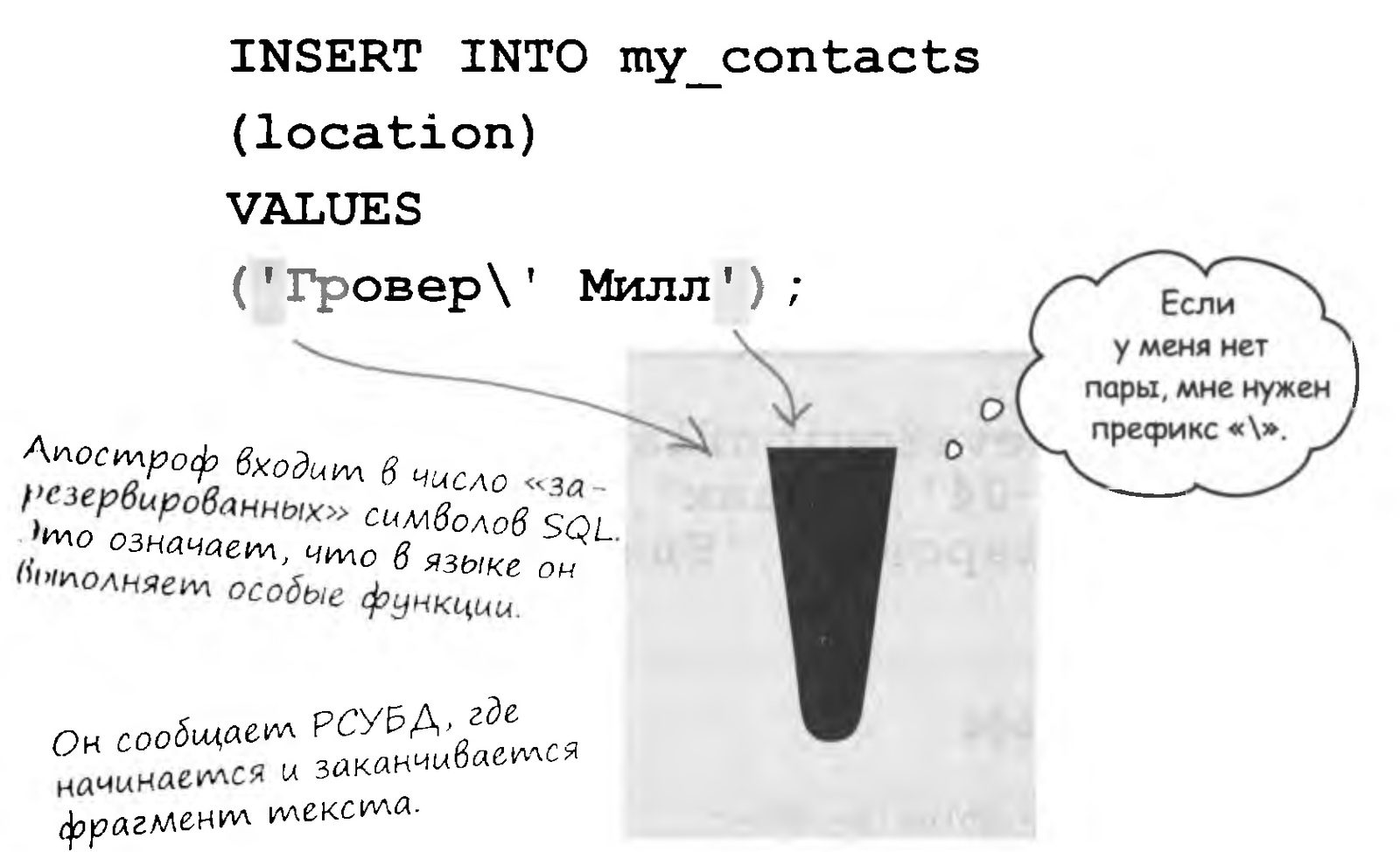
A Command with an Internal Apostrophe
You must tell the RDBMS that the apostrophe does not mark the start or end of a string, but is part of the text
Escaping with a backslash
To solve this problem (and fix the INSERT command at the same time), put a backslash before the apostrophe in the text:
INSERT INTO my_contacts
VALUES
('Funyon', 'Steve', 'steve@onionflavoredring.com', 'M', '1970-01-04', 'Punk', 'Grover\'s Mill, NJ', 'Single', 'Rebellion', 'Like-minded people, guitarists');
When you put the prefix \ before an apostrophe to show that it is part of the text, it is called “escaping”
Escaping by doubling the apostrophe
You can also “escape” an apostrophe another way — by putting an extra apostrophe before it:
INSERT INTO my_contacts
VALUES
('Funyon', 'Steve', 'steve@onionflavoredring.com', 'M', '1970-01-04', 'Punk', 'Grover''s Mill, NJ', 'Single', 'Rebellion', 'Like-minded people', 'guitarists');
Apostrophes can also be “escaped” by doubling — that is, by replacing one apostrophe with two.
Rewrite the following command using two different ways of escaping the internal apostrophe:
SELECT * FROM my_contacts
WHERE
location = 'Grover's Mill, NJ';

Check it against the Master's answer
1. First method: backslash
2. Second method: doubled apostrophe
Selecting Specific Columns
So now you know how to write a SELECT command to retrieve any type of data — including data that contains apostrophes.

The output of SELECT * gets too
long. What if I'm only interested in the email address? Can't I
hide the extra columns?
A SELECT command can include in the result only the columns you need.
To make the results convenient to work with, they need to be narrowed down a bit. In other words, the output of the table should contain fewer columns — only the columns of the table we are interested in.
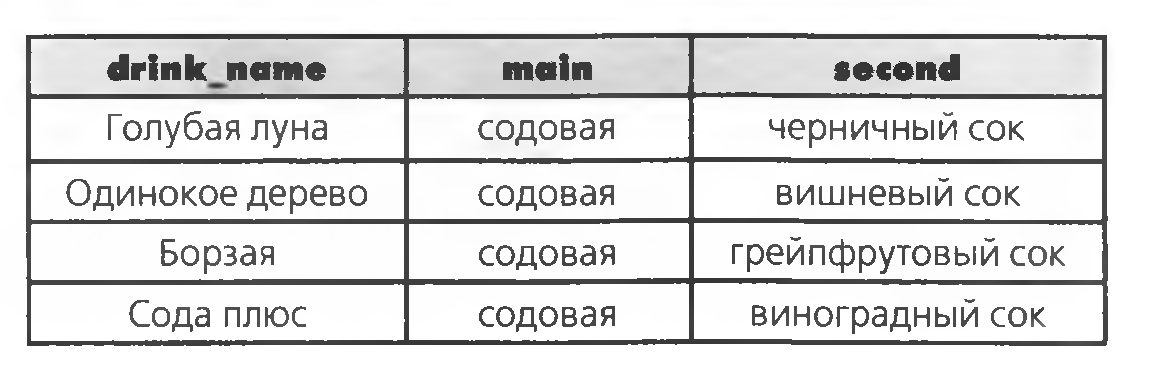
Before typing the next SELECT query, work out what the result table will look like.
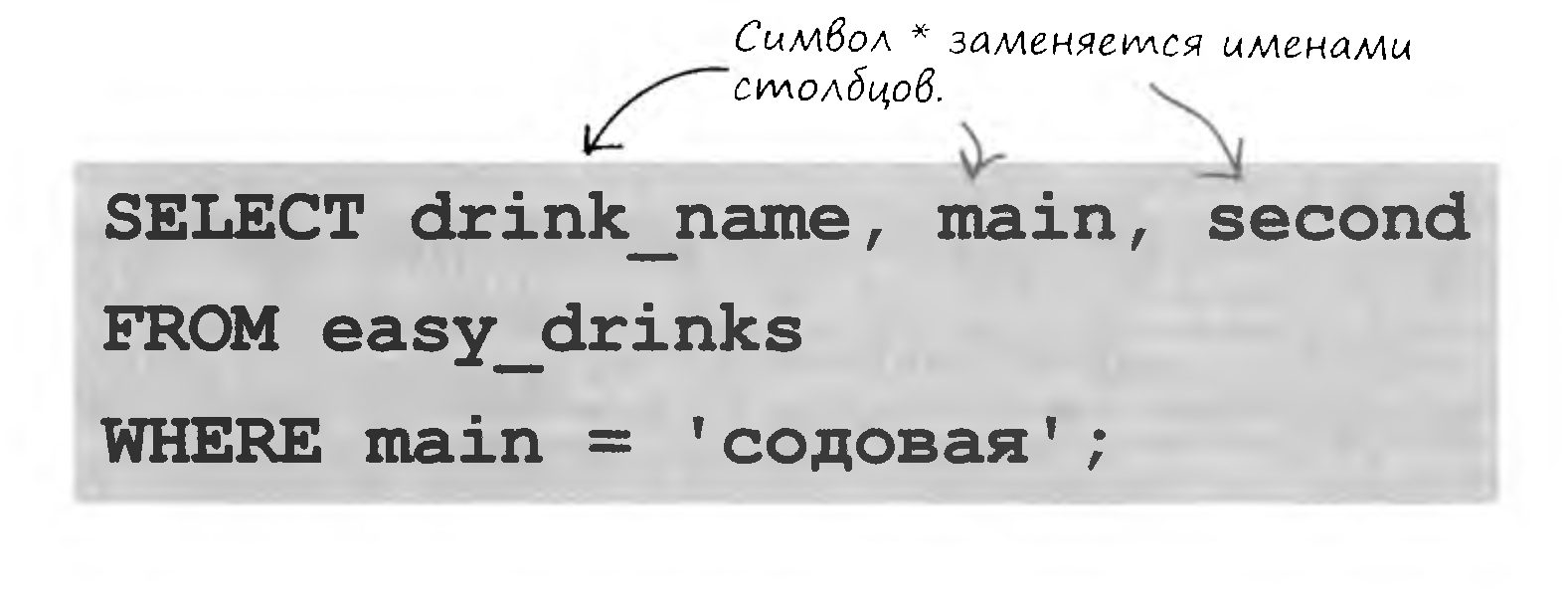
Just look at the neat, concise table our new query returns. That's a success!
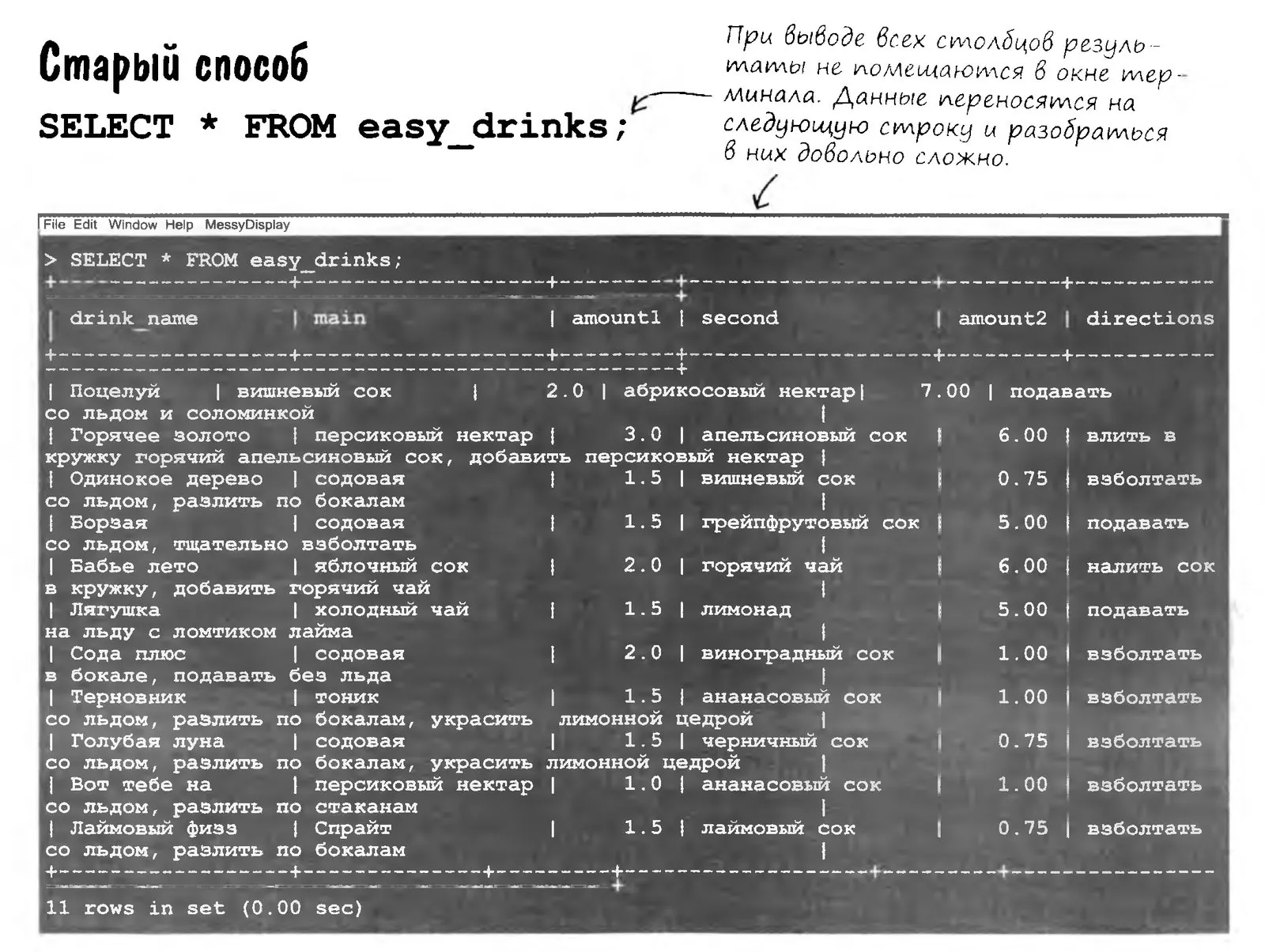
Selecting Columns Speeds Up Getting Results
By specifying which columns the query should return, we pick out the information we are interested in from the full results.
Just as the WHERE condition limits the number of records returned, the column selection clause limits the number of columns returned. In essence, you hand the job of picking out information over to SQL.
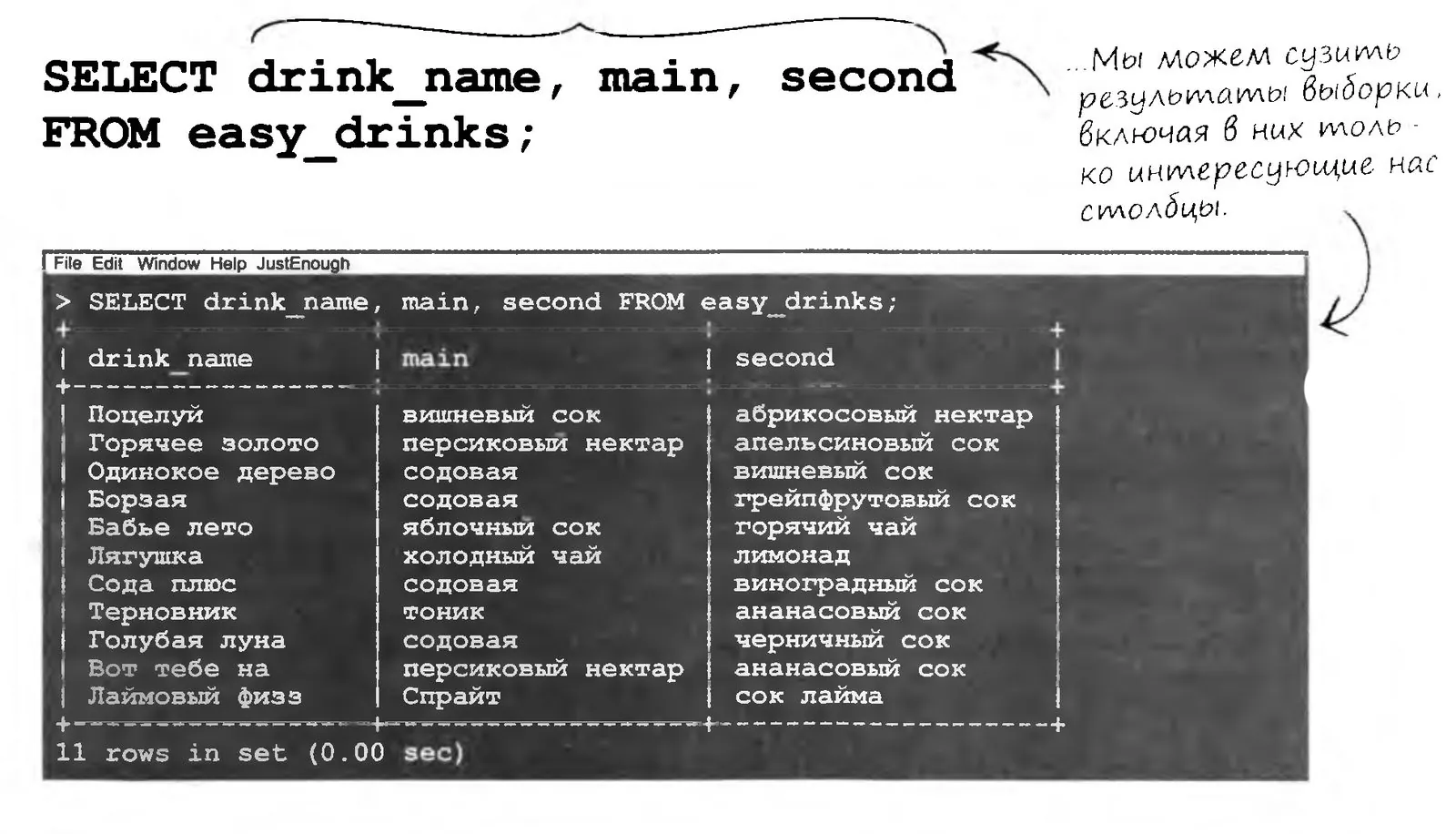
Selecting columns is useful and convenient, but it has other benefits too.
As the amount of data in a table grows, selecting columns speeds up getting results. The speedup also shows when SQL code is used from other programming languages, such as PHP.
Several Ways to Get a “Kiss”
Remember our easy_drinks table? The following SELECT command returns the “Kiss” cocktail:
SELECT drink_name FROM easy_drinks
WHERE
main = 'cherry juice';
Several Ways to Get a “Kiss”
Remember our easy_drinks table? The following SELECT command returns the “Kiss” cocktail:
SELECT drink_name FROM easy_drinks
WHERE
main = 'cherry juice';
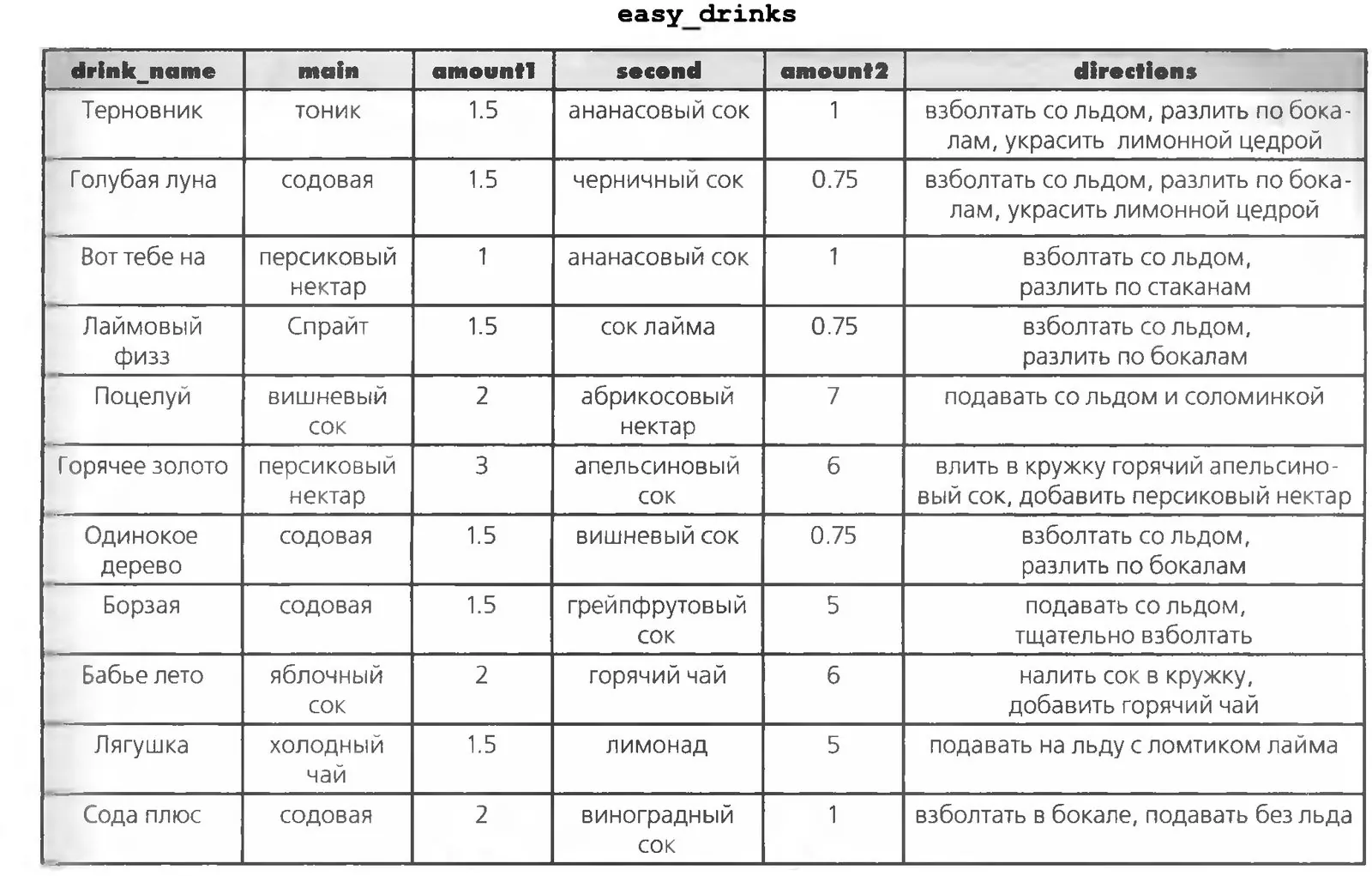
The SELECT command is the one a tester uses most. Let's practice as much as we can — complete four SELECT commands so that they also return the “Kiss.” And, to lock it in, write three more SELECT commands that return the “Frog” cocktail.
If you have already found the answer, let's check it together
Kiss - 1
Kiss - 2
Kiss - 3
Kiss - 4
Frog - 1
Frog - 2
Frog - 3
Cool, we're sure you really enjoyed writing queries. Let's select something else with SQL. Using the my_contacts table, write a few queries for Greg. Include in the result only the columns needed to get the answer. Pay special attention to apostrophes.
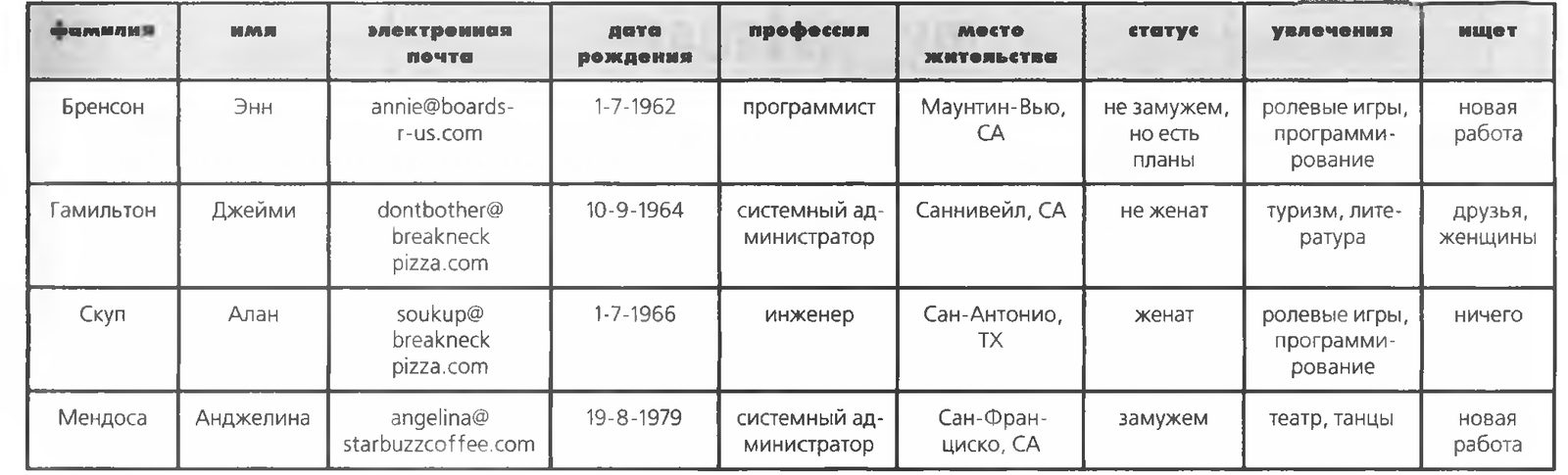
1. Write a query to get the e-mail addresses of all programmers.
2. Write a query to get the name and place of residence of all people whose birth date matches yours.
3. Write a query that Greg could use to find all the Anns from San Francisco.
Combining conditions
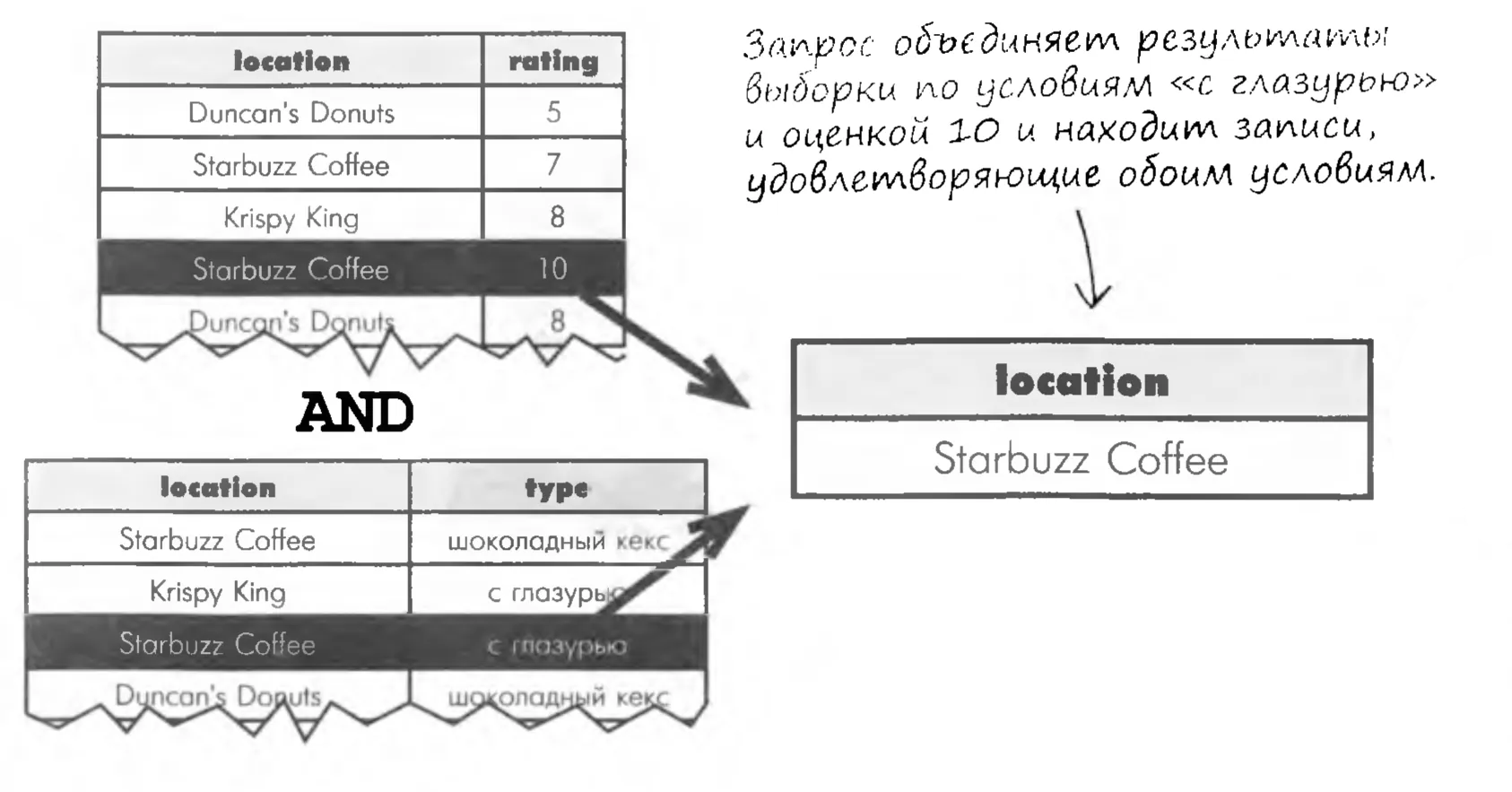
Two search conditions — the “glazed” type and a rating of “10” — can be combined into one query with the AND keyword. The results of such a query satisfy both conditions.
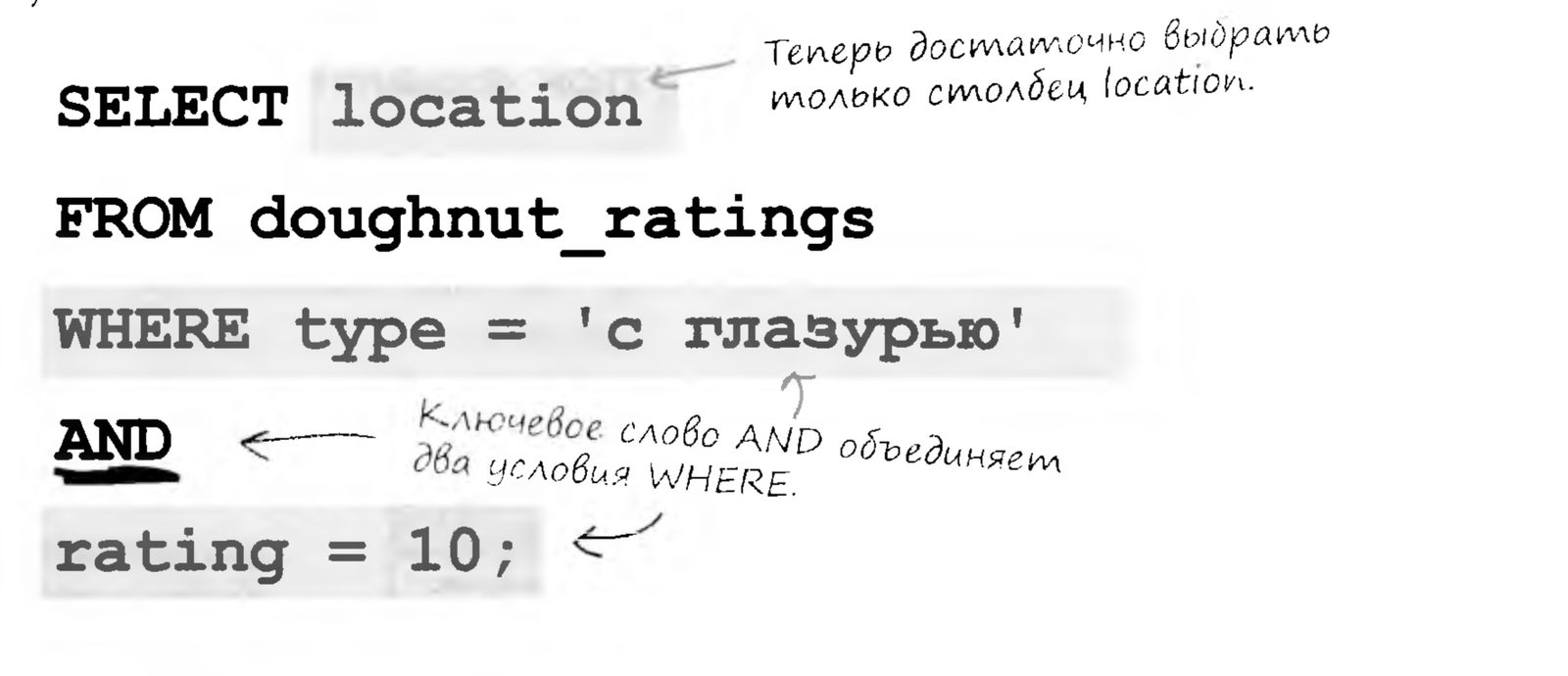
The result of an AND query. Even if the query returns several records, we know that every one of these places has glazed doughnuts rated 10, so we can go to any of them. Or to all of them, one after another.
Searching numeric values
Suppose you want to find all the drinks in the easy_drinks table that contain more than one ounce of soda, and do it in a single query. The hard way, with two queries, looks like this:
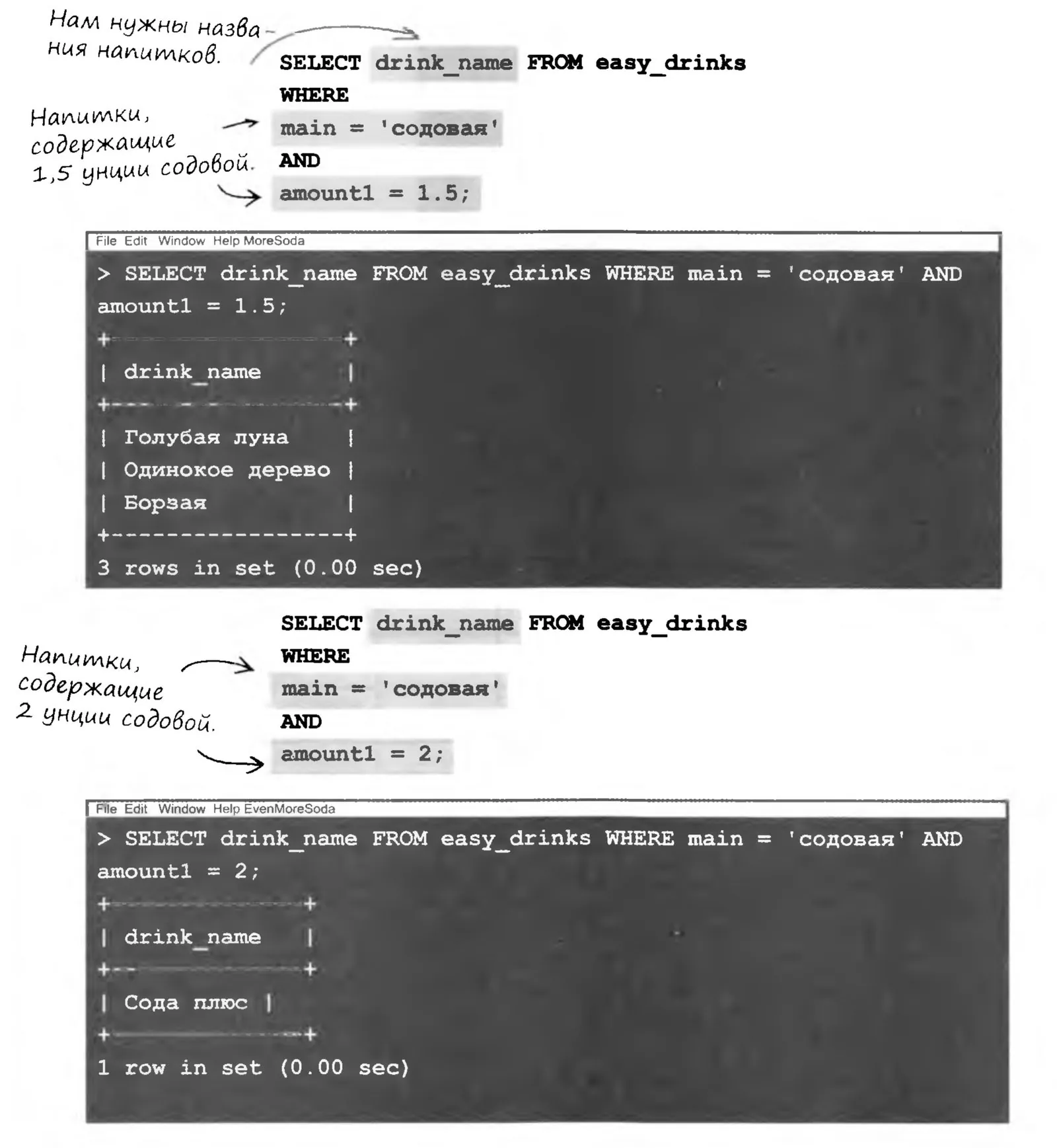
Wouldn't it be great if
you could find all the drinks in the easy_drinks table
that contain more than 1 ounce of soda in a single query...
But I know that's just a dream...
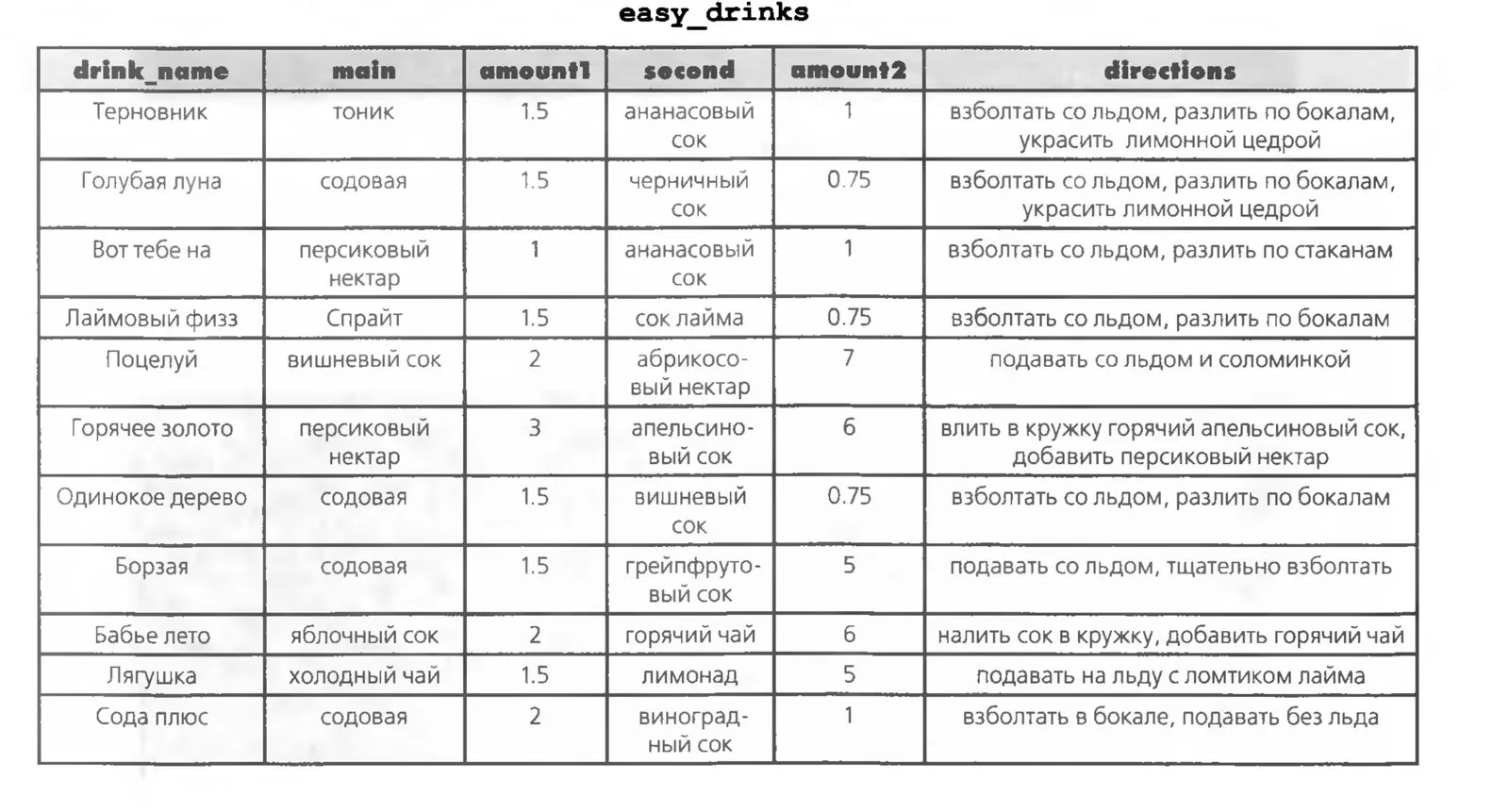
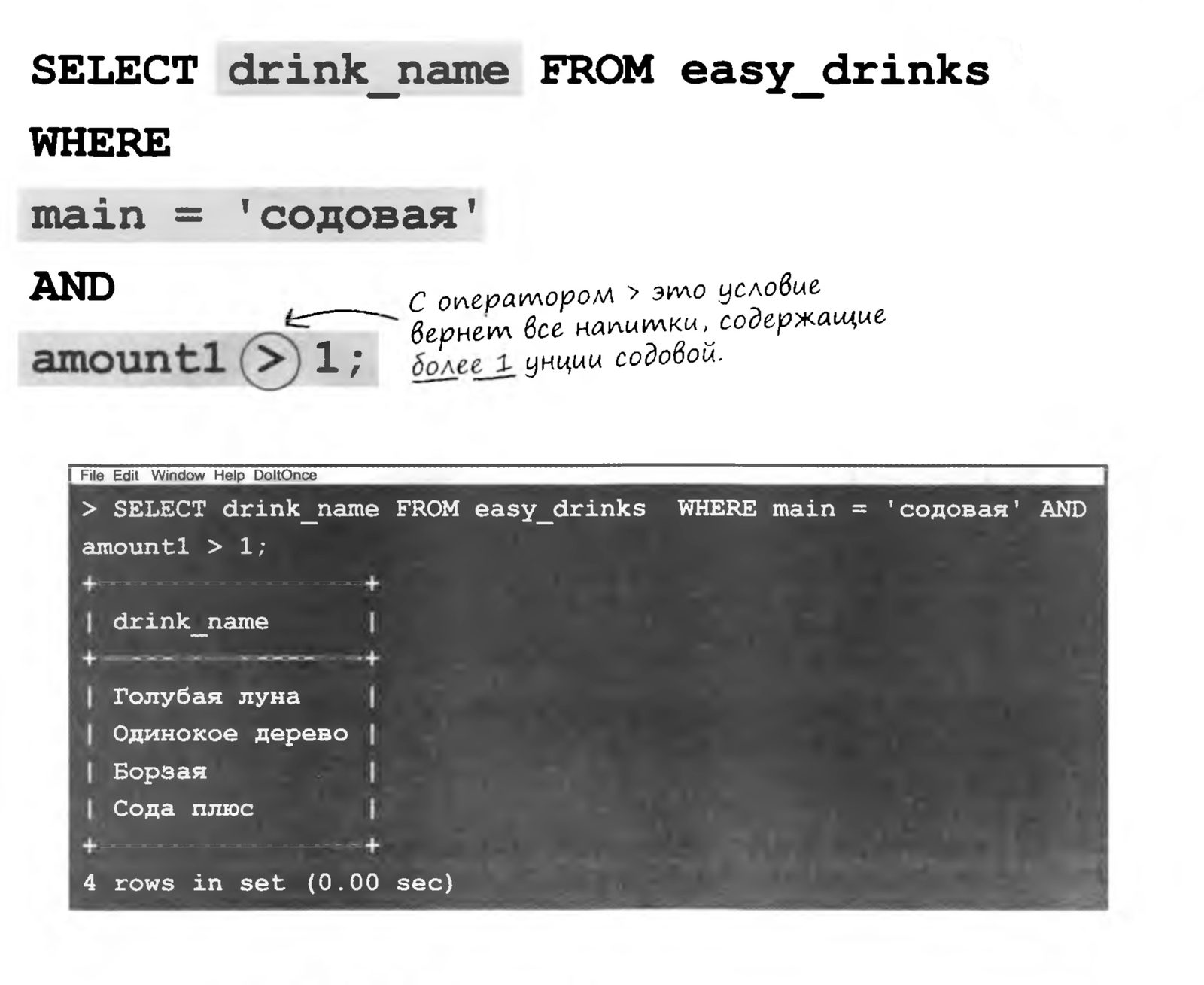
However, using two queries instead of one is inefficient; besides, you risk missing drinks that contain 1.75 or 3 ounces of soda. It is better to use the “greater than” comparison operator:
Comparison operators
So far, our WHERE conditions have used only the = operator. You have just seen an example of the > operator, which compares one value with another. Below is the full summary of comparison operators.
The = operator only checks for exact matches. It won't help if you want to check whether one value is less than or greater than another. The forces of good will check everything for you, so it's all exact. We do not tolerate deviations.
This strange sign means “not equal.” Its result is the exact opposite of the = sign. Two values are either equal or not equal — there is no third option. You are either on the side of light or on the side of darkness — choose for yourself!

The well-known equals sign.

<>
Means “not equal.” Returns all records whose value does not match the specified one
The “less than” operator compares the value of the column on the left with the value on the right. If the column value is smaller, the record is included in the returned set.
The “greater than” operator is the opposite of “less than” in meaning. It compares the column value with the value on the right. If the column value is greater, the record is included in the returned set.
The “less than” operator returns all values smaller than the given one.
And of course, there is a matching “greater than” operator. We always have a counterweight to that side.
The “less than or equal to” operator differs from “less than” in just one way: columns whose value equals the given one are also included
in the result.
Returns all records with a column value LESS THAN OR EQUAL TO the given one.
The same goes for the “greater than or equal to” operator. If the column value is greater than the given value or equal to it, the record is included in the returned set.
And this is our dark operator,
GREATER THAN OR EQUAL TO.
Comparison operators for searching numeric data
A bar keeps a table with the prices and calorie counts of its drinks. The owner wants to pick out high-priced, low-calorie drinks for a promotion.
Using comparison operators, he searches the drink_info table for drinks that cost more than $3.50 and contain no more than 50 calories.
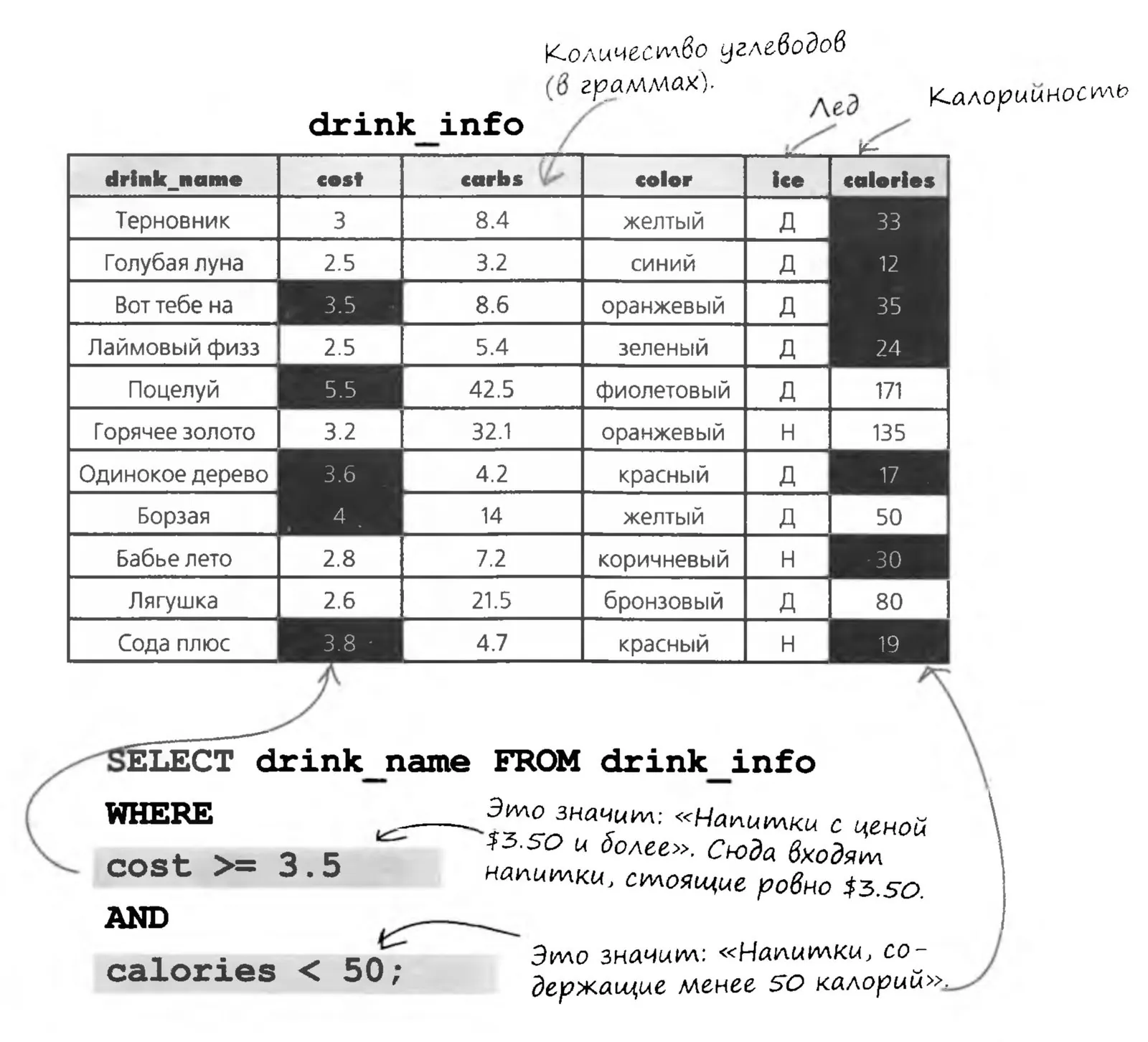
The query returns only drinks that satisfy both conditions, because the two results are combined with the AND keyword. The query returns the drinks “Oh My Gosh,” “Lone Tree,” and “Soda Plus.”
How well did you grasp the power of inequalities?
Now it's your turn to dive into SQL. Write queries that return the specified information. Also write down the result of each query. As always, we'll check the answers when you're ready. Write queries to find:
1. The prices of yellow drinks served with ice that contain more than 33 calories.
2. The names and colors of drinks that contain no more than 4 grams of carbohydrates and are served with ice.
3. The names and colors of drinks that contain 80 or more calories.
4. The drinks “Greyhound” and “Kiss”, with their color and ice information, but without naming the drinks in the query!

Level Practice
This level's assignment is outrageously simple. May 1,000 droids take me apart if you don't finish it in one go, after all the assignments we've rewired in this level! You'll be working with a real MySQL-type DB. In the practical assignment you'll need to write 10 queries. When you're ready, send them to us through the form.

SQL-1 Level Theory Test
Form for submitting the SQL queries you created